
How to schedule weekly auto-syncs: Never forget a backup again
In the digital age, our lives are built on data. From irreplaceable family photos and personal videos to critical business contracts and creative projects, our digital assets are our most valuable property. We have moved away from physical filing cabinets, yet many of us still treat digital storage with a dangerous level of casualness. We all know the “golden rule” of computing: always have a backup. However, there is a significant gap between knowing you need a backup and actually having one that is up to date.
Life gets busy, work piles up, and the manual task of copying files to the cloud often falls to the bottom of the to-do list. This is the “Human Factor”, the tendency to procrastinate until disaster strikes. Air Explorer provides a solution where the only truly reliable backup is the automated one.

The real importance of frequent backups
Why is frequency so important? Many users feel safe because they backed up their files three months ago. But in today’s fast-paced environment, three months of data loss can be catastrophic. If your computer’s motherboard fails tomorrow, or if you fall victim to a ransomware attack that encrypts your local drive, a stale backup won’t save your recent work.
Reliable data protection follows the 3-2-1 Backup Rule: Keep 3 copies of your data, on 2 different types of media, with 1 of those copies located offsite (in the cloud). The cloud provides the perfect offsite sanctuary, protecting you from local physical disasters like fire, theft, or floods. But for the 3-2-1 rule to work, the offsite copy must be a living reflection of your current work. Weekly backups represent the “sweet spot” for most users, frequent enough to prevent major loss, but spaced enough to manage bandwidth effectively.
Why use syncing instead of manual copying?
Many people still use the “Drag and Drop” method, manually moving folders to their cloud provider’s web interface. This is not only tedious but highly inefficient. Manual copying often leads to “Management Fatigue”, you end up with duplicated files, or worse, you miss updated versions of important documents.
Synchronization is the professional’s answer to file management. Instead of copying everything every time, Air Explorer’s sync engine compares your source and destination and identifies exactly what has changed.
Air Explorer offers different sync flavors to suit your needs:
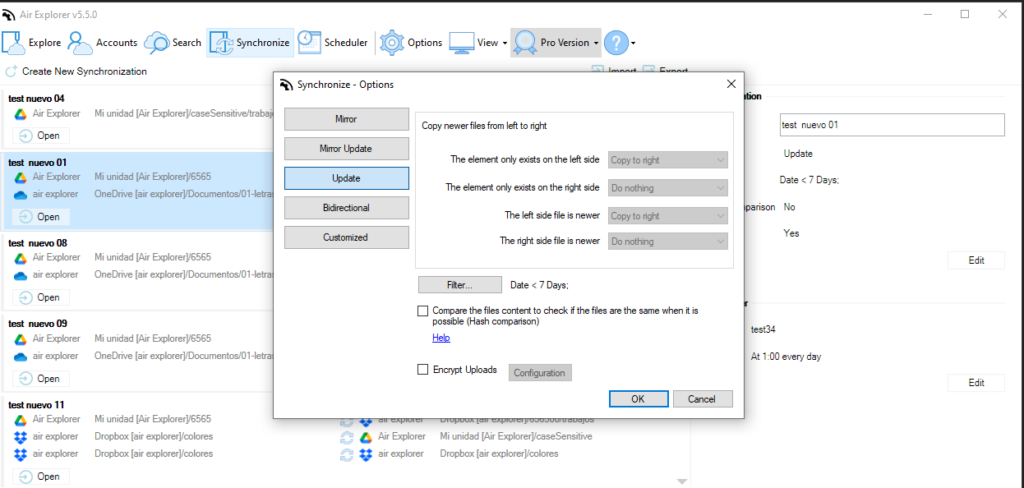
- Mirror: This creates an exact clone. If you delete a file on your PC, it’s deleted in the cloud. It’s perfect for keeping an identical secondary workspace.
- Mirror updated: It only replaces files in the destination if the source version is newer. This prevents redundant transfers and ensures you never overwrite recent work with an older copy.
- Update: This only adds new or modified files to the cloud without deleting anything. It’s the safest option for long-term archiving.
- Bidirectional: This keeps two locations in sync. Changes made in the cloud reflect on your PC and vice versa, ideal for those working across multiple devices.
- Customized: You define the rules for every scenario, deciding exactly how to handle file conflicts, deletions, and “orphan” files. It’s the ultimate choice for creating a bespoke data workflow.
The “How-To”: Setting up your first sync
Before you can automate, you need to define your task. Air Explorer makes this complex process incredibly intuitive.
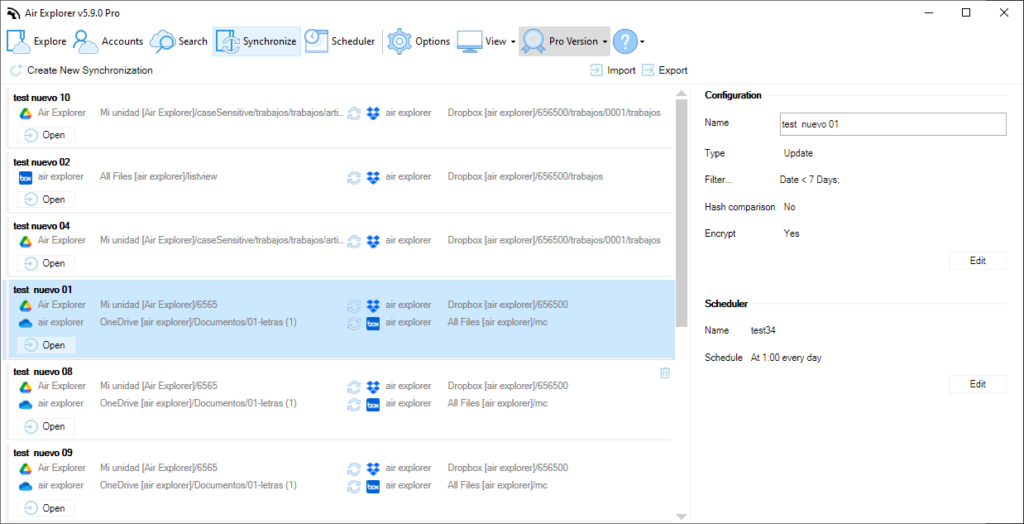
- Step 1: Selecting your sources.
You aren’t limited to just your PC. You can set up a sync between a local folder and Google Drive, or even a cloud-to-cloud sync (for example, backing up your work OneDrive to a personal MEGA account). - Step 2: Configuring the sync task.
Detail matters. In the sync options, you can set “Filters.” Do you really need to back up temporary system files or that 50GB “Trash” folder? By excluding unnecessary data, you make your backups faster and save valuable cloud space. - Step 3: Save your sync task.
Before running or scheduling your sync, you must save it. By saving the task, you store all your specific settings, like filters, encryption, and folder paths, so they can be reused instantly. This saved configuration acts as the “instruction manual” that the Scheduler will follow later to perform your backups automatically without any further input from you. - Step 4: Compare and start.
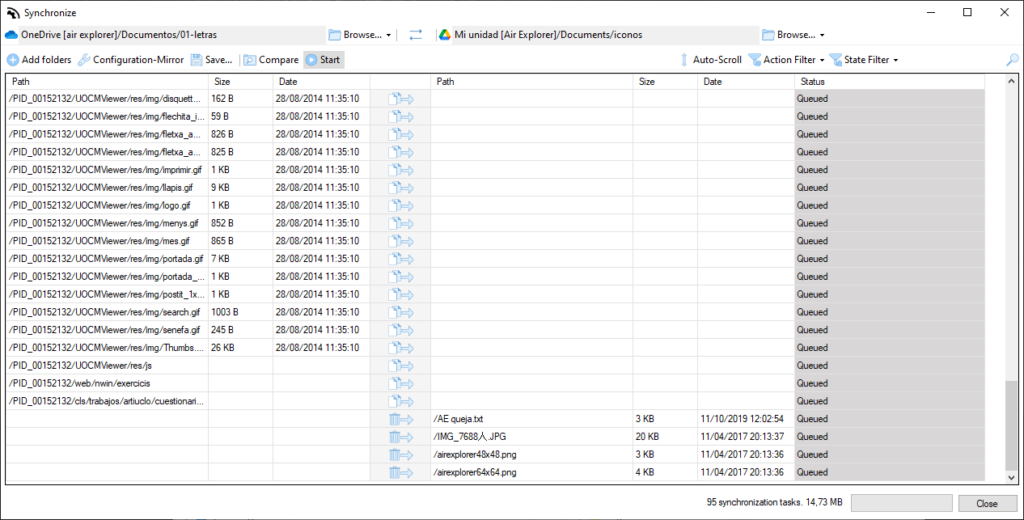
Before committing to the transfer, always use the “Compare” function. This is your safety net. Air Explorer will analyze both locations and generate a detailed preview showing you exactly what is about to happen: which files will be uploaded, which will be overwritten, and which will be ignored based on your rules. Click “Start” with total confidence, knowing your data will be handled exactly as intended.
V. Mastery: The scheduler tool
Once you have saved a sync configuration that works, you no longer need to trigger it manually. Air Explorer includes a Scheduler designed to handle the heavy lifting while you sleep.
How to set up your weekly automation:
- Open the Scheduler: Access the tool from the main menu.
- Assign your task: Select the saved sync task you created in the previous step.
- Choose the timing: We recommend selecting a specific day, perhaps Friday evening after work or Sunday night.
- Pick off-peak hours: Schedule the sync for 3:00 AM. This ensures that the upload process doesn’t compete with your Zoom calls or Netflix streaming.
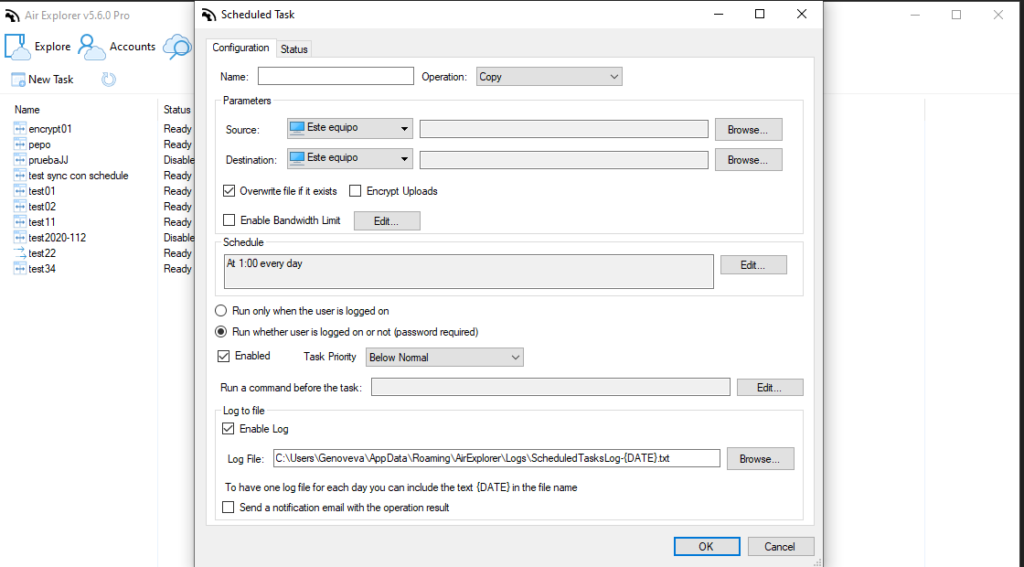
Once scheduled, Air Explorer uses the Windows Task Scheduler system to ensure that even if the app is closed, the process starts on time. It’s a silent guardian for your digital life.
Best practices for scheduled backups
To truly master your backup strategy, keep these professional tips in mind:
- The “Night owl” strategy: As mentioned, always schedule during low-activity hours. High-speed uploads can consume significant bandwidth; don’t let a backup interrupt your workday.
- Log review: Air Explorer keeps detailed logs. Once every few weeks, take thirty seconds to check the “Logs” tab to ensure all tasks were completed successfully.
- Encryption: If you are backing up sensitive documents to a public cloud, use Air Explorer’s built-in encryption feature during the sync. This way, your scheduled backup is not just automated, but also unreadable to anyone without your password.
- Occasional verification: Every once in a while, try to “restore” a file from your cloud backup. This confirms that the data is not just there, but is healthy and accessible.
Conclusion
The peace of mind that comes with an automated backup system is life-changing. You no longer have to wonder, “Did I save that folder?” or fear the dreaded “Blue Screen of Death.” You have moved from reactive panic to proactive organization.
Data loss is a matter of “when,” not “if.” Don’t wait for a hard drive failure or a lost laptop to realize the value of your files. Technology should serve you, and automation is the ultimate form of service.
Don’t leave your digital legacy to chance. Download Air Explorer today, set up your sync tasks, and schedule your first weekly backup. Take five minutes now to save yourself a lifetime of regret.
You can check more information about more features here:
-How to configure multiple sync tasks
-From Dropbox to OneDrive: simplifies cloud transfers
-Cloud to cloud migration made easy
