
How to use Backblaze in Air Explorer
December 21, 2020
Backblaze is a company that provides online backup and cloud storage services. You can use it to back up your personal or business data. You can also store and access your files in the cloud. Air Explorer supports Backblaze accounts.
If you want to add a Backblaze account, you have to add some information:
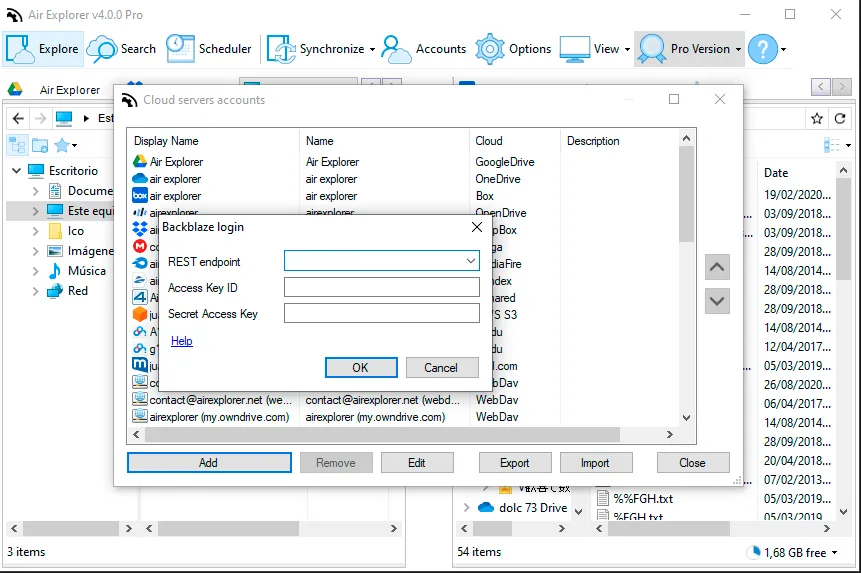
You can find these information, REST endpoint, Access Key ID and Secret Acces, in the Blackblaze page.
REST ENDPOINT
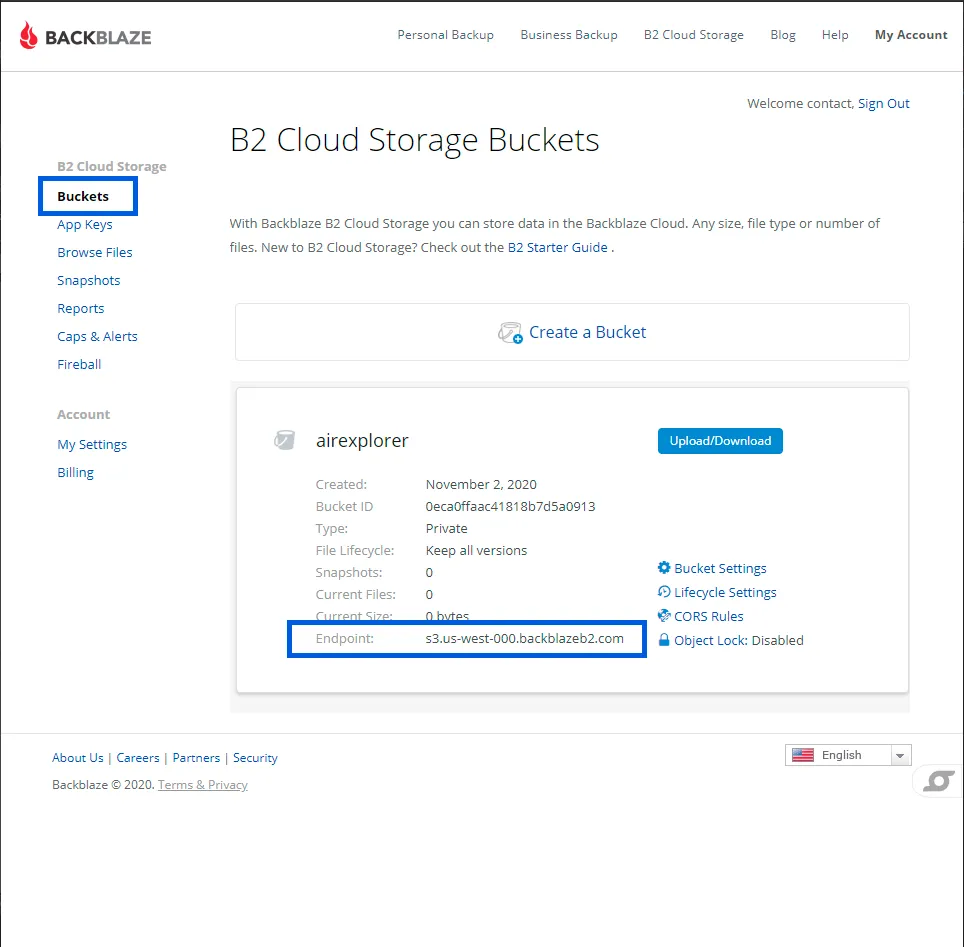
If you have a Backblaze account, enter in your account and navigate to the Buckets page and “Create a Bucket”.
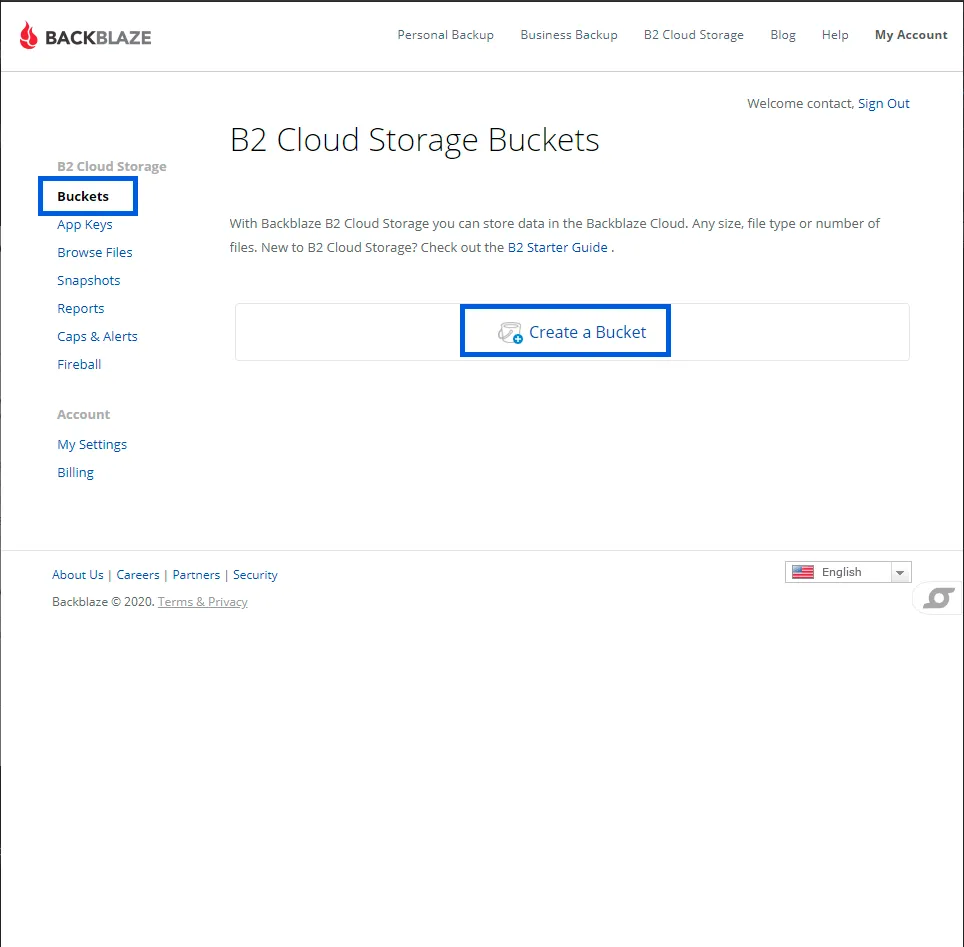
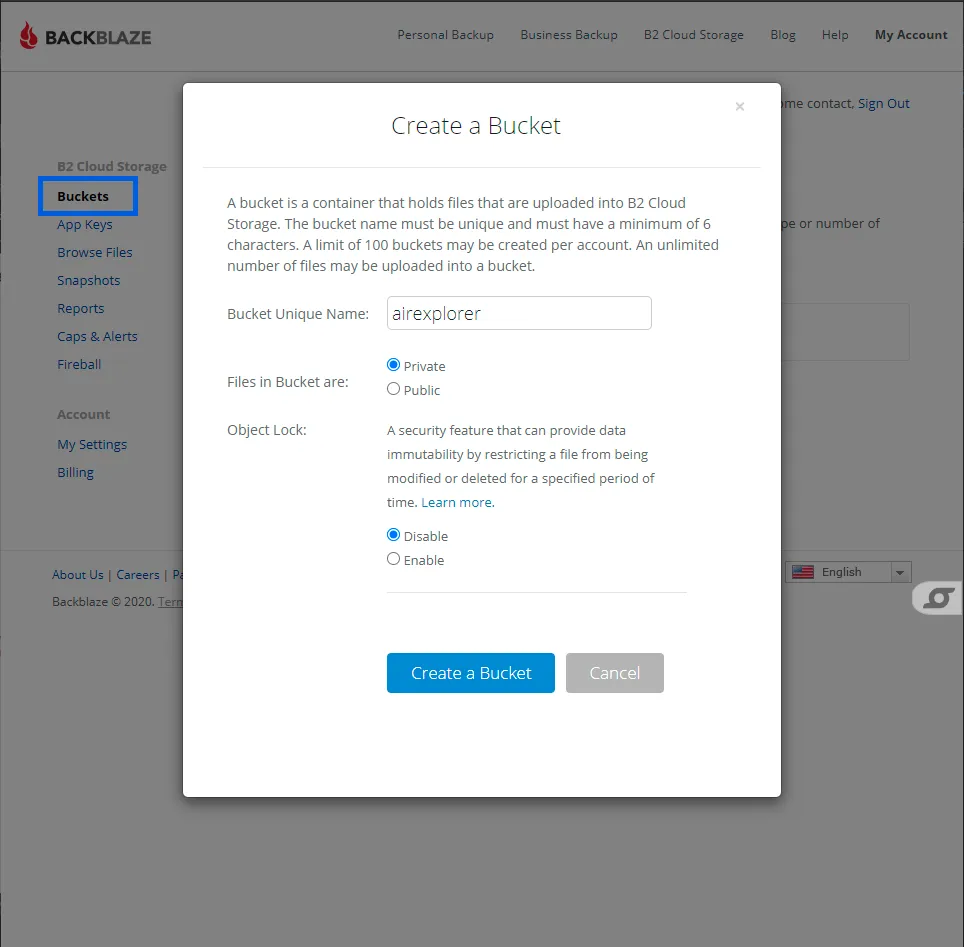
Once you have created a bucket, you can find here the REST ENDPOINT.
ACCESS KEY ID and SECRET ACCESS
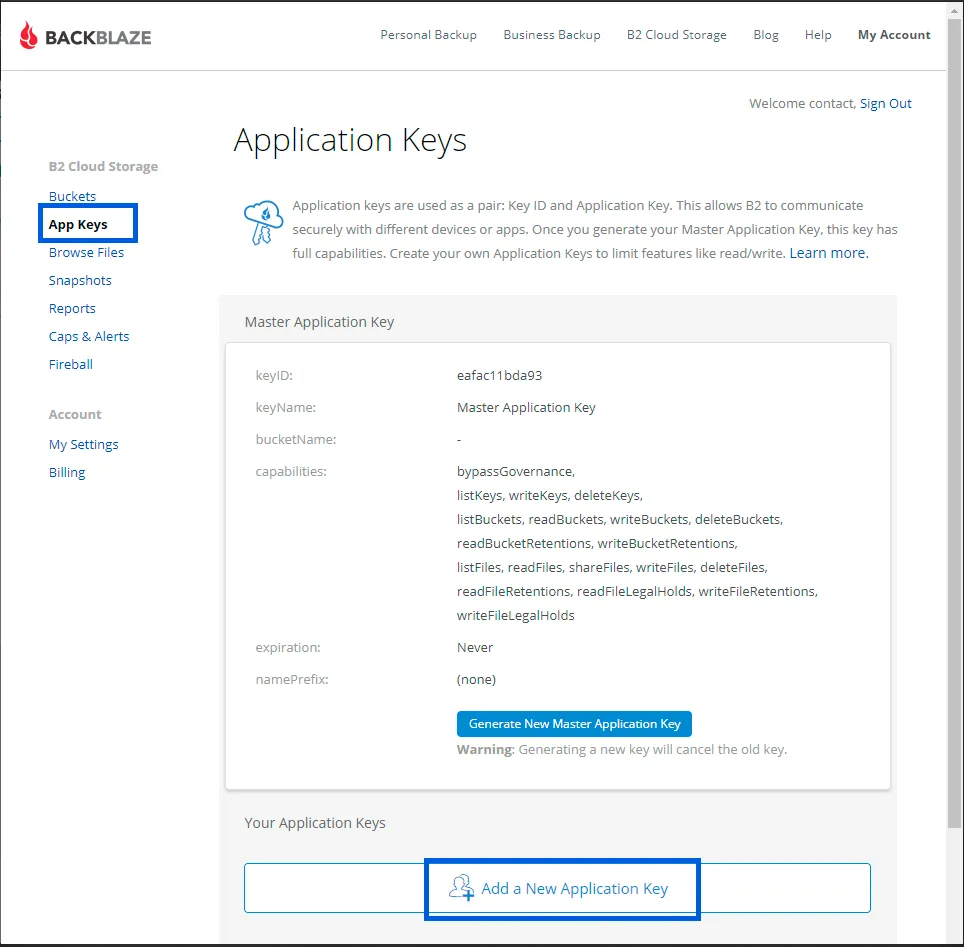
For the Application Key ID and Application Key, head to the App Keys page and make a new key.
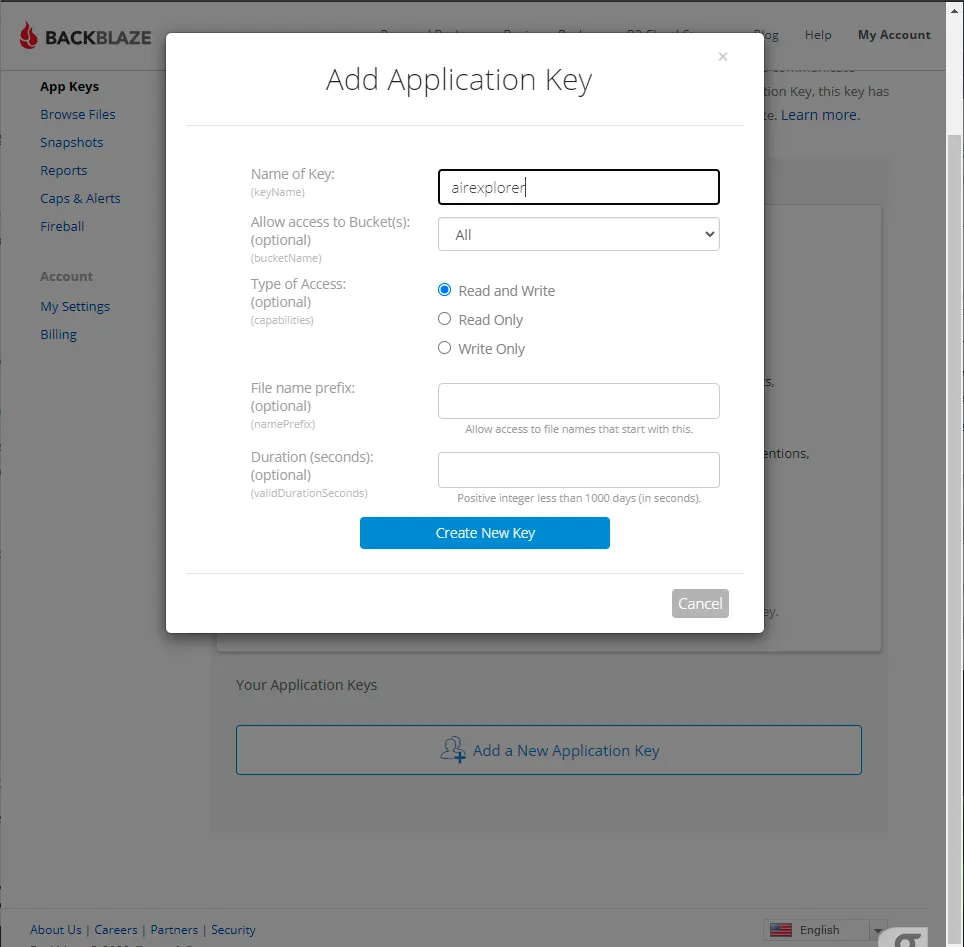
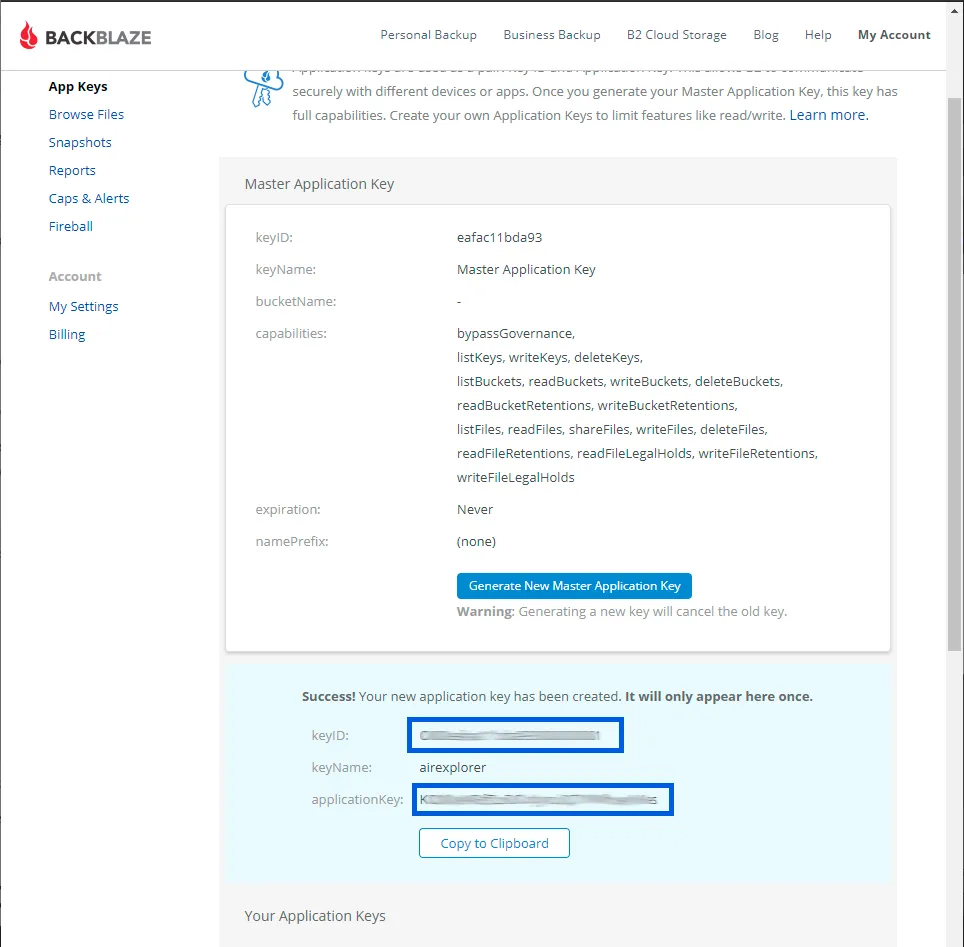
Once you’ve made your key, make sure you copy the Application Key ID and Application Key listed in the blue box.
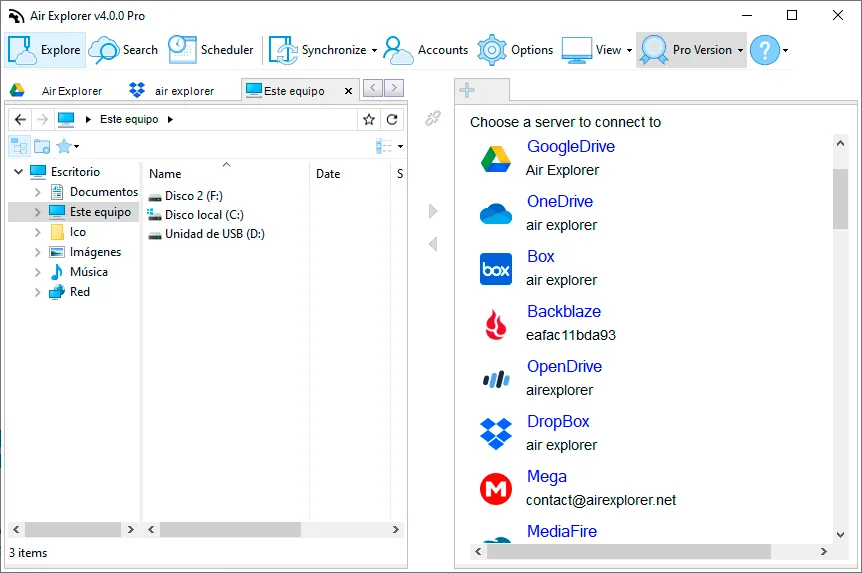
With all the information filled, you can start to work with Backblaze in Air Explorer.
You can check more information here:
-Air Explorer, synchronization and file management tool for Koofr
-How to use Backblaze in Air Explorer
-How to use Opendrive with Air Explorer
-Amazon S3 file manager and backup tool
-Sharepoint file manager and synchronization tool