
How to Automate Cloud File Copying with Command Line
Organizing files within your storage accounts can be a slow task if done manually, especially when handling large volumes of data. Thanks to Air Explorer’s command line, you can automate the copying of files and folders within the same cloud server. In this article, you will learn how to use the copy command to make your organizational processes fast, precise, and unattended.
Why use the command line to copy files?
Unlike manual copying in the traditional file explorer, using the copy command in the CLI (Command Line Interface) offers strategic benefits:
- Server-side copy: Air Explorer requests the cloud to perform the copy internally, which saves time and does not consume your internet connection’s bandwidth.
- Task scheduling: Ideal for duplicating project folders or creating periodic security versions without human intervention.
- Conflict management: Allows you to define automatic rules for what to do if the file already exists at the destination.
Step 1: Preliminary Configuration in Air Explorer
To ensure the commands execute correctly, you must first perform a small configuration in the Graphical User Interface:
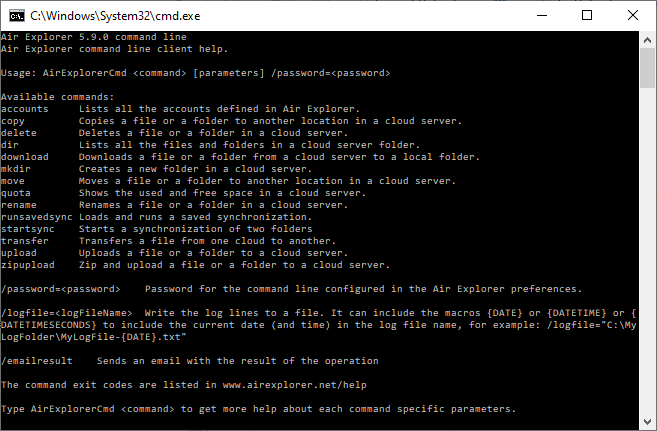
- Enable CLI support: Go to the Options tab, select the General section, and check the “Enable Command Line Support” box.
- Identify the Cloud Alias: Enter the Accounts window. The name that appears next to your cloud icon (e.g., “MyGoogleDrive” or “OneDrive_Work”) is the Alias that we will use in the command.
Step 2: The “copy” command and its syntax
The executable in charge of these operations is AirExplorerCmd.exe. The basic structure for copying a file or folder is as follows:
AirExplorerCmd copy "cloud_alias" "source_path" "destination_path"
Parameters for controlling existing files
When automating copies, you can add these modifiers at the end to manage duplicate files:
/O: Overwrite the file if it already exists at the destination (default option)./R: Rename the copied file if one with the same name already exists./S: Skip the copy if the file is already in the destination folder.
Step 3: Practical Automation Examples
A. Duplicate a project folder in Google Drive
If you need to create a copy of your “Projects_2024” folder in an archive folder within the same Google Drive account: AirExplorerCmd copy "MyGoogleDrive" "My drive [myaccount]/Projects_2024" "My drive [myaccount]/Archive/Old_Projects" /S
PRO Tip: You can get the exact cloud path by copying it directly from the address bar in Air Explorer while browsing your files.
B. Copy a specific file in Mega
To copy a database file to a daily backup folder: AirExplorerCmd copy "Mega_Backup" "Mega [myaccount]/Data/customers.db" "Mega [myaccount]/Backups/Daily" /O
Step 4: Automation with .bat files
To avoid typing the command manually every time you need to perform a copy, the best approach is to create an executable file in Windows:
- Open Notepad and type your command.
- Save it with the .bat extension (for example:
internal_cloud_copy.bat). - Double-click the
.batfile to start the copy.
FAQ: Frequently Asked Questions about the copy command
Can I copy files between different clouds with this command? No, the copy command is designed to copy files or folders within the same cloud account. To copy files between different providers, it is recommended to use the transfer command.
What happens if the destination folder does not exist in the cloud? Air Explorer is smart: if the destination path is not found, the program will automatically create it before performing the copy.
Is the Pro version required? Yes, access to command line features is an advanced feature exclusive to Air Explorer Pro version users.
Can I copy an entire folder with subfolders? Yes. By specifying a folder path as the source, the copy command will perform a recursive copy of all its content to the destination location.
Conclusion
Automating file copying with Air Explorer’s command line is the most efficient solution for keeping your clouds organized professionally. By running directly on the server, you save resources and ensure your workflows are fast and secure.
You can check more information here:
-How to Automate Cloud File Downloads with the Command Line
-How to Automate File Uploads to the Cloud Using Air Explorer’s Command Line
-Google Drive to OneDrive: How to automate syncs with Air Explorer’s command line
