

To move files from OneDrive to Google Drive, add both accounts to Air Explorer, open OneDrive on one side and Google Drive on the other, and drag the files across. You don’t have to download them to your computer and upload them again by hand: Air Explorer copies them straight from OneDrive to Google Drive without saving them to your disk, and it does the same for whole folders. Air Explorer is free for Windows and Mac.
How to Transfer Files from OneDrive to Google Drive
- Download Air Explorer for Windows or Mac and open it.
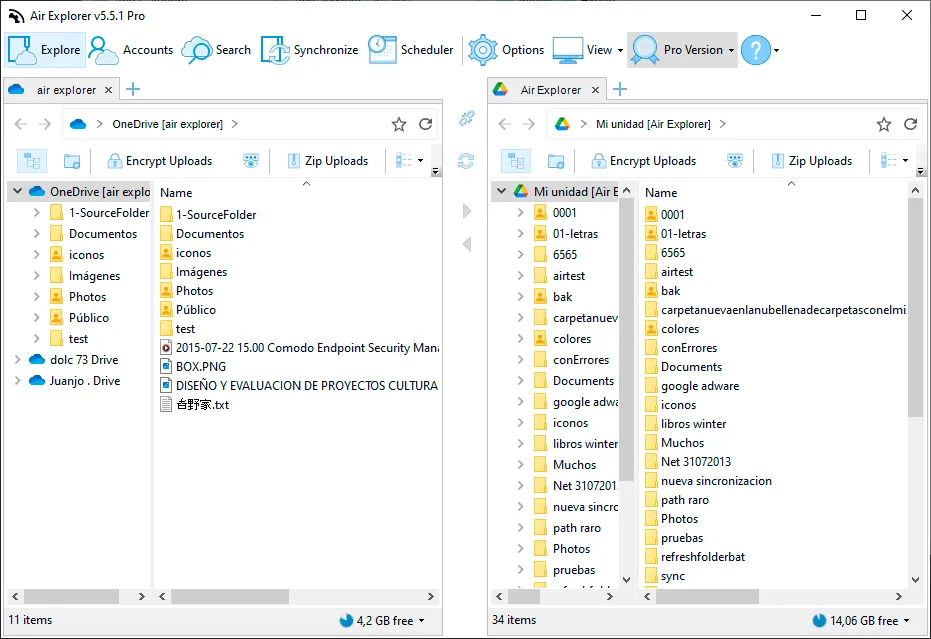
- Add your OneDrive and Google Drive accounts in Accounts → Add account. Each one asks you to sign in on Microsoft’s or Google’s own page; you only do it once.
- Open both accounts side by side: OneDrive in one pane, Google Drive in the other.
- Drag the files or folders from OneDrive to Google Drive, or use Copy and Paste. The task list at the bottom shows each file with its source, destination and progress.
Migrating a Whole OneDrive to Google Drive
To move everything, it is safer to synchronize the two accounts than to drag thousands of files at once. Open your OneDrive folder in one pane and the destination folder in Google Drive in the other, and click Synchronize Current Folders, the button between the two panes: Air Explorer compares both sides and copies only what is missing in Google Drive. If the migration stops halfway, run the same synchronization again and it copies only the files that are left.
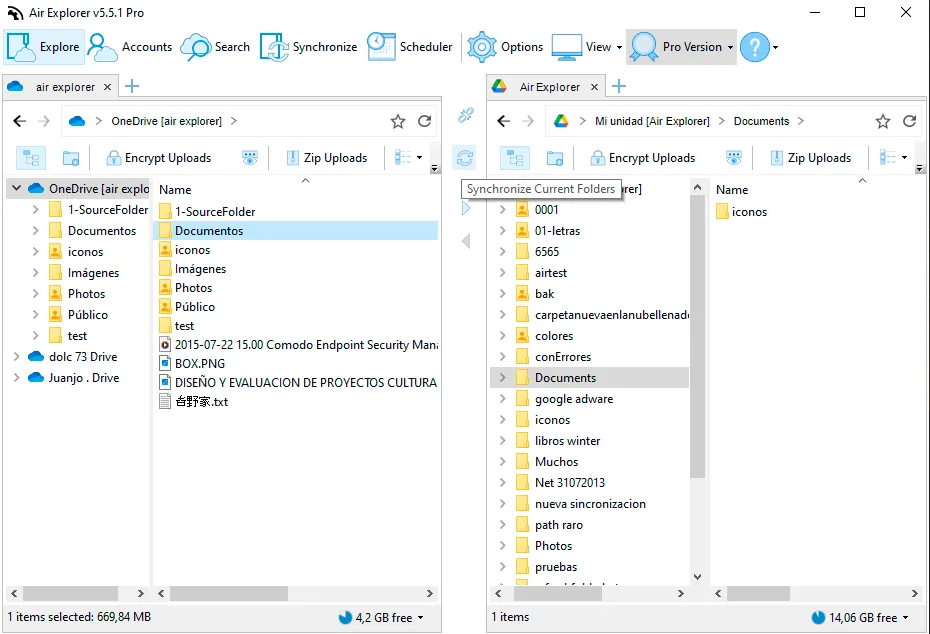
If you keep using both clouds, Air Explorer Pro can save that synchronization and run it on a schedule, so Google Drive always has a copy of what you add to OneDrive.
Ways to Move Files from OneDrive to Google Drive
| Method | How it works | Good for | Drawbacks |
|---|---|---|---|
| Download and upload again | Download from OneDrive’s website (folders come as a ZIP), then upload to Google Drive | A few files | Two manual steps, you need free disk space, and large downloads often fail |
| OneDrive and Google Drive desktop apps | Install both sync apps and move files between their folders on your PC | People who already sync both clouds | Everything is downloaded to your disk first, then uploaded again |
| Online transfer services | Websites that move files between clouds on their own servers | Transfers without installing anything | You have to give them access to both accounts, and your files go through a third party’s servers |
| Air Explorer | Desktop app with OneDrive and Google Drive side by side | Any size, from a few files to a full migration | Your computer has to stay on while it transfers |
Frequently Asked Questions
Is it free?
Yes. The free version lets you add one OneDrive account and one Google Drive account and transfer between them with no data limit. Air Explorer Pro adds more accounts of the same cloud, scheduled tasks and encryption.
Will my Word and Excel files become Google Docs and Sheets?
No. Air Explorer copies them as they are, as .docx and .xlsx files. Google Drive can open and edit them like that, and if you want, you can convert any of them to Google Docs or Sheets from Google Drive.
Do the files go through my computer?
They travel through your internet connection, but they are not saved to your disk, so you don’t need free space for them.
Does it work with OneDrive for Business and SharePoint?
Yes. Add the account as OneDrive for Business or SharePoint and transfer to Google Drive the same way.
Can I move files from Google Drive to OneDrive too?
Yes, it works in both directions: drag the files from the Google Drive pane to the OneDrive pane. See how to transfer files between Google Drive and OneDrive.
Move your OneDrive files to Google Drive today. Download Air Explorer free or see what Pro adds.