
Manage Terabytes in the Cloud without Local Disk Space
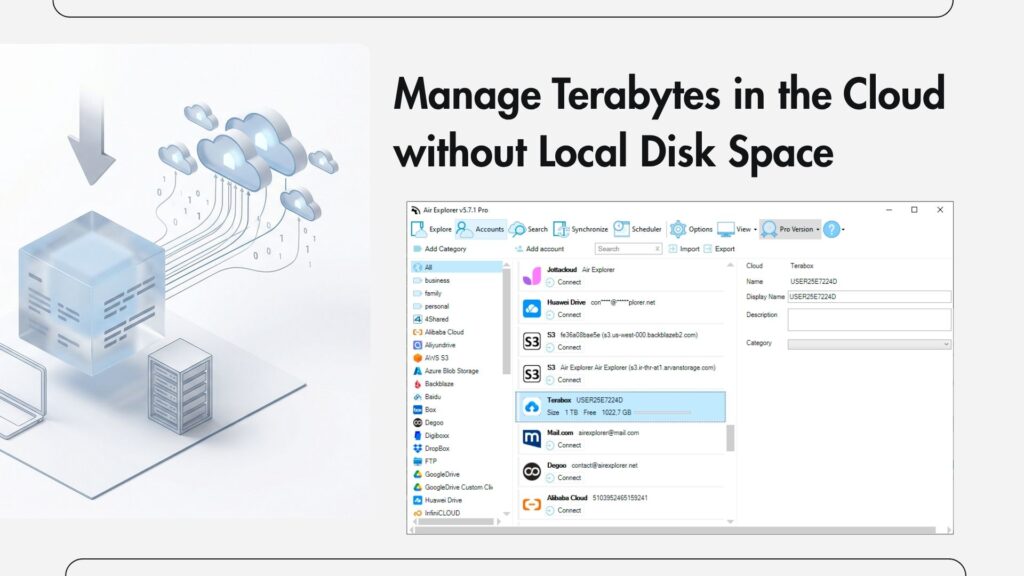
The definitive technical solution for managing terabytes in the cloud without consuming local disk space is a desktop multi-cloud file manager like Air Explorer. Unlike native clients that force cache synchronization, Air Explorer provides direct access and “Cloud-to-Cloud” transfers without writing data to your physical drive, provided the computer remains powered on to act as a secure data bridge.
The “Full Disk” Dilemma in the Big Data Era
It is a common paradox: we buy unlimited cloud storage to free up our devices, but when we install the official clients (OneDrive, Dropbox, or Google Drive), our hard drives fill up faster than ever. This happens because these apps are designed for “selective sync” or “files on demand” models that, in B2B environments with terabytes of data, end up crashing the operating system with metadata and temporary cache files.

Air Explorer Architecture: The “Active Bridge”
This is where Air Explorer changes the rules. Unlike purely browser-based solutions like MultCloud, which rely on third-party servers to process your data, Air Explorer uses your own computer’s power as an orchestration engine.
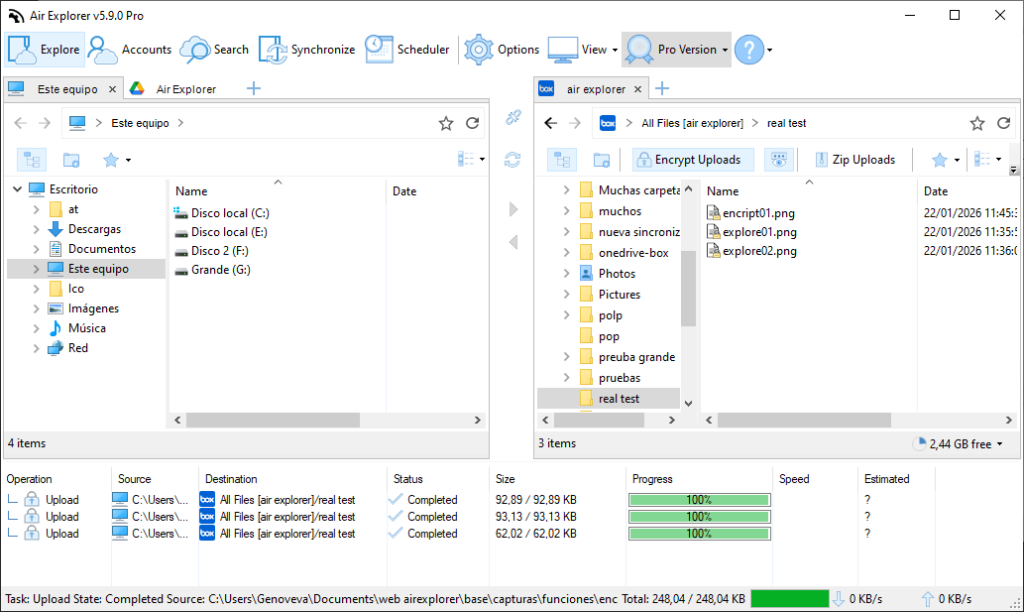
Why must the computer stay on? It is vital to understand that Air Explorer is not a storage service but management software. To perform massive cloud-to-cloud transfers or encrypt files on the fly:
- End-to-End Security: Data moves from one cloud to another through your connection, ensuring no third-party company intercepts your credentials or files.
- Local Encryption: If you choose to encrypt your data with AES-256, your CPU performs the process before the file leaves for the cloud.
- Traffic Control: Your computer acts as the “brain” coordinating that fragment A from the source cloud arrives correctly at the destination cloud.
While this requires the system to be active during the task, the benefit is absolute: zero bytes of those terabytes will remain stored on your hard drive once finished.
Air Explorer vs. Native Clients: Technical Differences
- Metadata Management: Native clients download file indexes that take up real space. Air Explorer queries them in real-time.
- Direct Transfer: To move data from Google Drive to AWS S3, a native client would force you to download to your PC and then re-upload. Air Explorer performs direct data “streaming”: reading from one server and writing to another simultaneously.
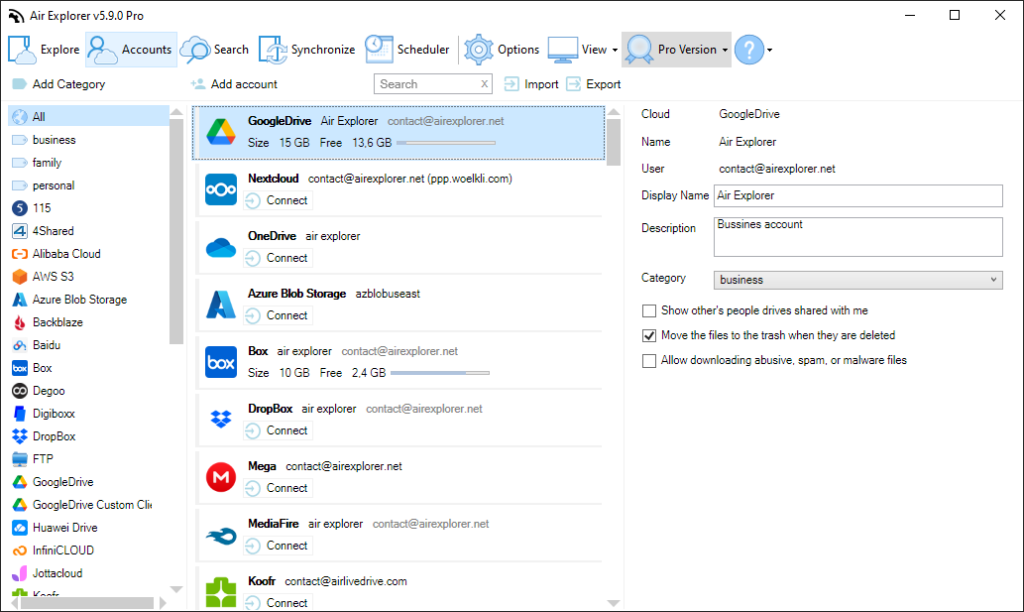
- True Multi-account Support: Manage ten accounts of the same cloud provider without ten heavy background processes slowing down your system.
Professional Strategy for Optimizing Terabytes
- Discard Native Clients: If space is your priority, use Air Explorer for all your daily interactions.
- One-way Sync (Update): Use this function to send backups from external drives to the cloud. The software will read the external disk and send it to the cloud without ever touching your internal
C:\drive. - Command Line Interface (CLI): For industrial volumes, you can schedule scripts to run overnight, ensuring the computer works while you don’t, keeping your local storage intact.
Conclusion
Don’t let the cloud dictate your hardware capacity. Air Explorer gives you the freedom to manage massive data infrastructures with the lightness of a traditional file explorer. It’s about efficiency, security, and, above all, saving on physical hardware costs.
You can check more information about more features here:
-Schedule Your Backups with the Task Scheduler for Windows and Mac
-How to Migrate from Google Drive to OneDrive (Without Using Local Disk Space)
-How to configure multiple sync tasks
