
Step-by-step guide to managing TeraBox and Google Drive with Air Explorer for Android
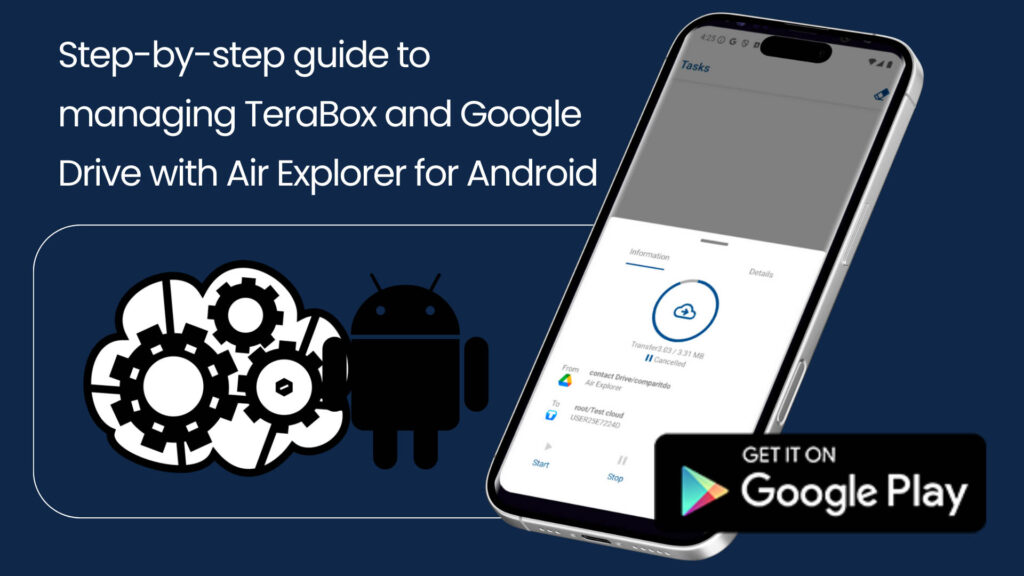
Managing multiple cloud storage services from a mobile device has become essential. Many users rely on several platforms at once, one for backups, another for productivity, another for large files, and switching between apps can quickly become frustrating.
Air Explorer for Android solves this problem by allowing you to connect and manage all your cloud accounts from a single interface. Whether you use TeraBox for its massive free storage or Google Drive for collaboration and productivity, Air Explorer makes it easy to combine both services on your phone.
In this guide, you’ll learn how to manage TeraBox and Google Drive together using Air Explorer for Android, and how to transfer files between them step by step.
Why use Air Explorer for Android to manage your clouds?

A unified cloud manager on your phone
Air Explorer brings all your cloud accounts together in one app. You no longer need to jump between TeraBox, Google Drive, and other cloud apps, everything is accessible from a single interface.
Full file manager interface
Air Explorer works like a complete file manager adapted for mobile:
- Copy, move, rename and delete files
- Browse folders easily
- Use intuitive copy-paste‑style actions
This makes cloud management feel as simple as managing files on your device.
Multi-cloud transfers
One of the biggest advantages is the ability to transfer files directly between clouds. You can move files from TeraBox to Google Drive, saving time and mobile storage.
Privacy and security
Air Explorer includes optional file encryption, giving you an extra layer of protection for sensitive documents.
Why use TeraBox? Advantages of TeraBox storage
Huge free storage
TeraBox is known for offering up to 1 TB of free cloud storage, making it ideal for users who need a lot of space without paying for a subscription.
Perfect for storing heavy content
Its generous capacity makes it perfect for:
- High‑resolution videos
- RAW photos
- Project files
- Large archives
Easy to combine with Google Drive
Many users store long‑term backups in TeraBox while using Google Drive for daily work, sharing, and collaboration. Combining both gives you the best of both worlds.
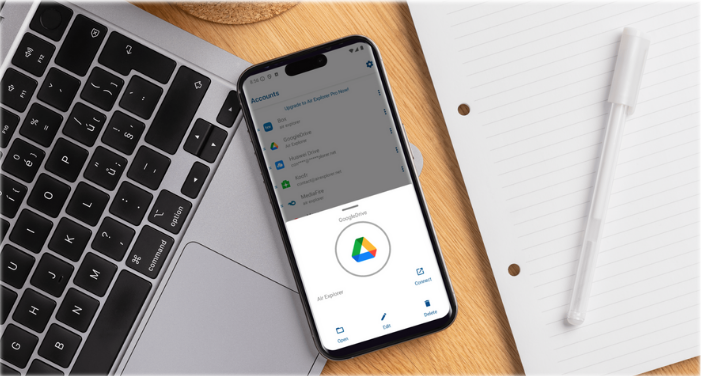
Why manage TeraBox with Air Explorer for Android
The TeraBox app is useful, but it’s not designed for multi‑cloud workflows. Air Explorer improves the experience by letting you:
- Connect TeraBox and Google Drive in one place
- Transfer files between them easily
- Organize folders more efficiently
- Avoid downloading files to your phone
How to add TeraBox and Google Drive in Air Explorer for Android
Install Air Explorer for Android
- Download Air Explorer from Google Play.
- Open the app and go to the cloud list.

Add your TeraBox account
- Tap Add Cloud.
- Select TeraBox.
- Log in with your TeraBox credentials.
- Grant the necessary permissions.
Add your Google Drive account
- Tap Add Cloud again.
- Select Google Drive.
- Sign in with your Google account.
- Allow access to your Drive files.
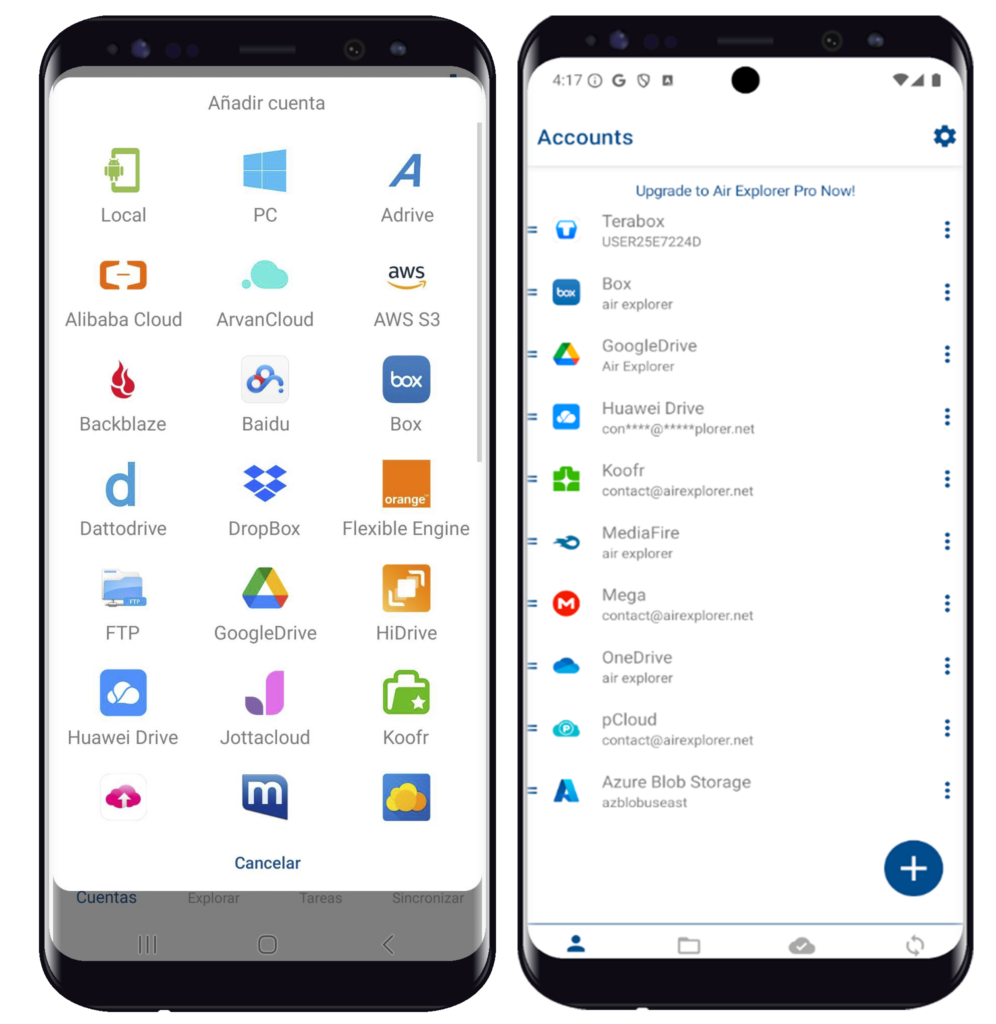
Verify both clouds are connected
Once added, both TeraBox and Google Drive will appear in the cloud panel. You can now browse, manage, and transfer files between them seamlessly.
Step-by-Step: How to transfer files from Google Drive to TeraBox on Android
1. Open Google Drive inside Air Explorer
Navigate through your Google Drive folders and select the files you want to transfer.
2. Choose the “Copy” or “Move” option
- Long‑press to select one or multiple files.
- Tap the Copy or Cut icon.
3. Select TeraBox as the destination
- Browse your TeraBox folders.
- Choose the folder where you want to place the files.
4. Start the transfer
Air Explorer will begin transferring the files cloud‑to‑cloud, without using your device’s storage.
5. Monitor progress
You can check the transfer queue to see the status of each file.
Pause or resume tasks whenever you need.
6. Confirm the files in TeraBox
Once the transfer is complete, open Google Drive inside Air Explorer to verify that the files have been uploaded correctly.
Conclusion
Air Explorer for Android is the easiest way to manage TeraBox and Google Drive from your mobile device. With its unified interface, powerful file manager, cloud‑to‑cloud transfers, and optional encryption, it gives you full control over your cloud storage without filling your phone’s memory.
If you want a simple, fast, and secure way to organize your files across multiple clouds, try Air Explorer for Android and unify all your cloud accounts in one place.
You can check more information here:
-Air Explorer for Android: Transfer files between Mega, Google Drive and more
-Move files from Google Drive to Google Drive with your phone
-Encrypt and upload your files to the cloud with the smartphone
