

Mastering the Air Explorer command line opens a world of possibilities for automating your clouds. However, with so many functions available, it is easy to forget the exact syntax of a command or which parameters you can use. To address this, Air Explorer includes a built-in help system. In this article, you will learn how to use the help command to resolve doubts instantly and make the most of the tool’s potential.
Why is the help command useful?
The help command is the starting point for any system administrator or power user working with the CLI (Command Line Interface):
- Command Dictionary: It shows you a complete list of all operations Air Explorer can perform (upload, download, transfer, sync, copy, etc.).
- Real-time Syntax: Forget about searching for manuals online; you can see how to write each command directly in your terminal.
- Feature Discovery: It allows you to learn about advanced parameters you might not have known existed, such as encryption modifiers or filters.
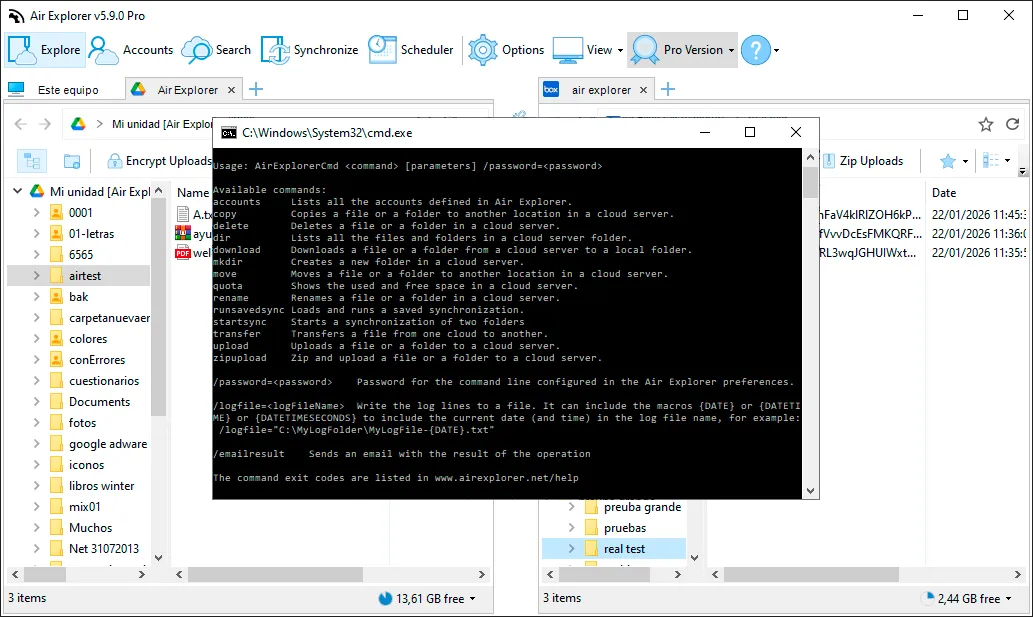
Step 1: Preliminary configuration in Air Explorer
To access help from your console, you must first ensure that command line support is active:
- Enable CLI support: Open Air Explorer, go to the Options tab, select the General section, and check the “Enable Command Line Support” box.
- Executable path: Make sure you know where the program is installed (usually in
C:\Program Files\AirExplorer) to be able to invoke theAirExplorerCmd.exefile.
Step 2: The “help” command and its syntax
The help instruction is the simplest of all and can be used in two main ways:
A. List all available commands
If you simply want to see what Air Explorer can do, type: AirExplorerCmd help
This will show you a list with commands such as upload, download, transfer, sync, dir, among others.
B. Specific help for a command
If you know what you want to do (for example, upload files) but don’t remember the parameters, type: AirExplorerCmd help [command_name]
Example: AirExplorerCmd help upload
This will return a detailed description, the correct syntax, and a list of all modifiers (such as /O, /R, /S, or /encrypt).
Step 3: Practical query examples
A. Consult synchronization help
If you need to remember how to set up a mirror between two clouds: AirExplorerCmd help sync
B. View help for the listing command
To understand what the /id or /s parameters of the dir command mean: AirExplorerCmd help dir
PRO Tip: If you are writing a complex script in a .bat file, use the help command before starting to validate that the parameter names are correct.
Step 4: Export help to a file
Sometimes it is useful to have the command list handy in a text document. You can dump the Air Explorer help to a file as follows:
- Open the Command Prompt.
- Type:
AirExplorerCmd help > airexplorer_commands.txt - A file named
airexplorer_commands.txtwill be created with all the official documentation in your current folder.

FAQ: Frequently Asked Questions about the help command
Does the help command require an internet connection? No. The documentation is integrated within the executable, so you can consult it even if you are offline.
Is help available in Spanish in the console? The command line output is usually in English to maintain technical compatibility and system administration standards, but it is very easy to understand thanks to its clear structure.
What should I do if a command from the help doesn’t work for me? Make sure you are using the latest version of Air Explorer. Some advanced command line features are added in the most recent updates.
Conclusion
The help command is your best ally for mastering cloud automation. It is the key that allows you to understand how to interact with your data without errors. With this guide, you will no longer have to memorize every parameter: the solution is just one command away.
You can check more information here:
-How to Automate Compressed Uploads (zipupload) to the Cloud
-How to Automate Cloud File Listing with Command Line
-How to Automate Cloud Storage Quota Checks with Command Line