
How to Automate Compressed Uploads (zipupload) to the Cloud
August 7, 2026
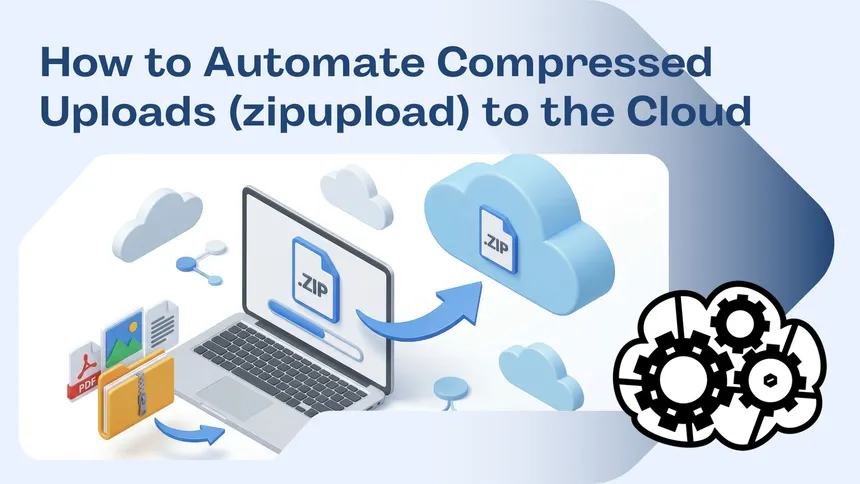
When managing large volumes of data or thousands of small files, transfer time and cloud storage space can become an issue. Thanks to the zipupload command in the Air Explorer command line, you can compress your files locally and upload them as a single .zip file automatically. In this article, you will learn how to optimize your backups using this powerful automation tool.
Why use “zipupload” instead of a normal upload?
Using the zipupload command via the CLI (Command Line Interface) offers critical advantages for efficiency:
- Space Saving: Compression reduces the total size of data in the cloud.
- Transfer Speed: Uploading a single large file (.zip) is much faster than uploading thousands of small files due to lower latency in server requests.
- Additional Security: It allows you to protect the compressed file with a password independently of Air Explorer’s encryption.

Step 1: Preliminary Configuration in Air Explorer
To ensure the commands run correctly, make sure you have enabled CLI support in the graphical interface:
- Enable CLI Support: Go to the Options tab, select the General section, and check the “Enable Command Line Support” box.
- Identify the Cloud Alias: Open the Accounts window. The name that appears on the left (e.g., “GoogleDrive_Pro” or “Backup_S3”) is the Alias that we will use.
Step 2: The “zipupload” command and its syntax
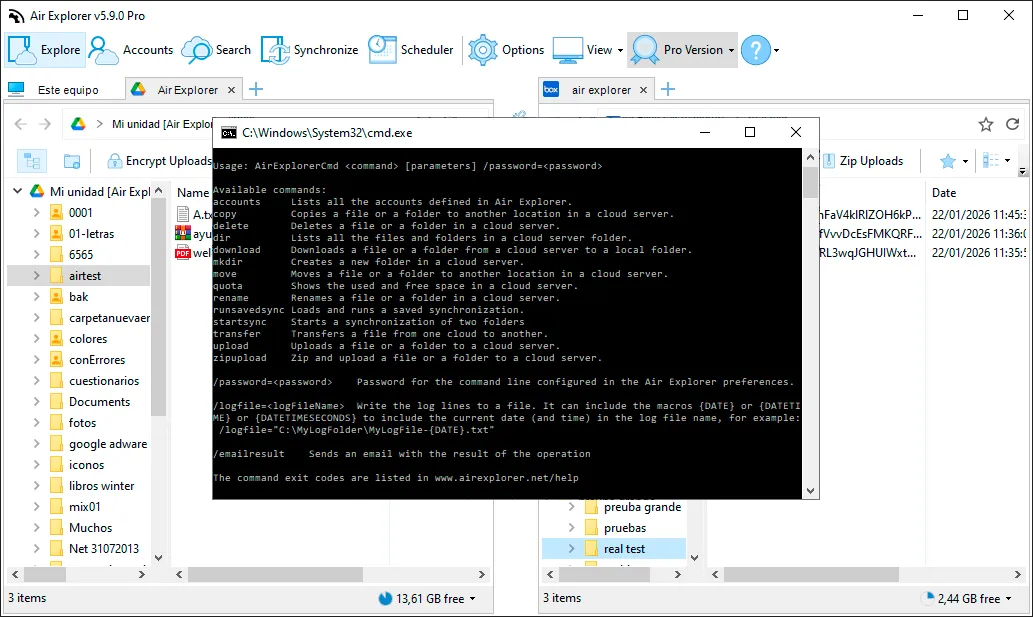
The instruction for performing compressed uploads uses the AirExplorerCmd.exe executable. The basic structure is:
AirExplorerCmd zipupload "local_path" "cloud_alias" "destination_path" [/zippassword=...] [/compressionlevel=1|2|3] [/O | /R | /S]
Specific Compression Parameters:
/zippassword=your_password: Sets a password to protect the resulting .zip file./compressionlevel=1|2|3: Defines the compression level:1: Fast (lower compression, higher speed).2: Normal (standard balance).3: Maximum (higher compression, slower process).
Step 3: Practical Automation Examples
A. Compressed Log Upload with Maximum Compression
If you want to compress a local logs folder and upload it to OneDrive: AirExplorerCmd zipupload "C:\Logs\App" "OneDrive_Backup" "OneDrive [air explorer]/Archive/Logs" /compressionlevel=3 /O
PRO Tip: You can get the exact cloud path by copying it directly from the address bar in Air Explorer.
B. Password-Protected Backup to Google Drive
To upload a folder of personal documents protected with a password inside the zip: AirExplorerCmd zipupload "D:\MyDocuments" "MiGoogleDrive" "Mi unidad [Air Explorer]/Backup" /zippassword=PrivateKey123
Step 4: Automation with .bat Files
To perform compressed backups without manual intervention, the best approach is to create a script:
- Open Notepad and paste your
zipuploadcommand. - Save the file with the .bat extension (e.g.,
compressed_backup.bat).
FAQ: Frequently Asked Questions about zipupload
Can I encrypt the zip file using Air Explorer’s encryption function? Yes. You can add the /encrypt parameter at the end of the command so that, in addition to being a zip, the file is uploaded under Air Explorer’s security encryption layer.
What will be the name of the zip file in the cloud? By default, Air Explorer will create a .zip file with the same name as the source folder or file you are uploading.
Can I compress individual files? Yes, if the “local_path” points to a specific file, Air Explorer will compress it into a zip before starting the upload.
Is the Pro version required? Yes, command-line functions and the compressed upload engine are exclusive features of the Air Explorer Pro version.
Conclusion
The zipupload command is the ultimate tool for those looking to maximize their backup efficiency. By combining compression and automation, you ensure that your data takes up the minimum possible space and is transferred in the shortest time.
You can check more information here:
-How to Automate Cloud File Listing with Command Line
-How to Automate Cloud Storage Quota Checks with Command Line
-How to Automate Cloud move files with Command Line