
How to configure multiple sync tasks
Why multiple sync tasks matter
Managing several cloud accounts and folders can quickly become overwhelming when you rely on manual transfers or single sync operations. Switching between Google Drive, OneDrive, Dropbox and local folders often leads to duplicated work, outdated files and unnecessary time spent checking whether everything is aligned.
Air Explorer, a multi‑cloud manager with an integrated synchronization tool, solves this problem by allowing you to automate and centralize your cloud workflows.
In this guide, you’ll learn how to configure multiple sync tasks in Air Explorer so you can synchronize several folder pairs at once, save time and keep all your clouds perfectly updated with minimal effort.
What is Air Explorer and its sync tool?
Air Explorer is a desktop application for Windows and Mac that lets you manage and synchronize multiple cloud accounts and local drives from a single interface. You can connect popular services like Google Drive, OneDrive, Dropbox, Box, Amazon S3, WebDAV, FTP and many others, making it easy to move and organize files across platforms.
Its built‑in sync tool allows you to:
- Synchronize cloud ↔ cloud
- Synchronize PC ↔ cloud
- Choose between several sync modes: mirror, mirror update, update, bidirectional and customized.

Using a desktop sync tool is far more reliable than manual transfers. Air Explorer compares folders, previews actions, handles large data sets and avoids human error, giving you a flexible and consistent way to keep your files synchronized across all your storage locations.
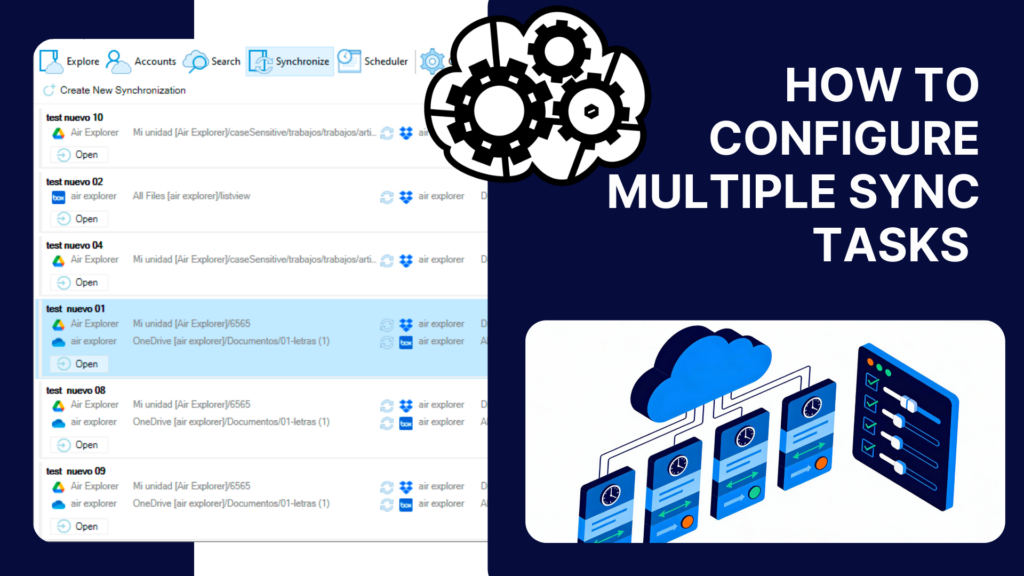
Multiple synchronization in Air Explorer (concept and advantages)
Multiple synchronization allows you to add several pairs of folders within the same sync task, all using the same configuration and sync mode. These folder pairs can come from different cloud services or from the same cloud account, giving you full flexibility to organize your workflow.
Unlike running a single sync, multiple synchronization applies one configuration to several folder pairs at once. This means you can update multiple projects, backup sets or shared folders in a single operation instead of creating separate tasks for each one.
Practical examples include:
- Synchronizing several project folders across Google Drive, OneDrive and Dropbox simultaneously.
- Keeping work folders, backup folders and shared team folders updated in one unified sync.
- Running a single operation that updates all critical locations in your workflow without manual intervention.
How to configure multiple sync tasks in Air Explorer
To configure multiple sync tasks in Air Explorer, follow these steps:
1. Prepare your accounts
- Open Air Explorer and connect all the cloud accounts you want to use.
- Verify that each cloud appears correctly in the account list.
2. Create the first synchronization
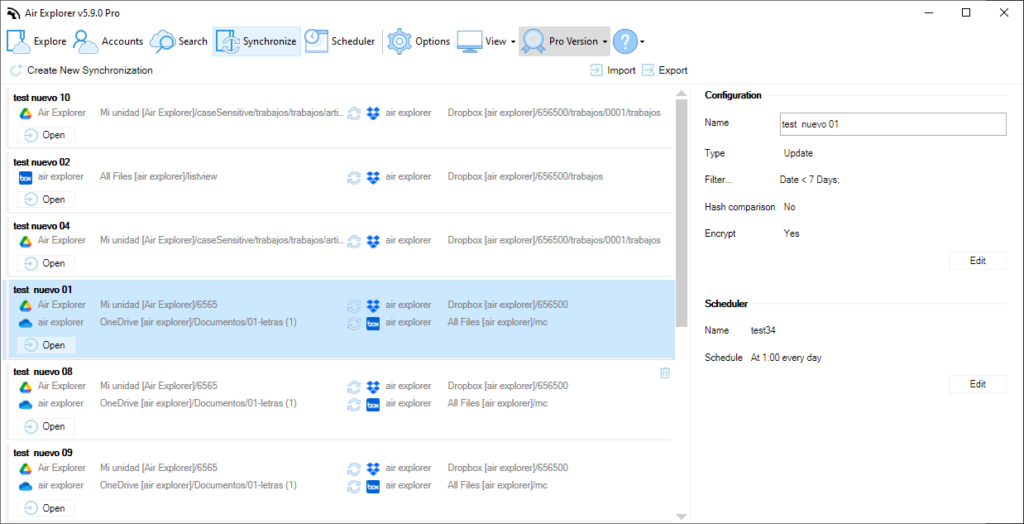
- Go to the Synchronization tab and click Create new synchronization.
- Select the source folder (cloud or local drive) and the destination folder (another cloud or local folder).
- Choose the sync type: mirror, mirror update, update, bidirectional or customized.
3. Add more synchronizations (multiple folder pairs)
- Use the option to add another pair of folders with the same sync characteristics.
- Combine folders from different clouds or from the same cloud within one task.
4. Save and compare your sync tasks
- Save each sync task with a unique, descriptive name.
- Click Compare to analyze the differences between folders.
- Review the list of actions (copy, update, delete) before starting the sync.
5. Run, review and repeat
- Click Start to launch the multiple synchronization.
- When it finishes, review the logs and summary information.
- Saved sync tasks can be reused anytime without reconfiguration.
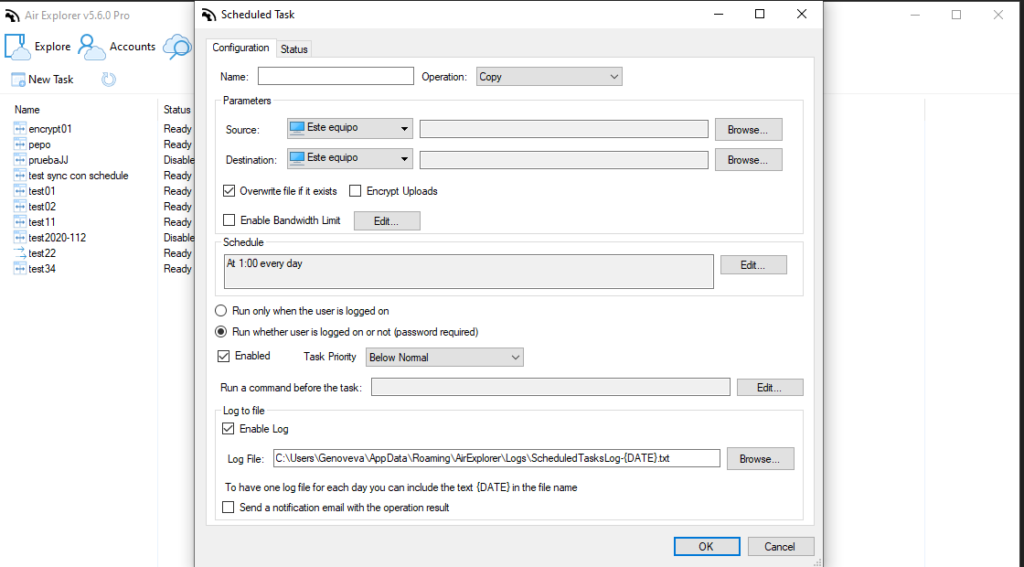
- For automation, schedule sync tasks to run at specific times or intervals, ideal for backups and large‑volume data workflows.
Best practices for efficient multiple synchronization
- Group related folders, projects, clients or backup sets, into the same multiple sync task.
- Use descriptive names such as “Projects – mirror” or “Weekly backup – multi‑cloud.”
- Start with a small test sync to validate your configuration and sync mode.
- Check logs regularly to detect errors, conflicts or cloud quota issues.
- Combine scheduled tasks with manual runs when you need immediate updates.
Reasons to configure multiple sync tasks
Configuring multiple sync tasks in Air Explorer offers several advantages:
Time and productivity
- Sync many folders in one operation instead of setting up individual tasks.
- Reduce repetitive configuration and eliminate manual checks.
Organization and control
- Group folder pairs by client, project or department while running them together.
- Save each synchronization with a clear name for easier management and reuse.
Reliability and backup
- Ideal for large data sets and multi‑cloud backup strategies.
- Run parallel synchronizations to keep several clouds aligned and always up to date.
Why Air Explorer stands out
- intuitive interface for configuring syncs.
- Multiple sync modes adapted to different workflows.
- Logs and comparison views to review actions before and after each run, ensuring full transparency and control.
Conclusion
Configuring multiple sync tasks in Air Explorer is one of the most effective ways to boost productivity, keep your cloud accounts aligned and simplify your backup routines. This feature is especially valuable when working with large amounts of data or managing several cloud providers at once.
Download or update Air Explorer today, set up your first multiple synchronization and start saving time in your daily cloud workflows.
You can check more information about more features here:
-Top MultCloud alternative: Air Explorer
-From Dropbox to OneDrive: simplifies cloud transfers
-Cloud to cloud migration made easy
