
Managing Microsoft Azure on Android: The Ultimate B2B Mobility Guide
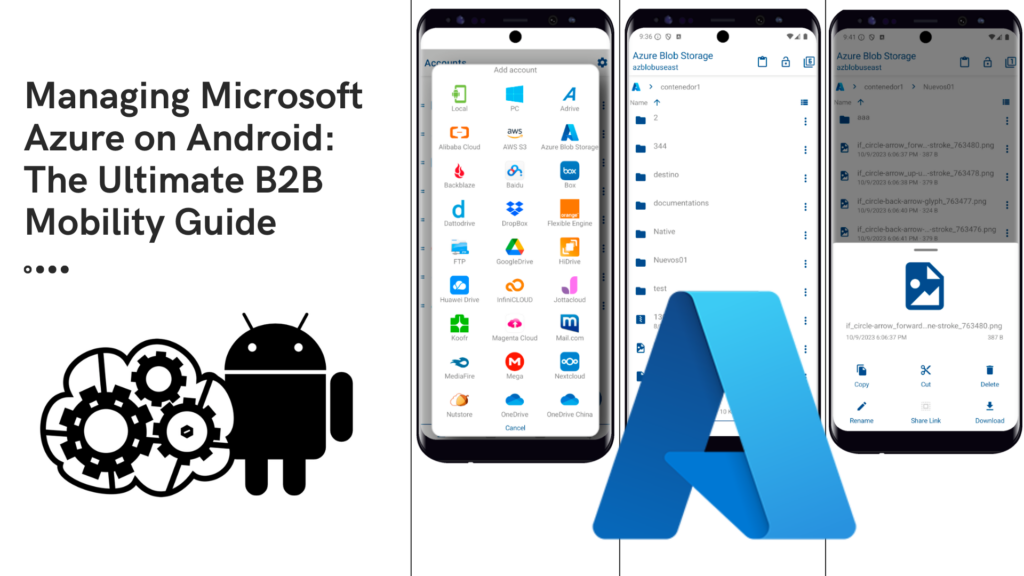
The B2B Mobility Challenge
In today’s fast-paced technological landscape, responsiveness is an organization’s most valuable asset. The rise of remote work and the decentralization of IT teams have turned critical infrastructure supervision into a 24/7 requirement. For sysadmins and solution architects, relying solely on a desktop workstation for urgent adjustments is no longer efficient or practical.
However, managing Azure Blob Storage from mobile devices has historically been a challenge. Traditional web interfaces and heavy management portals are rarely optimized for professional workflows on touchscreens. Air Explorer for Android emerges as the definitive solution: a native, lightweight, and highly efficient bridge designed specifically for professional cloud file management.

Microsoft Azure: The Enterprise Storage Standard
Microsoft Azure has established itself as the backbone of thousands of companies thanks to its robustness and versatility. Azure Storage is an ecosystem including Blob Storage for unstructured data and Azure Files for shared resources.

Advantages of Working with Azure
- Massive Scalability: Infrastructure for petabytes of data with exceptional durability.
- Active Directory Integration: Granular permission management and access policies.
- Global Redundancy: LRS and GRS options ensuring business continuity.
Step-by-Step Guide: How to Set Up and Navigate Azure on Android
Getting started with managing your infrastructure from your phone is simple and direct:
How to Add Your Azure Account
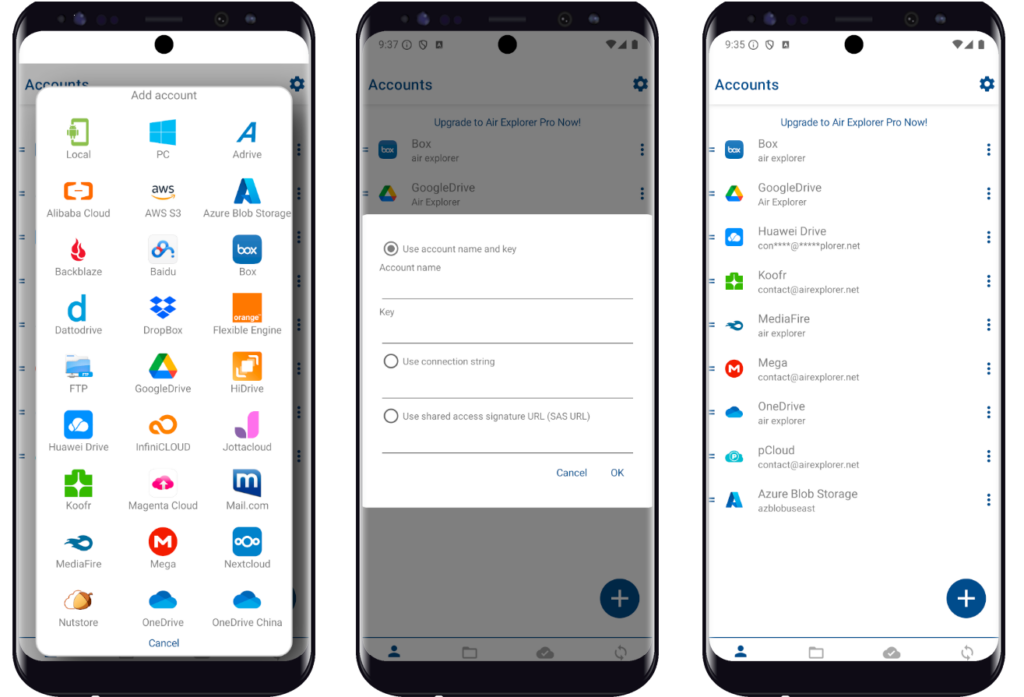
- Open Air Explorer for Android and go to the Accounts tab.
- Tap the “Add account” button (the “+” icon).
- Select the Azure Blob Storage logo from the list of supported clouds.
- Enter your credentials: the Storage Account Name and the Access Key found in your Azure portal.
- Tap “OK,” and your account is ready to use.
How to Navigate and Manage Your Files
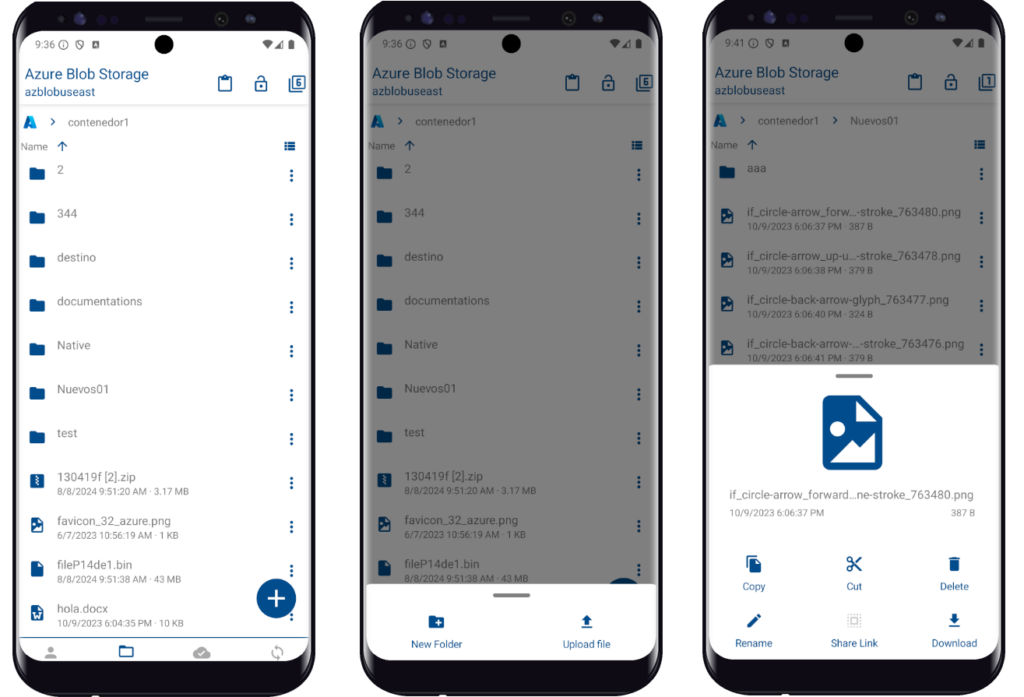
Once the account is added, tap on it in the Explore tab:
- Container Browsing: You will see your Azure containers as local folders. Swipe to navigate between directories.
- Quick Actions: Long-press a file to see the menu: download, rename, delete, or share.
- Upload and Encryption: Use the upload button to add files from your device. For extra security, enable the Encrypt Uploads option before starting the process.
Air Explorer for Android: Key Technical Features
Unlike a browser that must render complex portals, Air Explorer interacts directly with the Azure API. This results in fluid navigation, immediate command response, and significantly lower resource consumption.
Multi-account Interface
Manage Azure containers for different clients or projects simultaneously from a single interface, eliminating the need to constantly log in and out.
Strategic Benefits of Mobile Multi-cloud Access
Carrying the power of Azure in your pocket provides unprecedented operational agility. Air Explorer allows moving files between Azure and other services like OneDrive or Google Drive directly from your smartphone, saving battery and mobile data by avoiding local downloads.
Enterprise-Grade Security on Your Smartphone
Security is non-negotiable. The “Encrypt Uploads” feature protects files using $AES-256$ encryption algorithms before they ever leave the device. This client-side encryption ensures sensitive data remains private, complying with the most demanding corporate policies.
Conclusion
Air Explorer for Android represents the perfect convergence of technical power and professional flexibility. It is the ultimate tool for the modern professional who demands total control over their digital assets without being tied to an office.
Turn your smartphone into a high-performance Azure management terminal.
You can check more information here:
-Step-by-step guide to managing TeraBox and Google Drive with Air Explorer for Android
-Air Explorer for Android: Transfer files between Mega, Google Drive and more
-Move files from Google Drive to Google Drive with your phone
