
Google Drive to OneDrive: How to automate syncs with Air Explorer’s command line

The management of multiple cloud services has become a common task for both professionals and users who work with large volumes of files. When you need to move data between services such as Google Drive and OneDrive, doing it manually can be slow, repetitive, and prone to errors. This is where Air Explorer stands out as a versatile and powerful tool.
Air Explorer allows you to connect several cloud accounts in a single interface, copy files between them, and automate synchronization tasks. In addition to its intuitive graphical interface, it includes a command-line system that makes process automation easier, ideal for those who want to schedule tasks, integrate them into scripts, or run synchronizations without manual intervention. Using the command line not only saves time but also provides precision and consistency in repetitive workflows.

Synchronizing Google Drive with OneDrive: runsavedsync
To synchronize Google Drive with OneDrive using the command line in Air Explorer, you must first create and save the synchronization from the graphical interface and then run it from CMD using the appropriate command.
1. Prepare the synchronization in Air Explorer
- Open Air Explorer and add your Google Drive and OneDrive accounts if you haven’t done so already.
- Go to the Synchronizations tab and create a new synchronization.
- Select a Google Drive folder as the source and the corresponding OneDrive folder as the destination.
- Choose the synchronization type (for example, mirror from Google Drive → OneDrive).
- Save the synchronization with a clear name, such as GDrive_to_OneDrive.
2. Enable and configure command-line support
- In the Options menu of Air Explorer, enable command line support.
- Optionally, you can set a password for command-line usage, for example:
mypassword. If you set one, you will need it when running the command.
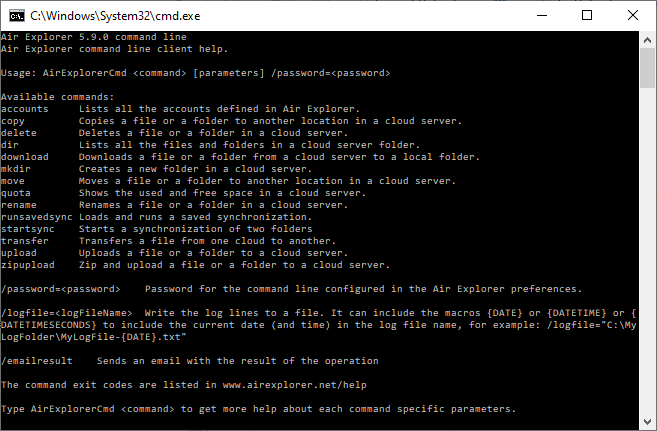
3. Run the synchronization from CMD (Windows)
- Open the Command Prompt (CMD) window.
- Navigate to the folder where Air Explorer is installed, for example:
"C:\Program Files\AirExplorer"(adjust the path if different). - Run the saved synchronization with a command like:
AirExplorerCmd.exe runsavedsync GDrive_to_OneDrive /password=mypasswordMeaning of each parameter:
- runsavedsync: loads and executes a previously saved synchronization.
- GDrive_to_OneDrive: the exact name of the synchronization task created in Air Explorer.
- /password=mypassword: the password configured for command-line usage.
Once executed, wait for the process to finish. You can check the logs generated by Air Explorer to verify whether the synchronization completed successfully.
4. Additional parameters for runsavedsync
AirExplorerCmd runsavedsync syncname [/compareonly | /compareonlydiff] [/reportfile=<ReportFilePath>]- syncname name of a synchronization task as saved in AirExplorer GUI.
- /compareonly Do not synchronize, only compare and show the comparison results.
- /compareonlydiff Do not synchronize, only compare and show the differences.
- /reportfile= Save in a file an HTML synchronization report. It can include the macros {DATE} or {DATETIME} or {DATETIMESECONDS} to include the current date (and time) in the log file name.
Example using the /reportfile parameter:
AirExplorerCmd.exe runsavedsync GDrive_to_OneDrive /reportfile="c:\Logs\MySavedSync_report_{DATE}.html" /password=mypasswordAlternative command for synchronization: startsync
If you prefer not to prepare the synchronization through the graphical interface, you can define it directly from the command line using the startsync command:
AirExplorerCmd startsync {Local | sourceCloud} sourcePath {Local | destinationCloud} destinationPath {Mirror | Bidirectional | MirrorUpdate | Update} [/enablehash] [/compareonly | /compareonlydiff] [/syncrootonly] [/reportfile=]Local | sourceCloud Choose Local Computer or Source cloud account alias as defined in Air Explorer GUI, check "accounts" command to get a list of configured clouds.sourcePath Path to the source folder or file in the cloud.Local | destinationCloud Choose Local Computer or Destination cloud account alias as defined in Air Explorer GUI, check "accounts" command to get a list of configured cloudsdestinationPath Target directory in the destination cloud.syncType Synchronization type, can be: Mirror Bidirectional MirrorUpdate or Update./enablehash Enable hash comparison./filter= Do not sync some files, for example /filter="*.tmp;*.jpg;size>10MB" will exclude all the .tmp and .jpg files with a size larger than 10 MB/donotreadfiltered Do not read and compare folders that are filtered/compareonly Do not synchronize, only compare and show the comparison results/compareonlydiff Do not synchronize, only compare and show the differences/syncrootonly Synchronize only the root folder, do not synchronize the subfolders/reportfile=<ReportFilePath> Save in a file an HTML synchronization report. It can include the macros {DATE} or {DATETIME} or {DATETIMESECONDS} to include the current date in the log file name
This allows you to define all synchronization parameters directly from the command line.
Conclusion
Synchronizing Google Drive with OneDrive using the command line in Air Explorer is an efficient way to automate tasks and keep your cloud accounts updated without manual intervention. After configuring the synchronization in the graphical interface, command-line execution allows you to integrate it into scripts, schedule tasks, or run it remotely, making Air Explorer especially useful for professional workflows and environments where automation is essential.
If you’re looking for a reliable, fast, and flexible way to manage your cloud accounts, taking advantage of Air Explorer’s command-line support is an excellent choice.
You can check more information about more features here:
-How to configure multiple sync tasks
-From Dropbox to OneDrive: simplifies cloud transfers
-Cloud to cloud migration made easy
