
Add your cloud accounts in one app
March 6, 2023
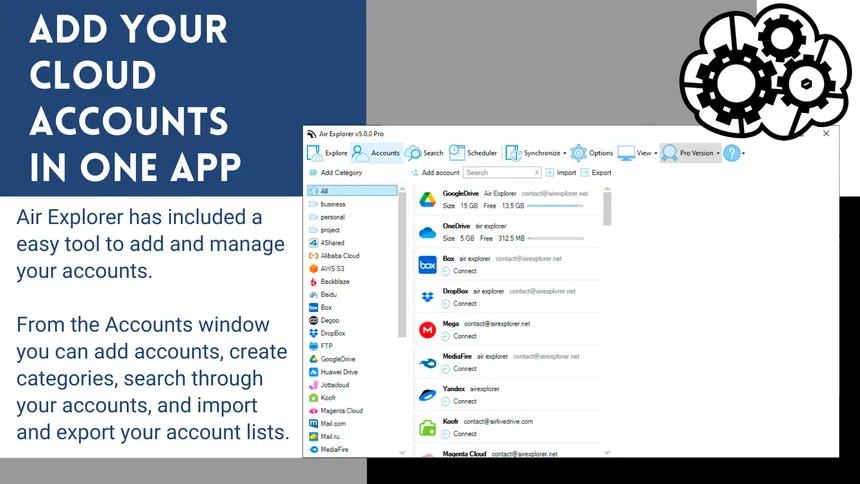
When you have many cloud accounts, it is complicated to manage them, especially if you have multiple accounts from multiple clouds. If you don’t want to have different programs, one for each cloud, you can use Air Explorer. This app allows you to add all your accounts, no matter which cloud they are in. This way you can manage all your accounts from a single app.
Air Explorer supports the most important clouds like Google Drive, OneDrive, Naver, Yandex, Dropbox, Box, ect. You can even add SFTP, FTP, WebDav and S3 accounts. Once you have added all your accounts in Air Explorer, you can open your accounts and manage your files, transfer files from your computer to the cloud or transfer files between clouds.
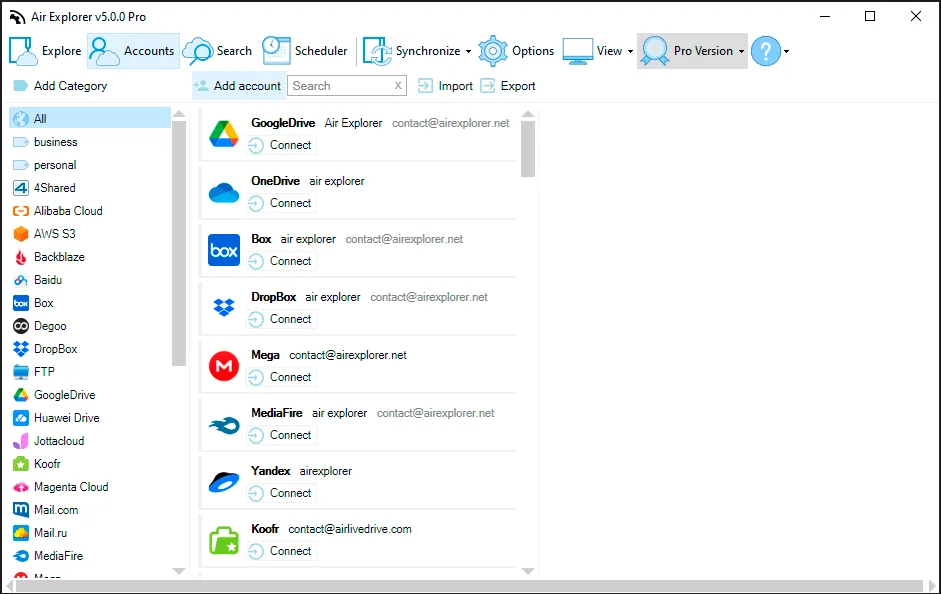
Air Explorer has included a easy tool to add and manage your accounts. From the Accounts window you can add accounts, create categories, search through your accounts, and import and export your account lists.
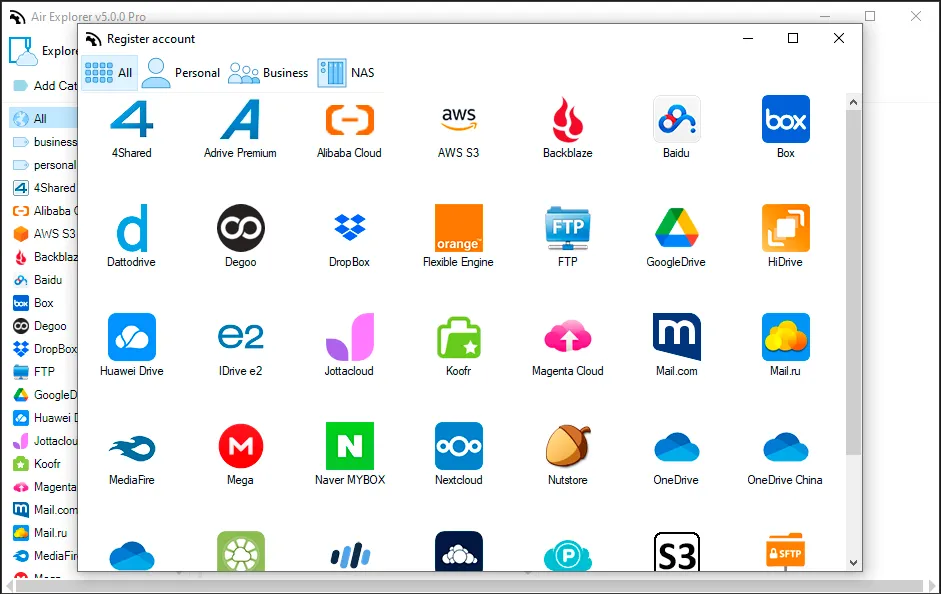
When you click the “Add accounts” button, you can see all the clouds supported by Air Explorer. To locate the cloud more quickly, they are divided into All, Personal, Business and Nas.
Once you have added your accounts, you can add a category to them to keep your accounts more organized. With the “Add category” button, you can create as many categories as you want.
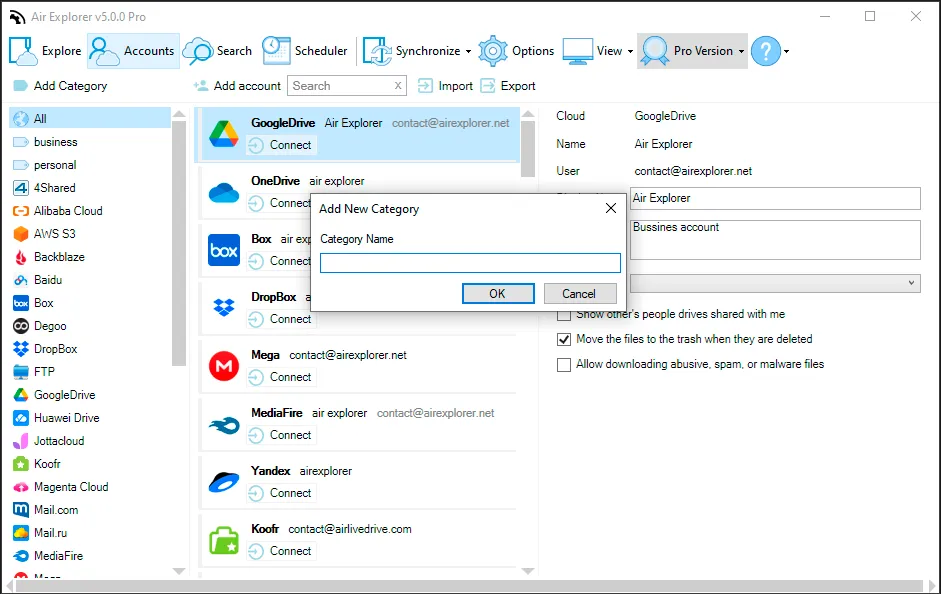
Once you have created the categories, you can assign a category to the account. Just select the account you want and in the account properties, you will be able to choose between the categories you have created.
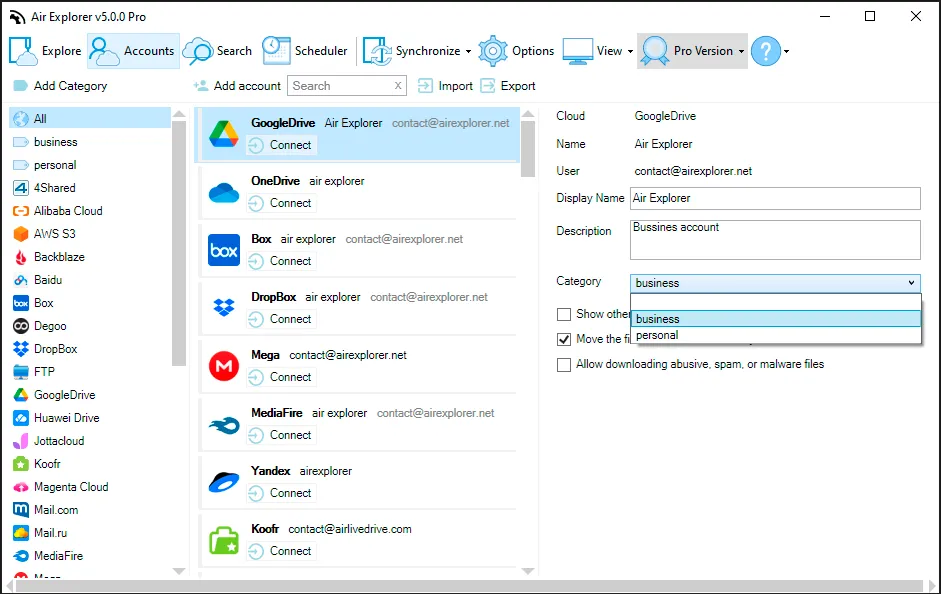
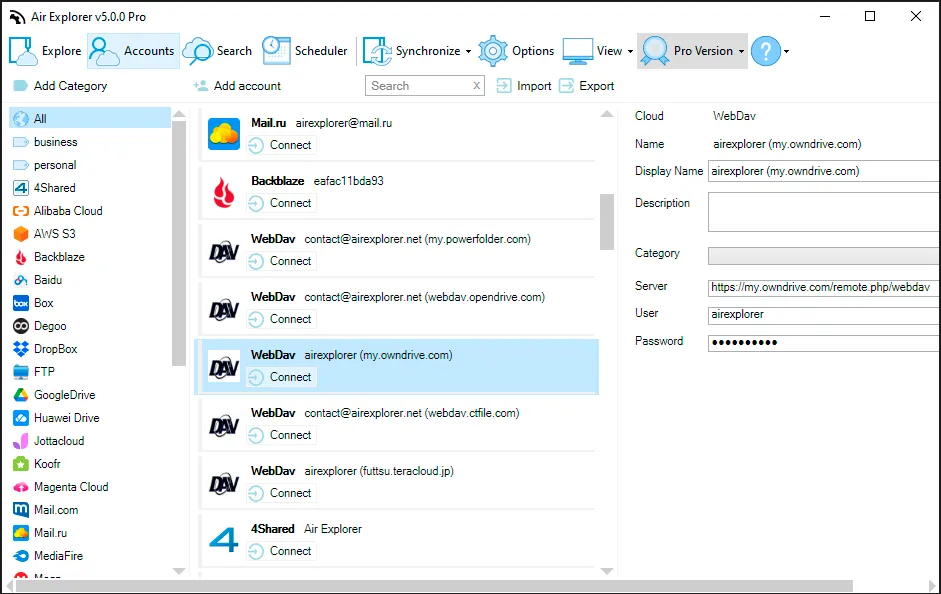
To the right of the account you select, you will see the account properties. According to the type of cloud it is, it will have different properties. For example, if it is a WebDav account, you will be able to modify the server, user and password from here. You can also give it a category and add a brief description.
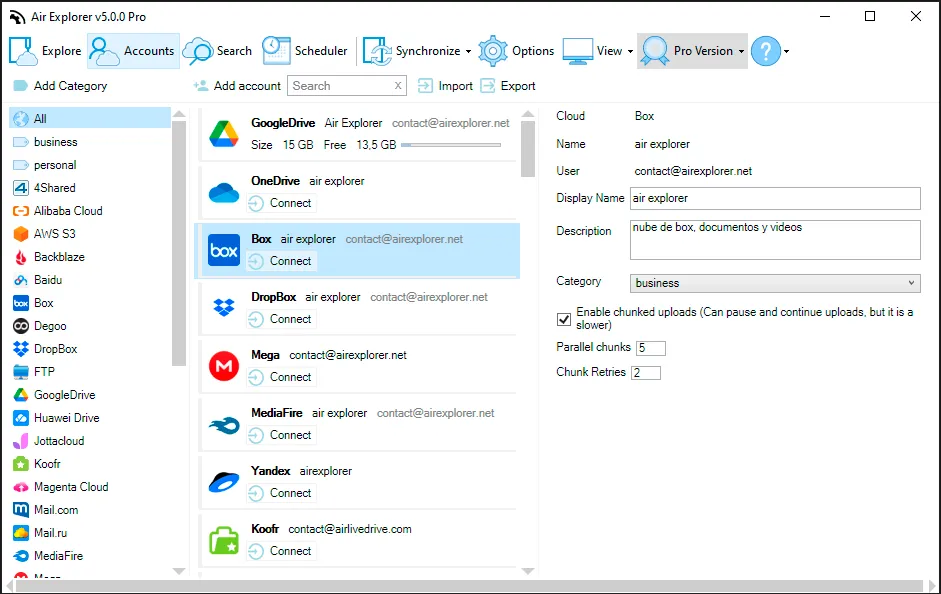
Other accounts, such as Box accounts, allow you to configure advanced settings.
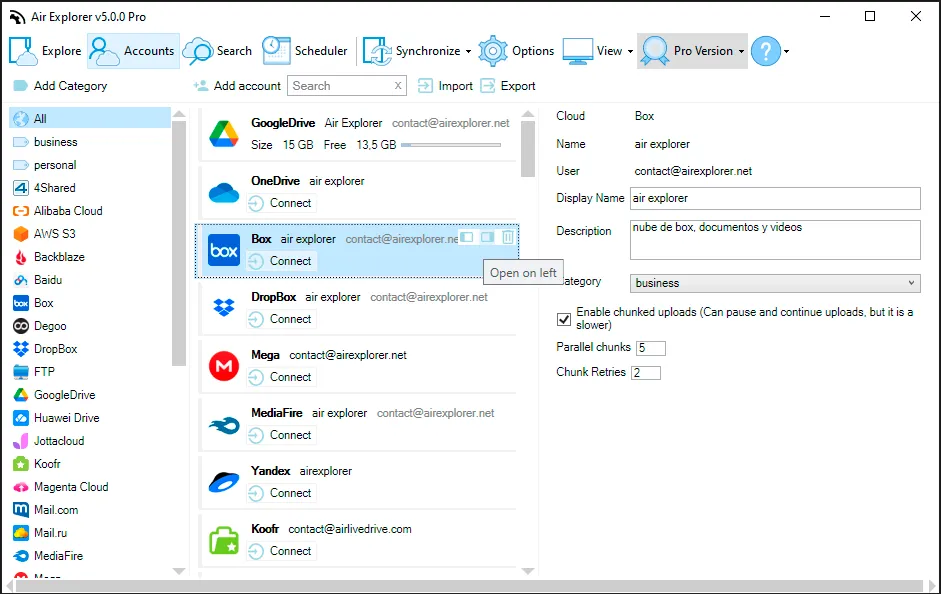
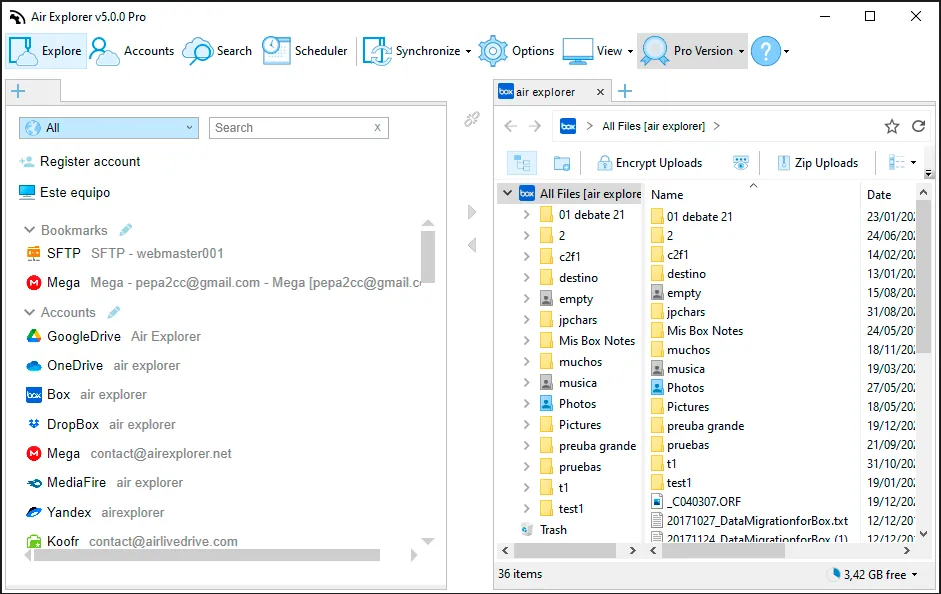
Once you have your accounts added, from this window you can open the accounts. You can choose to open them in the right-hand window or in the left-hand window in Explore tab.
In Explore tab you can work with your clouds. You can open in one window your PC and in the other window any of your accounts and start uploading files. You can also open a different cloud on each window and transfer files between clouds. If you have many accounts, the search box will allow you to easily search for the cloud you want.
You can check more information about more features here:
-Cloud accounts manager
-Cloud categories
-Encript your files in the cloud