Keep your files perfectly aligned between clouds and between your PC and the cloud with Air Explorer’s powerful sync engine. Manage Google Drive, OneDrive, Dropbox and 50+ services from a single interface, choosing how and when each folder is synchronized for reliable backups and migrations.
Cloud-to-cloud sync
Sync folders directly between cloud drives. Create mirror or bidirectional syncs between services like Google Drive and Dropbox, keeping both locations updated whenever files change.
Cloud-to-Pc sync
Keep local folders on your computer in sync with any connected cloud account. Use it to back up workspaces, photos or documents automatically so your most important data is always protected online.
Parallel sync
Run multiple sync tasks in parallel to move data faster across several clouds at the same time. Parallel sync maximizes your available bandwidth and drastically reduces the time needed for large migrations or scheduled backups.
Cloud Sync & Backup
Manage and automate your multi-cloud data with Air Explorer’s synchronization dashboard
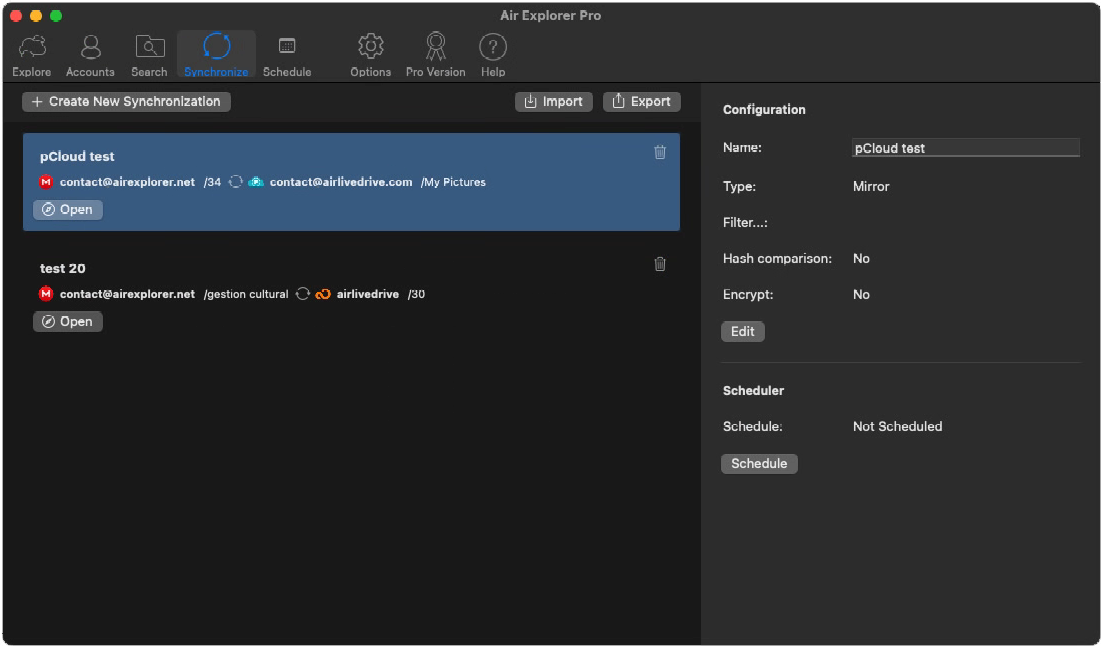
Air Explorer Pro synchronization manager on macOS displaying a list of configured sync tasks
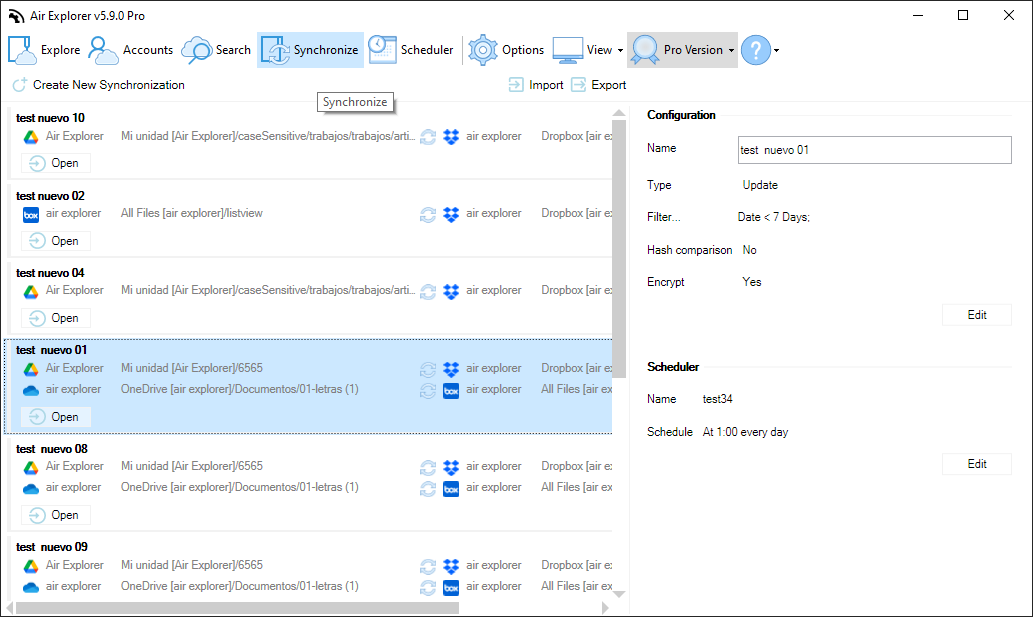
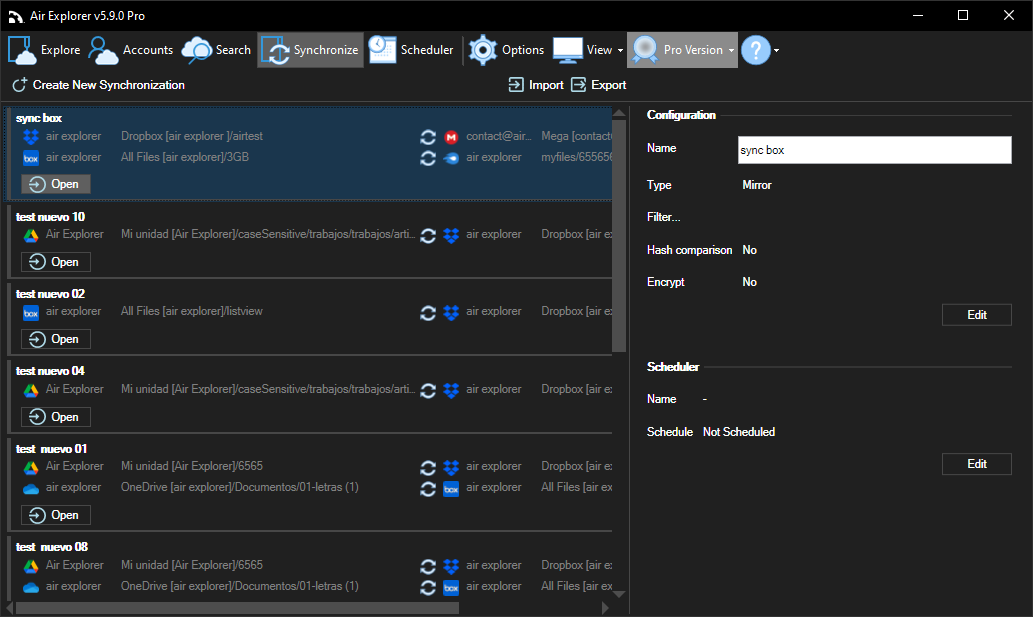
Manage and automate your multi-cloud data with Air Explorer’s synchronization dashboard
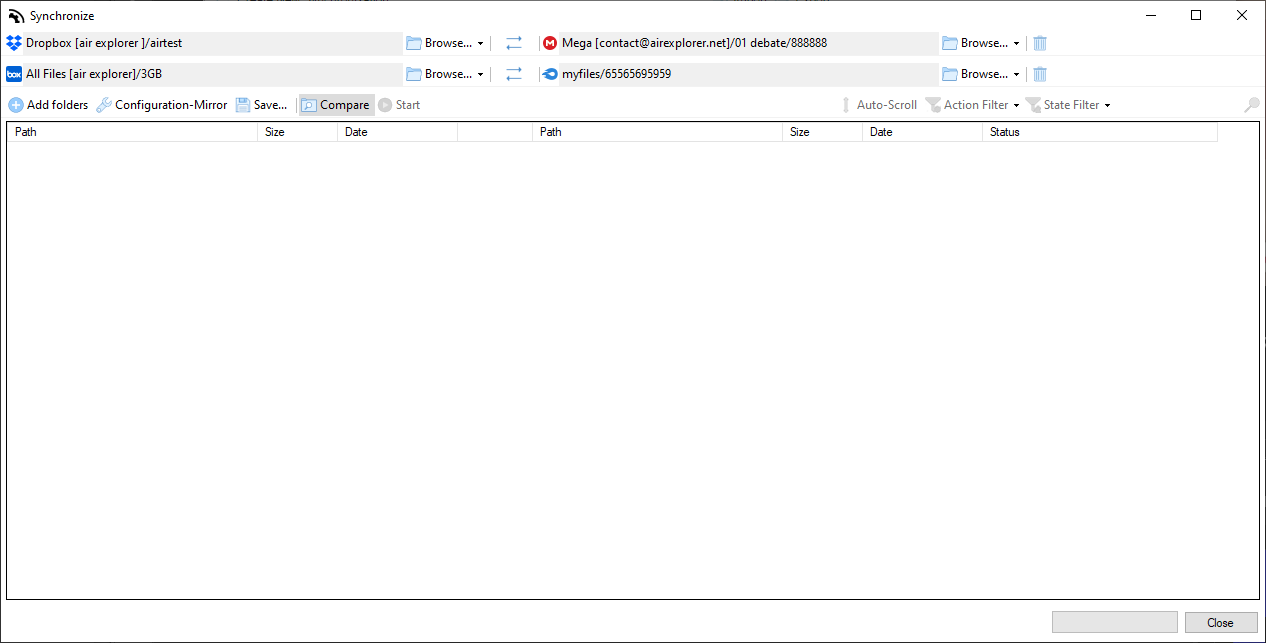
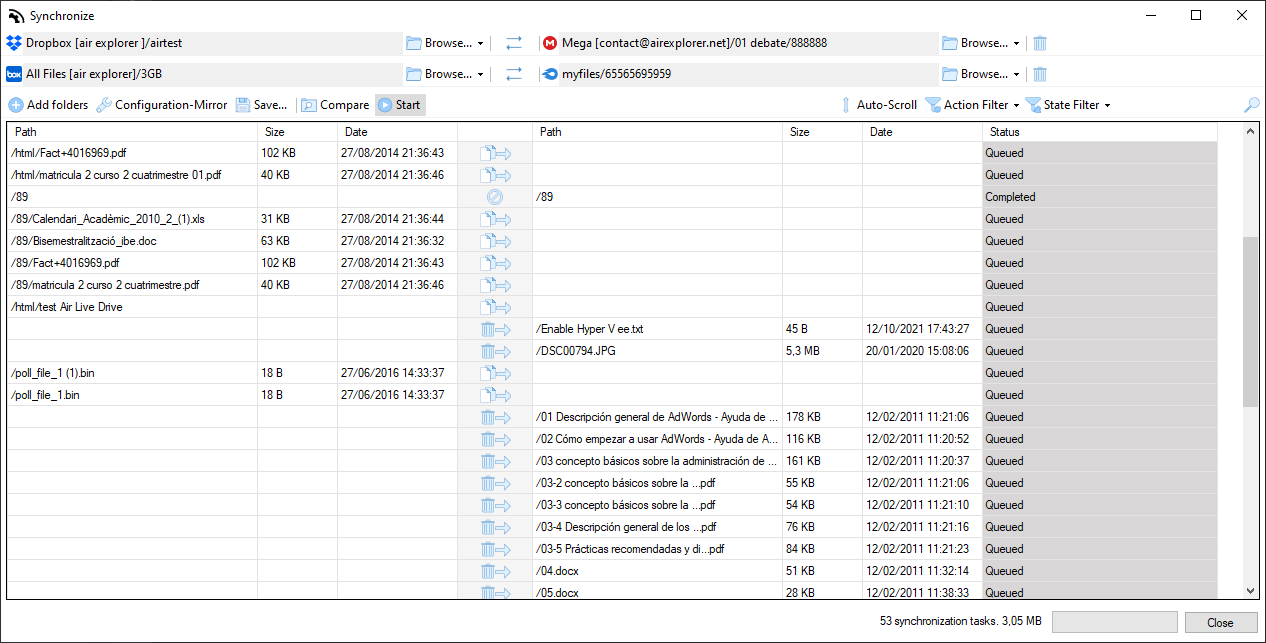
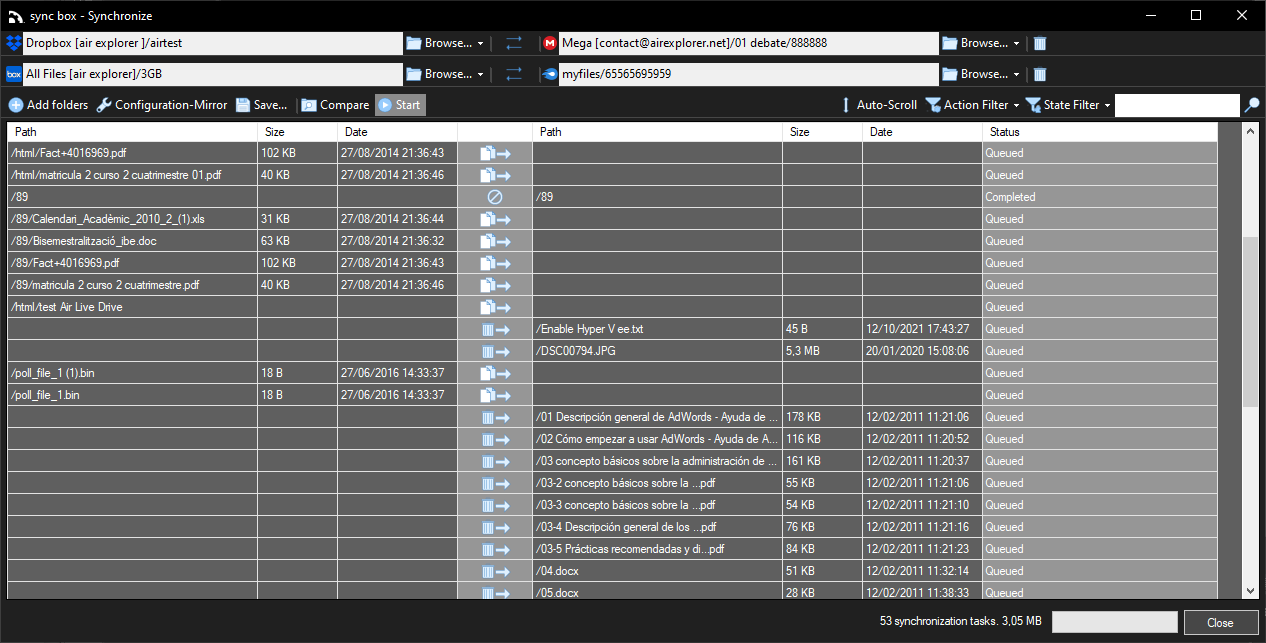
Air Explorer synchronization management dashboard showing multi-cloud sync tasks and configuration
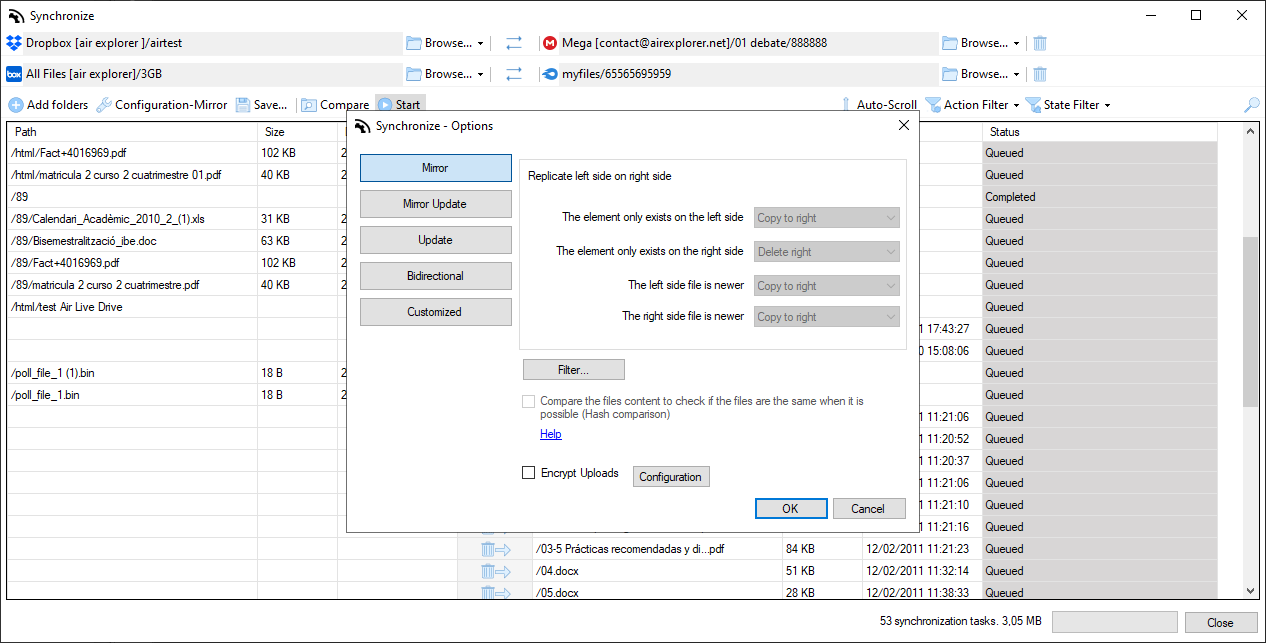
Air Explorer synchronization options window displaying different sync modes in Windows
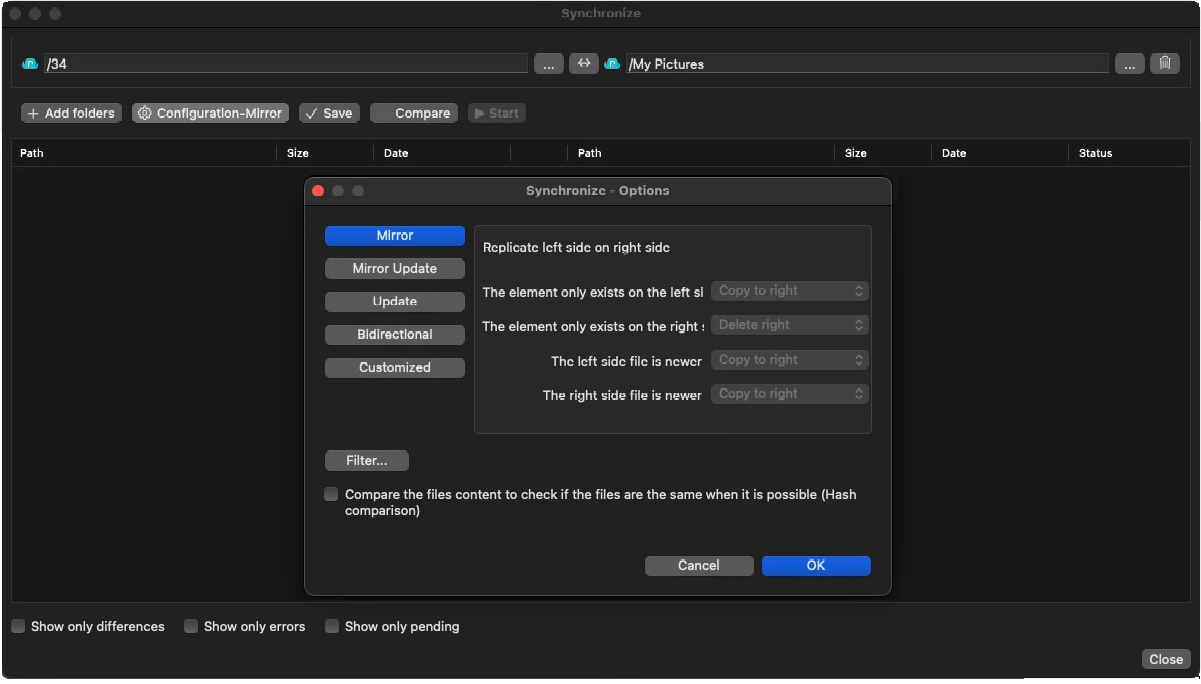
Air Explorer Pro synchronization options on macOS showing Mirror, Update, and Bidirectional modes with advanced file replication settings.
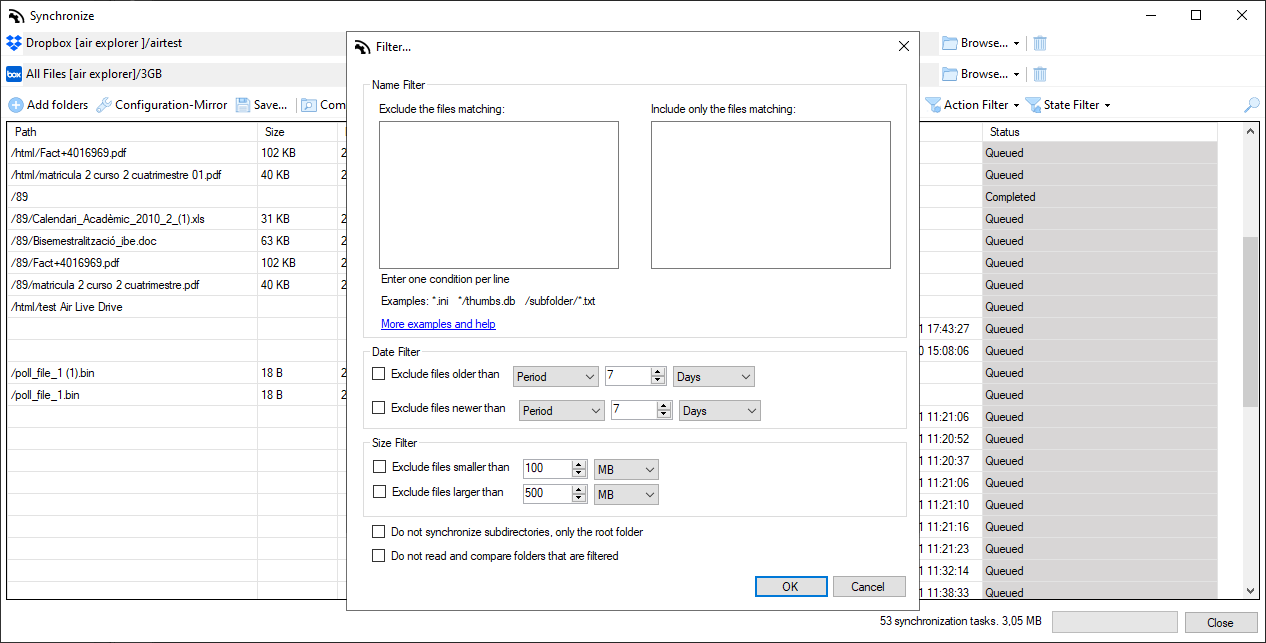
Air Explorer synchronization filter window showing options to include or exclude files by name, date, and size
Air Explorer parallel synchronization interface showing multiple simultaneous file transfer tasks between different cloud accounts
Air Explorer parallel synchronization interface showing multiple simultaneous file transfer tasks between different cloud accounts
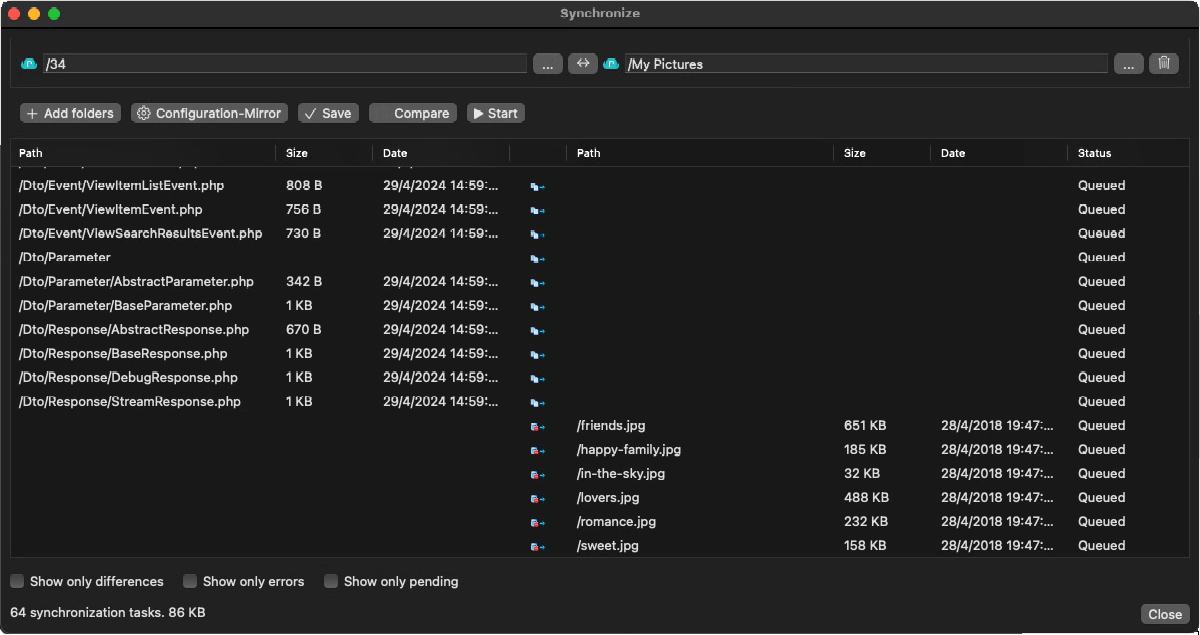
Air Explorer Pro synchronization progress window on macOS listing queued files with path, size, and date details for a cloud-to-cloud transfer.
Air Explorer lets you build flexible sync plans that match your workflow. Choose a source and target (cloud‑to‑cloud or PC‑to‑cloud), pick the sync mode (mirror, mirror updated, updated, bidirectional or customized) and save the task so you can run it again anytime or schedule it to run automatically. This makes it easy to keep two cloud folders identical, maintain an off‑site backup of your PC, or gradually migrate data from one provider to another without manual copying.
Every sync task can be monitored from a unified task list, where you can start, pause or resume operations and review detailed logs of what was changed.
Combined with Air Explorer’s optional encryption and multi‑threaded transfers, cloud sync becomes a secure and efficient way to protect and organize your data across all your accounts.
Air Explorer includes sync filters to give you precise control over which files are transferred. Exclude specific file types like temporary files (.tmp, .bak), large videos above 1GB, or hidden system files to avoid unnecessary uploads. Include only priority content such as .docx, .pdf or recent files modified in the last 30 days. Combine multiple filters by extension, size, date or path to create custom sync rules that match your exact workflow needs, saving bandwidth and keeping your cloud storage organized and efficient.
Yes. Select a folder in Google Drive as the source and a folder in OneDrive as the target, choose your sync mode (for example two‑way sync) and run or schedule the task.
Yes. Parallel sync lets you execute multiple sync tasks concurrently, which is ideal when you need to synchronize several projects or cloud accounts in one go.
Mirror sync copies all files from source to target, bidirectional keeps both folders identical, and update mode transfers only new or changed files for faster syncs.
Parallel sync runs multiple tasks simultaneously across different clouds, maximizing bandwidth usage and reducing total sync time by 3-5x for large datasets.
We use cookies to ensure that we give you the best experience on our website. If you continue to use this site we will assume that you are happy with it.