

Task Scheduler

Air Explorer, the multicloud manager

Scheduled Cloud Backups

Automate your cloud transfers, syncs and backups with Air Explorer’s built‑in scheduler. Set one‑time tasks or recurring operations to run unattended, keeping your Google Drive, OneDrive, Dropbox and other clouds perfectly aligned without manual intervention.

Scheduled Cloud Backups

Schedule Cloud Transfers

Program file moves between clouds (Google Drive to Dropbox) or PC‑to‑cloud uploads to run at specific times, ensuring data stays current across accounts.

Automated Syncs

Set recurring syncs between multiple clouds or local folders. Daily, weekly or custom intervals keep backups fresh and projects synchronized effortlessly.

Unattended Backups

Run complete cloud backups overnight or during off‑hours. The scheduler handles everything silently, with automatic resume after interruptions.

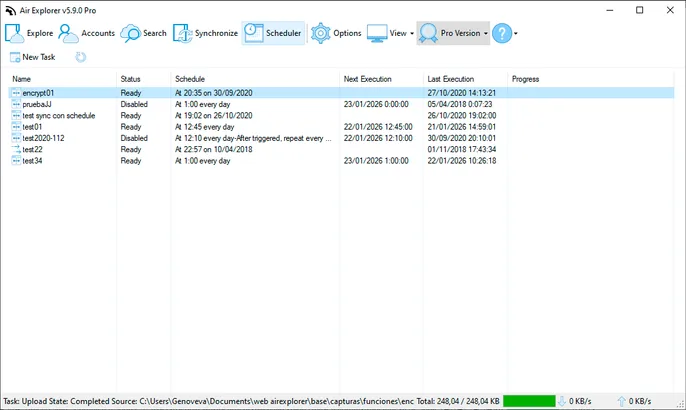
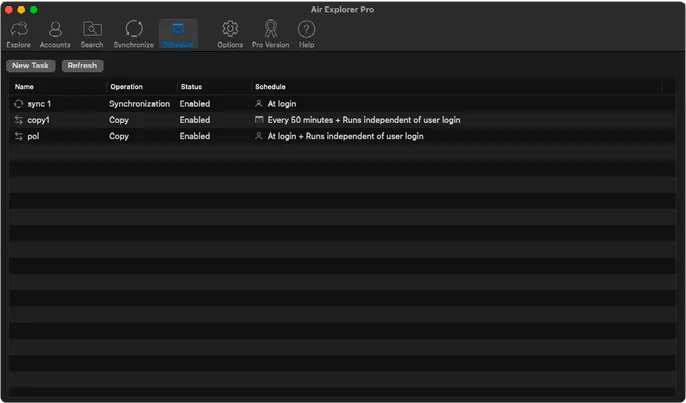
Air Explorer’s task scheduler transforms manual cloud operations into hands‑free workflows. Save any transfer, sync or backup as a reusable task, then schedule it to execute daily, weekly or at custom times. Tasks run in the background as Windows services, even when Air Explorer is closed, making it perfect for nightly backups, project synchronization or large migrations that don’t require your attention.

Combine with sync filters to transfer only changed files, CLI integration for complex scripts, and detailed logs for verification. Whether you’re syncing OneDrive with Dropbox, backing up PC folders to S3, or migrating terabytes between clouds, the scheduler ensures reliability and efficiency every time.

Frequently Asked Questions about Scheduled Cloud Backups

How do I schedule a cloud sync task?

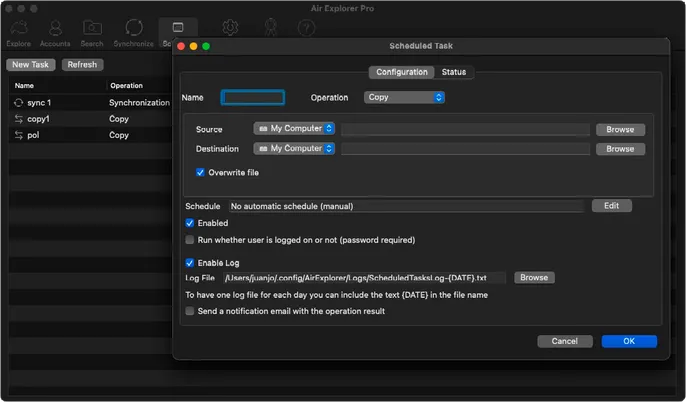
Create and save your sync configuration, go to the Scheduler tab, select frequency (daily/weekly) and set the execution time.

Can tasks run when Air Explorer is closed?

Yes. Scheduled tasks operate as background services, running unattended regardless of the main app status.

What types of tasks can I automate?

Cloud‑to‑cloud transfers, PC‑to‑cloud backups, mirror/bidirectional syncs, and custom CLI commands.

Does the scheduler resume interrupted tasks?

Yes. Tasks pause on network issues and resume automatically, preserving progress without data loss.

Can I get reports after scheduled tasks?

Yes. Each execution generates detailed logs and summary reports showing transferred files and any issues.

Can I schedule multiple tasks to run at different times?

Yes. Air Explorer’s scheduler supports dozens of concurrent tasks with individual timing, nightly backups at 2 AM, daily syncs at 9 AM, weekly reports at Friday 6 PM.

Does the scheduler work with cloud-to-cloud encryption?

Yes. Scheduled transfers and syncs can encrypt files automatically before upload, ensuring end-to-end security for unattended operations.

How do sync filters work with the scheduler?

Filters apply to scheduled tasks exactly like manual runs, exclude .tmp files, videos >1GB, or include only .pdf/.docx for optimized automated syncs.

Can I receive notifications when scheduled tasks finish?

Yes. Configure email alerts or desktop notifications for task completion, errors, or large transfers to stay informed without monitoring.

Is the scheduler compatible with Windows Task Scheduler?

Yes. Export CLI commands from Air Explorer tasks and run them via Windows Task Scheduler for enterprise-level automation and monitoring.