
CLI Cloud Management
Control Air Explorer’s full power from scripts and terminal with the built‑in CLI tool. Automate cloud transfers, syncs, backups and encryption across Google Drive, OneDrive, Dropbox and 50+ services using simple commands or complex batch files.
Custom Scripts
Build batch files or PowerShell scripts combining multiple CLI commands for complex cloud workflows like conditional syncs or chained transfers.
Scheduler Integration
Combine CLI with Air Explorer's scheduler to run advanced scripts automatically at any time, nightly backups or peak‑hour syncs without manual intervention.
Detailed Command Logs
Every CLI execution generates complete reports: files transferred, detected errors and time spent for precise auditing and troubleshooting.
Command Line Tool for Cloud Automation
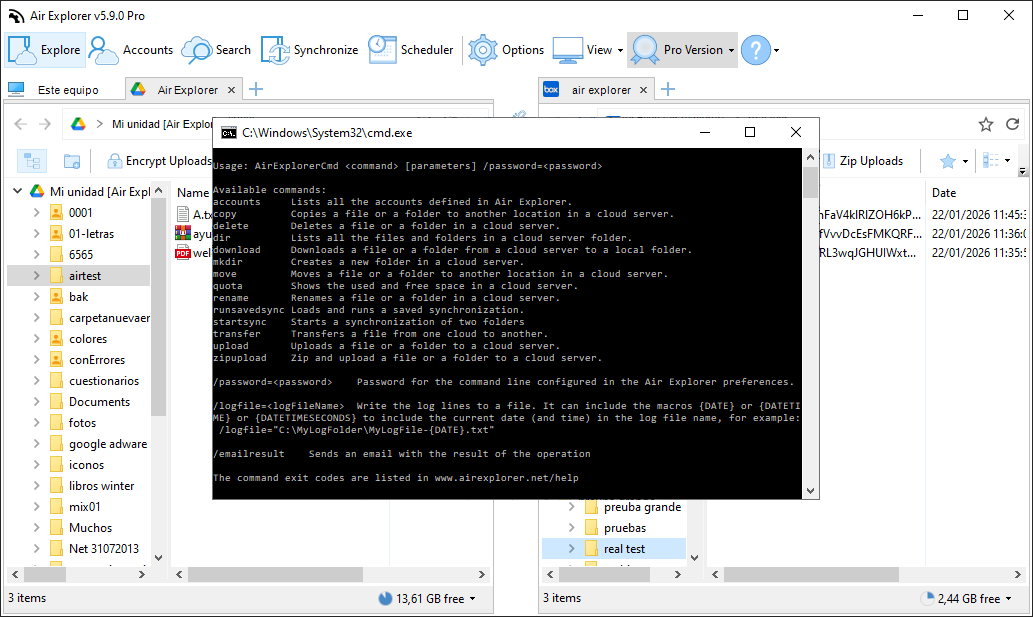
Air Explorer’s CLI unlocks scriptable cloud management: synchronize folders between services, transfer data between PC and cloud, encrypt uploads or generate backups, all from command prompt, batch files or integrated workflows. Perfect for developers, IT admins or anyone needing reliable automation without the GUI.
FAQ
Frequently Asked Questions about CLI Cloud Management
Use AirExplorer.exe runsavedsync “TaskName” /password=yourpass to execute any saved sync between clouds or PC.
AirExplorer.exe transfer /………….backup moves files directly without GUI.
Save command as .bat file, add to Task Scheduler with Air Explorer path for daily cloud backups.
Yes. Launch multiple runsync or transfer commands simultaneously for faster multi‑cloud workflows.
Logs generate in the app’s log folder or specified path, detailing files synced, errors and timestamps.
No, but you can set a CLI password in Options; include /password=pass in every command.
Yes. Export scheduler CLI equivalents for external automation or hybrid GUI/CLI workflows.