
How to Automate File Uploads to the Cloud Using Air Explorer’s Command Line
Manual file management can become a bottleneck for productivity. If you frequently upload files to clouds like Google Drive, OneDrive, or Mega, automating this process not only saves time but also eliminates the risk of human error. In this article, you will learn how to use Air Explorer’s upload command to turn your backups into a seamless and efficient process.
Why use the command line for uploading files?
Unlike the graphical user interface, using the command line (CLI) allows you:
- Schedule tasks: Avoid uploading files repeatedly by hand.
- Integration: Combine uploads with other scripts in your system.
- Security: Apply automatic encryption without manual intervention.
Step 1: Preliminary Configuration in Air Explorer
Before launching your first command, make sure everything is ready in the Air Explorer graphical interface:
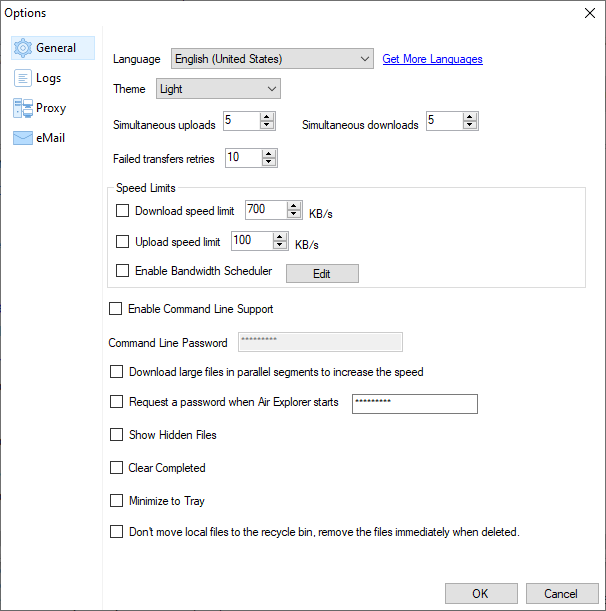
- Enable CLI support: Go to the Options tab, select the General section, and check the “Enable Command Line Support” box.
- Identify the Cloud Alias: Open the Accounts window. The name that appears next to your cloud icon (e.g., “MyGoogleDrive” or “Backup_Mega”) is the Alias we will use in the command.
Step 2: The “upload” Command and Its Syntax
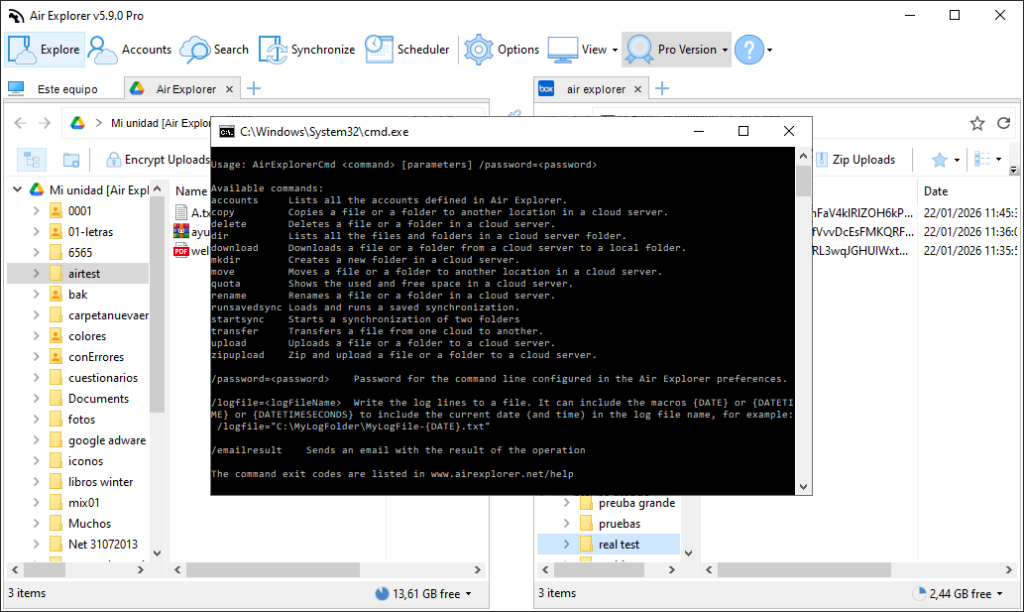
The heart of this automation is the AirExplorerCmd.exe executable. The basic structure for uploading a file or folder is as follows:
AirExplorerCmd upload "local_path" "cloud_alias" "destination_path"
File Control Parameters
To manage what happens if the file already exists in the cloud, you can add these modifiers:
/O: Overwrite (default option)./R: Rename the file if it exists./S: Skip the upload if the file exists.
Security and Encryption
If you handle sensitive data, Air Explorer allows you to encrypt content during the upload:
/encrypt: Encrypts content, file name, and folder names./encryptName: Encrypts content and file name./encryptContent: Encrypts the file content only.
Step 3: Practical Automation Examples
A. Upload a Work Folder to Dropbox
If you want to upload your local projects folder to the root of Dropbox, skipping files that already exist: AirExplorerCmd upload "C:\MyProjects" "MyDropbox" "Dropbox [myaccount]" /S
You can get the destination path by copying it from the Air Explorer address bar.
B. Encrypted Backup to Mega
To upload confidential documents to a specific folder in Mega with full encryption: AirExplorerCmd upload "D:\Documents\Confidential" "Mega_Personal" "Mega [myaccount]/Backups" /encrypt="SecureKey2024"
Step 4: Automation with Windows
To avoid typing the command every time, the best approach is to create a .bat file and run it whenever you need it in Windows:
- Open Notepad and paste your command.
- Save it as
automatic_upload.bat. - Double-click the
.batfile to start the upload.
FAQ: Frequently Asked Questions about the Upload Command
Both. If the source path points to a file, only that file will be uploaded; if it points to a folder, its entire content will be uploaded.
Air Explorer is smart: if the destination path is not found, it will automatically create it before starting the upload.
Yes, command line features are designed for Pro version users looking for an advanced level of management and automation.
The CLI upload speed respects the limits you have configured in the Options section of the Air Explorer graphical interface.
Conclusion
Automating file uploads with Air Explorer is the most professional way to manage your cloud data. Whether for a personal backup or team workflows, the power of the CLI offers a level of freedom that most multi-cloud managers cannot reach.
You can check more information about more features here:
-Google Drive to OneDrive: How to automate syncs with Air Explorer’s command line
-Manage files in the clouds with Command Line
