
How to Migrate from Google Drive to OneDrive (Without Using Local Disk Space)
In the world of IT administration and enterprise data management, migrating massive volumes of data between cloud providers is one of the most taxing challenges. The scenario is common: a company decides to consolidate its ecosystem within Microsoft 365 and needs to move terabytes of data from Google Drive. However, an immediate physical obstacle arises: the administrator’s computer storage is limited.
Attempting a bulk migration using official desktop clients (Google Drive for Desktop or OneDrive) is usually a recipe for disaster. These systems are designed for synchronization, not migration, forcing data to reside, at least temporarily, on the local hard drive, saturating storage and slowing down the operating system. This is where Air Explorer redefines the process through its direct transfer technology.
The Myth of “Cloud-to-Cloud” and Air Explorer’s Technical Reality
It is vital to clarify a technical point for IT professionals: no desktop application can move data between Google and Microsoft without the data passing through the machine executing the command, unless using external server-based cloud-to-cloud solutions.

However, Air Explorer’s competitive advantage lies in its intelligent resource management. Unlike other methods, Air Explorer acts as a data tunnel. The software uses your computer’s RAM to process information packets “on-the-fly.” This means the file is read from the source cloud and sent directly to the destination cloud without ever being written to the hard drive (HDD or SSD). Consequently, you can migrate 2TB of data even if you only have 10GB free on your computer, as physical space is not a constraint.
Why Air Explorer is the Preferred Tool for B2B Migrations
Professional migration is not just about moving files; it’s about maintaining control over the process. Air Explorer offers advantages that traditional methods simply cannot replicate:
- Bandwidth Optimization (Multi-threading): Air Explorer allows you to configure multiple simultaneous transfer threads. This positively saturates your fiber optic connection, moving several files at once to drastically reduce migration time.
- Error Handling and Logs: In migrations involving thousands of files, it is statistically likely that some will fail due to naming restrictions or API limits from Google/Microsoft. Air Explorer generates a detailed log that allows you to identify the error and retry the upload with a single click.
- Enterprise-Grade Security: The software offers the option to encrypt files during the transfer, adding a critical security layer for sensitive data.
Step-by-Step Guide: Bulk Migration Without Saturating Your Disk
To execute a successful migration from Google Drive to OneDrive using Air Explorer, follow this professional workflow:
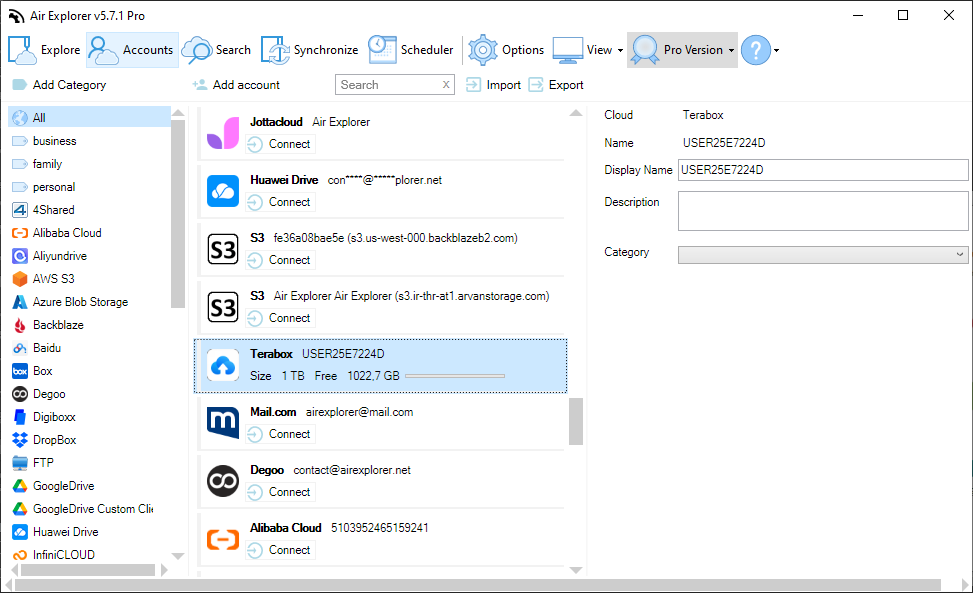
Step 1: Preparation and Linking Install Air Explorer and add your Google Drive and OneDrive accounts in the “Accounts” tab. Ensure you have administrator permissions if you are moving data from shared folders or team drives.
Step 2: Dual-Panel Configuration Open the file explorer. In the left panel, open your Google Drive account; in the right panel, open the destination in OneDrive. This intuitive interface allows you to visualize your entire data structure at a glance.
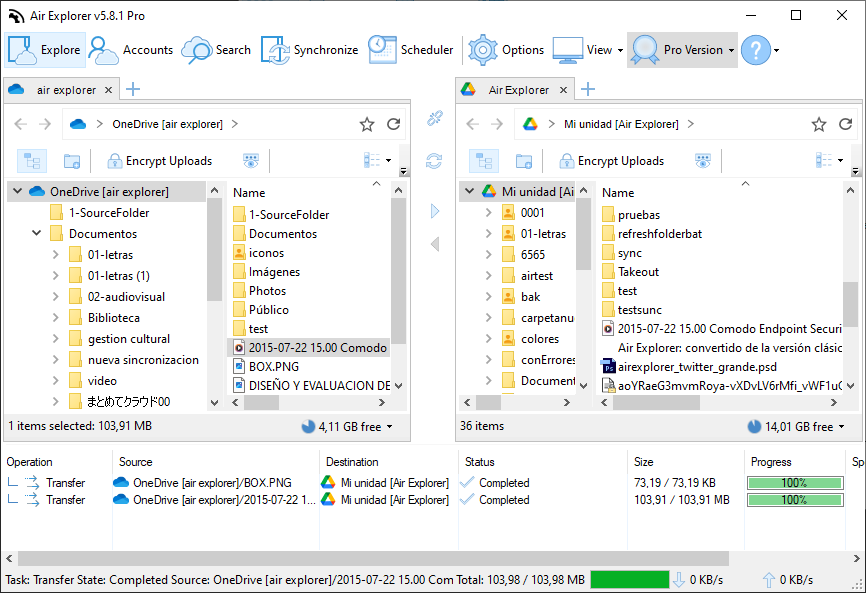
Step 3: Executing Direct Transfer Select the folders you wish to migrate, right-click, and select “Copy.” Then, in the OneDrive panel, select “Paste.” You will see the transfer window open, showing real-time speed. You will notice that while data flows at high speed, the available space on your hard drive remains untouched.
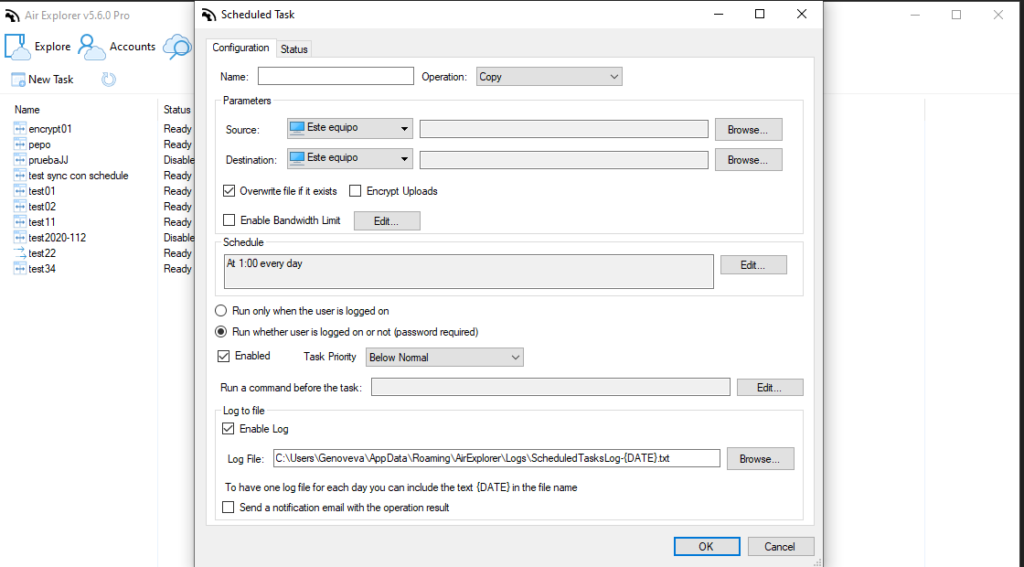
Sync, Scheduling, and Verification (Recommended Method) For large-scale migrations, the most efficient approach is not manual copying, but utilizing the Sync function combined with the Task Scheduler. This is the recommended workflow for professionals for three critical reasons:
- Comprehensive Log Review: Once the task is complete, you can thoroughly review the transfer logs. If any file failed to move due to cloud API limits or naming issues, you can easily identify it and retry the process, ensuring that 100% of your data is successfully migrated.
- Bandwidth Optimization: When you schedule a synchronization task, Air Explorer optimizes transfer threads more effectively, making the most of your internet connection to move more data in less time.
- Unattended Execution: You can configure the process to run outside of business hours, ensuring that the migration doesn’t interfere with your team’s daily bandwidth needs.
Conclusion
Migrating terabytes of data no longer requires expensive servers or massive local storage hardware. Air Explorer democratizes complex migrations, allowing any computer with a solid internet connection to function as a powerful data orchestrator. Efficiency, hardware savings, and total control: these are the pillars of a successful migration.
You can check more information about more features here:
-How to configure multiple sync tasks
-From Dropbox to OneDrive: simplifies cloud transfers
-Cloud to cloud migration made easy
