
AI Data Management: How to Prepare Your Datasets Locally and Back Them Up to Google Drive
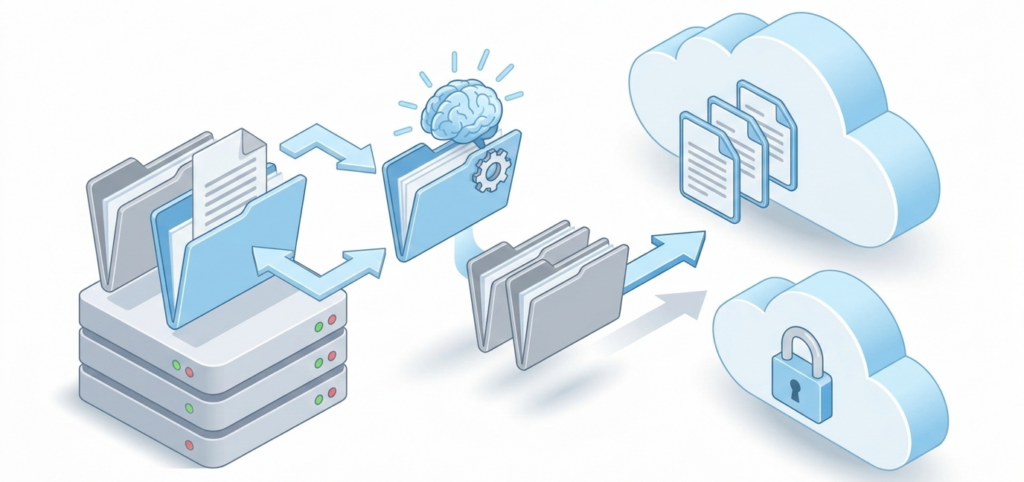
Working with AI is no longer reserved for researchers at top-tier labs. Developers, students, and hobbyists are building their own models every day, but there is one part of the workflow that rarely gets enough attention: keeping your data clean, organized, and easy to access. This guide walks you through how to get your datasets ready on your local machine and move them to Google Drive using Air Explorer.
What Is a Dataset, and Why Should You Care About Structure?
Think of a dataset as the raw material for your AI project. It might be a folder of labeled photos, a spreadsheet of historical prices, a corpus of text for fine-tuning a language model, or a batch of audio clips for speech recognition. Whatever the format, the structure matters more than most people expect.
Scripts and training pipelines rely on consistent file paths. Teammates need to know where things are. And nobody wants to debug a failed training run only to discover it was caused by a corrupted image buried three folders deep. Getting organized upfront saves a lot of headaches later.
Preparing Your Dataset Locally: Things to Do Before You Upload
Before anything goes to the cloud, take a few minutes to tidy up:
- Set up a clear folder structure. A common convention splits data into
train/,val/, andtest/directories. For classification tasks, add subfolders for each category inside each split. - Remove duplicates and broken files. A truncated image or a CSV with encoding issues can silently corrupt a training run. It is worth checking before you transfer anything.
- Use consistent, descriptive file names. Skip spaces, special characters, and vague names like
image1.jpg. Something likelabrador_001.jpgorpositive_review_042.txtis much easier to work with. - Consider compressing large collections. If you have thousands of small files, bundling them into a
.zipor.tar.gzbefore uploading will often be faster than transferring them individually.
Air Explorer: One App for All Your Cloud Storage
Air Explorer is a Windows desktop app that connects to over 40 cloud storage providers, including Google Drive, OneDrive, Dropbox, and Amazon S3, from a single unified interface. No browser tabs, no switching between accounts.
Adding your Google Drive account is quick:
- Click Accounts in the Air Explorer toolbar.
- In the Accounts window, click Add account and choose Google Drive from the list.
- Sign in with your Google credentials.
- Your Drive will show up in the panel just like any other folder on your computer.
The dual-panel layout is where Air Explorer really shines for dataset work: your local files on one side, Google Drive on the other. You browse both at the same time and drag files across, no command line needed.
Uploading Your Dataset to Google Drive
The actual transfer is straightforward:
- Open Air Explorer and navigate to your dataset folder in the left panel.
- On the right side, open the destination folder in Google Drive, or create a new one.
- Select your files or folders and drag them across, or use the copy button.
- Air Explorer handles the transfer in the background. You do not need a browser open, though Air Explorer itself needs to stay running during the process.
This matters when your dataset is large. Unlike browser-based uploads, Air Explorer can handle interruptions gracefully, resume where it left off, and keep going without you babysitting the process.
💡 Tip: Save a Sync Configuration and Skip the Manual Work
If your dataset keeps evolving, you collect more samples, fix labels, or reorganize categories, re-uploading everything from scratch gets old fast. Air Explorer lets you save sync configurations that remember both the source folder and the Google Drive destination. When you run a sync, you choose the type that fits your workflow: copy only new files, update files that have changed, or mirror the entire folder. Only what needs updating gets transferred.
You can save separate configurations for each project and run them with a single click. Your Drive stays current without the repetitive drag-and-drop.
Who Is This Actually For?
- A researcher who labels medical imaging data locally and needs to share the latest version with collaborators each week.
- A content creator building a fine-tuning corpus for a language model and wanting a reliable cloud backup as they go.
- A small dev team sharing a dataset on Google Drive that individual members update from different machines.
Wrapping Up
Data prep is not glamorous, but it determines how smoothly everything else goes. A well-structured local dataset plus a reliable tool to move it to the cloud means less time wrestling with files and more time actually building.
Download Air Explorer for free and take the friction out of managing your AI data.
You can check more information about more features here:
-Schedule Your Backups with the Task Scheduler for Windows and Mac
-How to Migrate from Google Drive to OneDrive (Without Using Local Disk Space)
-How to configure multiple sync tasks
