
How to Automate Cloud Folder Creation with Command Line
June 8, 2026
Organizing your files in the cloud requires a logical and well-defined folder structure. Creating these directories manually across multiple accounts can be a slow process. Thanks to Air Explorer’s command line, you can automate the creation of folders on any cloud server. In this article, you will learn how to use the mkdir command to prepare your storage spaces professionally and unattended.
Why Use the Command Line to Create Folders?
The mkdir command in Air Explorer’s CLI (Command Line Interface) is a fundamental tool for workflow automation:
- Backup Preparation: You can create folders with the current date before starting a file upload.
- Standardization: Ensures that all your cloud servers have exactly the same directory structure.
- No Data Download: The operation is performed directly on the cloud server, so it is instantaneous and does not consume your network resources.
Step 1: Preliminary Configuration in Air Explorer
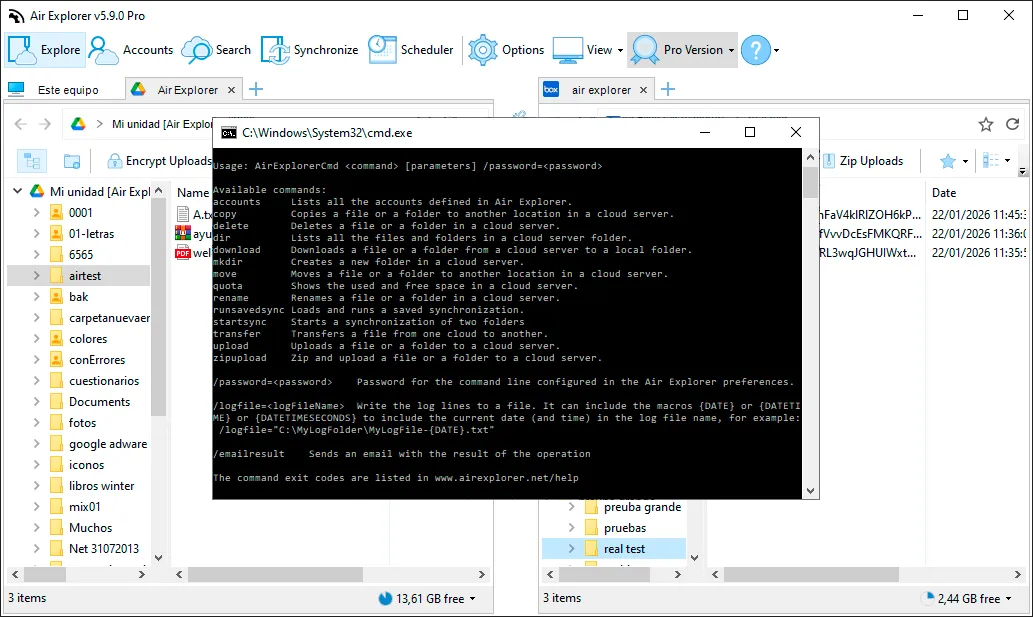
For your commands to run correctly, you must first perform this configuration in the graphical interface:
- Enable CLI Support: Go to the Options tab, enter the General section, and check the “Enable Command Line Support” box.
- Identify the Cloud Alias: Open the Accounts window. The name that appears on the left (e.g., “GoogleDrive_Backup” or “OneDrive_Pro”) is the Alias we will use in the command.
Step 2: The “mkdir” Command and Its Syntax
The instruction for creating new folders is direct and uses the AirExplorerCmd.exe executable. The basic structure is:
AirExplorerCmd mkdir "cloud_alias" "new_folder_path"
Technical Details:
- Nested Paths: If the path you specify contains intermediate folders that do not exist, Air Explorer will automatically create them to reach the final destination.
- Spaces: Remember to always use double quotes if the cloud alias or the folder path contains spaces.
Step 3: Practical Automation Examples
A. Creating a Project Structure in Google Drive
If you need to prepare a new folder for a client within your Google Drive account: AirExplorerCmd mkdir "MyGoogleDrive" "Mi unidad [Air Explorer]/Clients/New_Client_2024"
PRO Tip: You can get the base path where you want to create the folder by copying it directly from the address bar in Air Explorer while browsing.
B. Creating a Backup Folder in Mega
To organize your logs in a specific location in Mega: AirExplorerCmd mkdir "Mega_Alias" "Mega [contact@airexplorer.net]/Backups/Logs/Monthly"
Step 4: Automation with .bat Files
To automate folder creation on a recurring basis, the most effective way is to create an executable file:
- Open Notepad and write your folder creation command.
- Save the file with the .bat extension (for example:
prepare_cloud.bat). - You can run it by double-clicking the file or include it as the first step in a more complex backup script.
FAQ: Frequently Asked Questions about the mkdir Command
What happens if the folder already exists? If you try to create a folder that already exists in the cloud, the command simply performs no action and will not return a critical error, maintaining the current structure.
Can I create folders on multiple clouds at once? Yes, you can write several lines in a .bat file, each directed at a different cloud alias to replicate the same structure across all your services.
Is the Pro version required? Yes, command line functions are advanced tools integrated exclusively into the Air Explorer Pro version.
Is there a limit to the number of folders I can create? There is no limit set by Air Explorer, although you should keep in mind the limitations of each cloud provider (such as the maximum number of items per folder).
Conclusion
Automating folder creation with Air Explorer is the most efficient way to manage an organized multi-cloud ecosystem. By integrating the mkdir command into your processes, you ensure that your data always has the correct place to be stored without the need for manual intervention.
You can check more information here:
-How to Automate Cloud File Transfer with Command Line
-How to Automate Cloud File Deletion with Command Line
-How to Automate Cloud File Copying with Command Line