
Mac Cloud Sync: How to Manage Multiple Cloud Accounts in One Place
If you’ve ever found yourself manually downloading files from Dropbox just to re-upload them to Google Drive, you already know how painful it is to juggle multiple cloud storage accounts. It’s slow, error-prone, and frankly unnecessary in 2026. There’s a smarter way to keep everything in sync, directly from your Mac.
Why Multiple Clouds Become a Headache
Most people don’t plan to end up with files scattered across three or four cloud services. It just happens. Work forces OneDrive on you, you’ve trusted Dropbox for years, and somewhere along the way you started a pCloud account for personal backups. Before long, you’re not sure which version of a file is the latest or where it actually lives.
The real issue isn’t having multiple clouds, it’s the lack of a central tool to manage them. That’s exactly the gap a multi-cloud manager fills.
What Air Explorer Does on Mac
Air Explorer is a macOS app that works like a universal file explorer for over 50 cloud storage services. Think of it as Finder, but for every cloud account you own. The interface uses a dual-panel layout, source on the left, destination on the right, and lets you sync, move, and compare folders between any combination of services without ever touching your local storage.
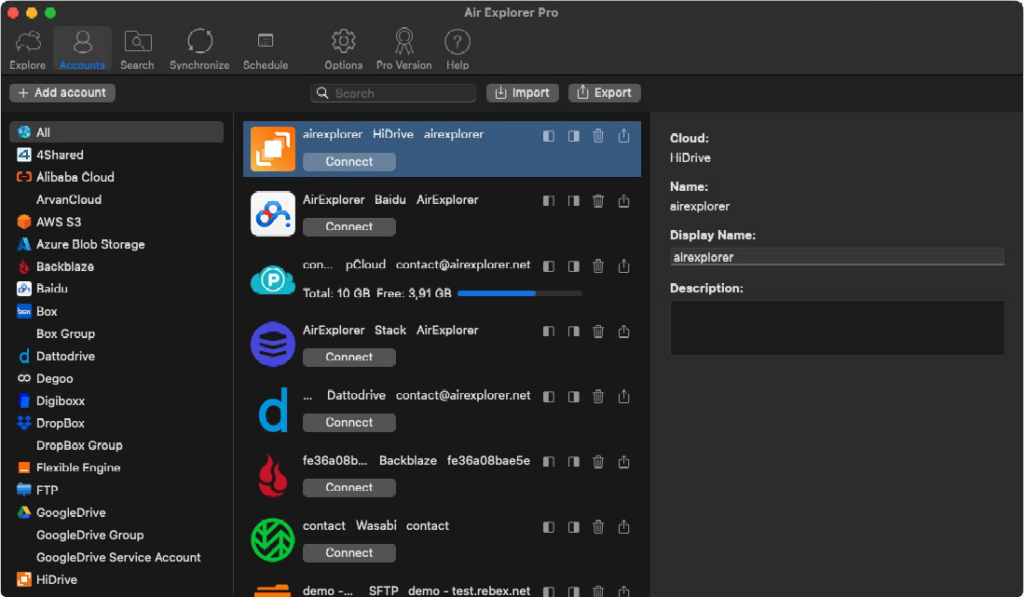
It runs natively on Apple Silicon, so performance on M-series Macs is smooth and efficient. Setup takes minutes: connect your accounts, pick your folders, choose a sync type, and you’re done.
Setting Up a Sync: Step by Step
1. Head to the Synchronize tab
Open Air Explorer and click on Synchronize in the top navigation. Hit “+ Create New Synchronization” to start a new task. You can save as many as you need and run them independently.
2. Select your source and destination folders
Use the left panel to browse to the folder you want to sync from, this could be a cloud folder or a local Mac folder. Use the right panel to select where you want files to go. Mix and match any services you like: pCloud to Google Drive, local Mac folder to OneDrive, Dropbox to iCloud, all valid combinations.
3. Pick your sync mode
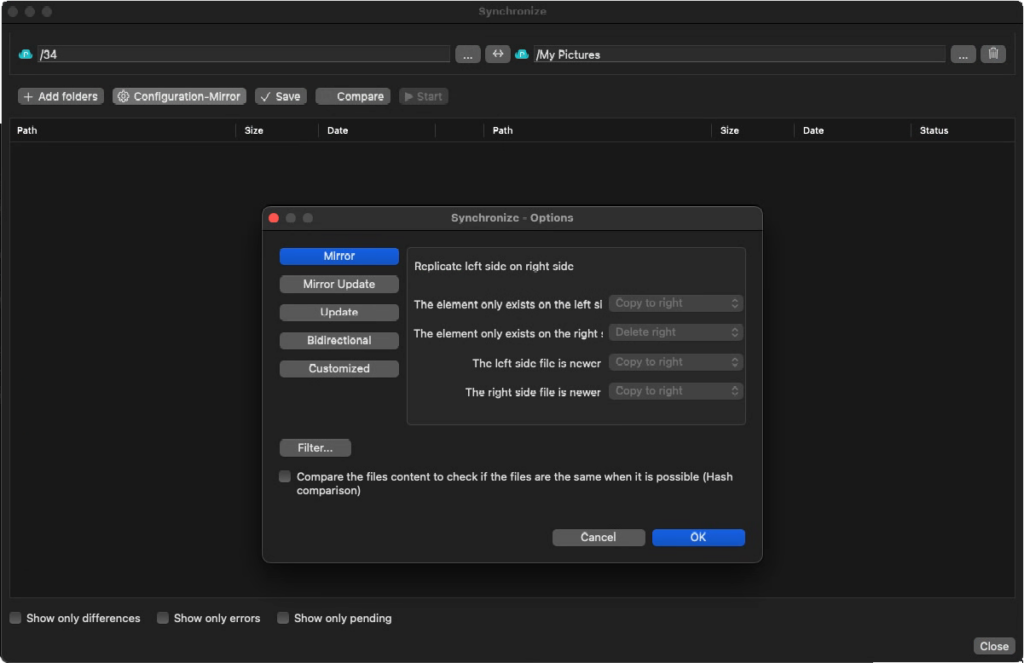
This is where Air Explorer gets genuinely useful. There are five sync modes to choose from:
- Mirror → The destination becomes an exact copy of the source. Files deleted from the source are also deleted from the destination. Best for strict, no-clutter backups.
- Mirror Update → Same as Mirror, but it never deletes anything from the destination. A safer choice if you want to keep older versions around.
- Update → Only copies new or changed files. Great for frequent, lightweight syncs that don’t overwrite everything.
- Bidirectional → Changes on either side are reflected on the other. Ideal when you’re actively working from both locations.
- Customized → Build your own rules. Define what happens for every scenario: file only exists on one side, both sides were modified, one side is newer, etc.
4. Preview before you commit
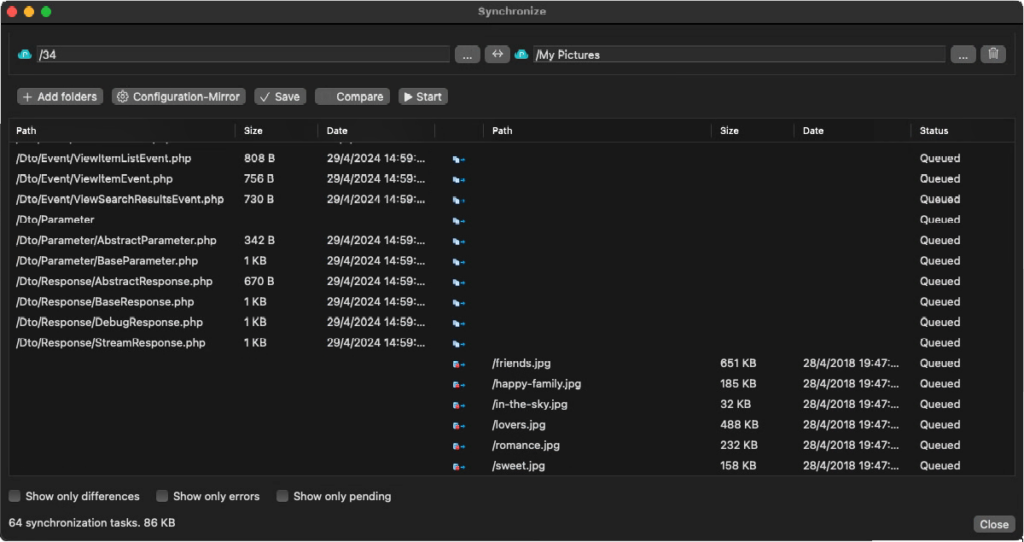
Before running anything, hit “Compare”. Air Explorer scans both folders and shows you exactly what will be copied, updated, or removed, file by file, with size and date. It’s a safety net that makes a real difference when syncing hundreds of files.
5. Save and run
Click “Save” to store the task, then “Start” to execute it. Air Explorer handles multiple operations in parallel, so large syncs finish significantly faster than sequential transfers.
Set It and Forget It: Automatic Scheduling
Once a sync task is saved, you don’t have to remember to run it. The built-in Scheduler lets you set a recurring schedule (hourly, daily, overnight) so your files stay in sync without any manual input. This is particularly useful for nightly Mac-to-cloud backups or keeping a work folder mirrored across two services around the clock.
Advanced Features Worth Knowing
- Filters: Exclude file types you don’t need synced (
.tmpfiles, system junk, oversized archives) or target only recently modified documents. - Hash comparison: Instead of relying purely on timestamps, this option compares actual file content. It prevents re-uploading files that are already identical, saving both time and bandwidth.
- Encryption: Files can be encrypted on the fly before being uploaded, adding a layer of privacy that most cloud services don’t provide by default.
Real-World Use Cases
- Nightly Mac backup to pCloud or Google Drive → Mirror mode on a schedule
- Migrating a full Dropbox account to OneDrive → Update mode, source preserved
- Keeping photos in sync between two cloud accounts → Bidirectional mode
- Protecting a client project folder in real time → Mirror Update with file type filters

Quick FAQ
Do I need to download files to sync between two clouds?
No. Air Explorer syncs cloud-to-cloud directly. Your local storage isn’t involved unless you specifically choose a local folder as the source or destination.
Does it work with free cloud accounts?
Yes, as long as the service provides API access, which nearly all major providers do, including Google Drive, Dropbox, OneDrive, and pCloud.
Is Air Explorer free?
There’s a free tier with core functionality. The Pro version unlocks advanced sync modes, encryption, and the automatic scheduler.
Conclusion
Managing multiple cloud accounts doesn’t have to mean constant manual work. With the right tool, your Mac becomes a control center for all your cloud storage, automated, organized, and stress-free. Air Explorer is available to download directly from the official website, and your first sync can be up and running in under five minutes.
You can check more information here:
-Using PikPak with Air Explorer for Mac
-Manage your files on the cloud with Air Explorer for Mac
-Cloud backup with Mac
