
How to Automate Cloud File Transfer with Command Line
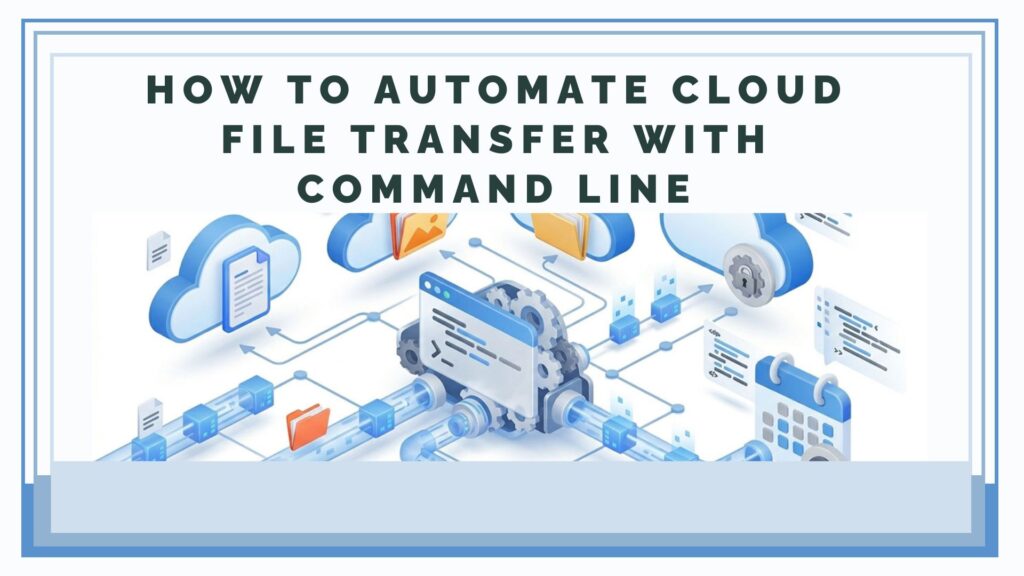
Moving files from one cloud to another can be a slow process if you have to download the data to your computer and then upload it again. Thanks to Air Explorer’s command line, you can automate direct cloud-to-cloud transfers. In this article, you will learn how to use the transfer command to perform migrations or backups between different storage servers invisibly and efficiently.
Why Use the Command Line to Transfer Files Between Clouds?
The transfer command is one of the most powerful tools in Air Explorer’s CLI (Command Line Interface) for several reasons:
- Direct Transfer: Data moves directly between cloud servers, optimizing bandwidth and without taking up space on your local disk.
- Mass Migrations: Ideal for moving content from an account you are closing to a new one unattended.
- Security and Encryption: It allows you to encrypt files while they are transferred to the new destination, ensuring the privacy of your data.
Step 1: Preliminary Configuration in Air Explorer
Before running any command, make sure to prepare the graphical interface:
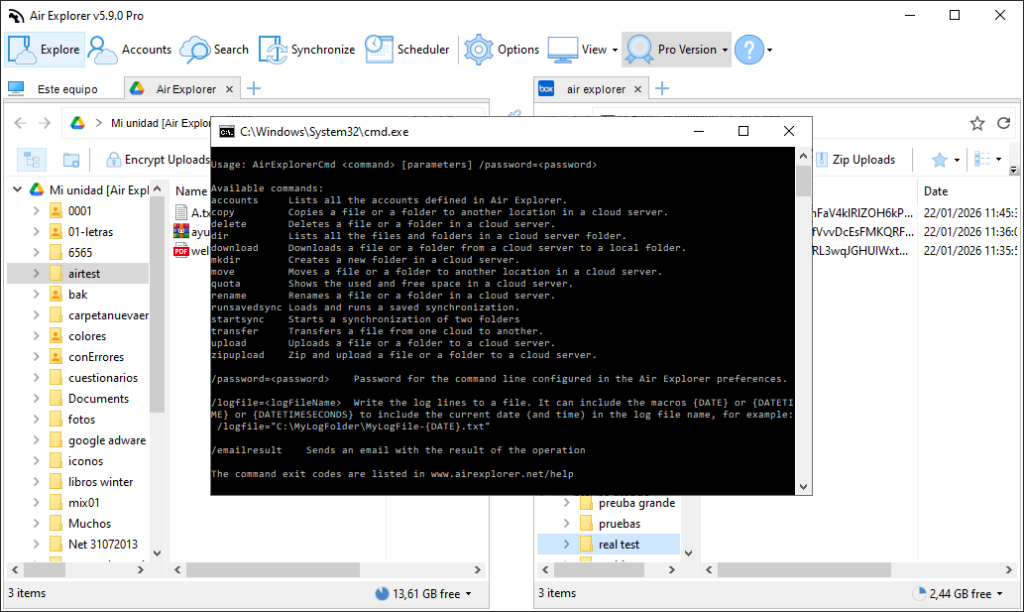
- Enable CLI Support: Go to the Options tab, select the General section, and check the “Enable Command Line Support” box.
- Identify Cloud Aliases: Open the Accounts window. You will need the names (Aliases) for both the source and destination clouds (e.g., “MyGoogleDrive” and “OneDrive_Backup”).
Step 2: The “transfer” Command and Its Syntax
The instruction for moving files between clouds uses the AirExplorerCmd.exe executable. The basic structure is:
AirExplorerCmd transfer "source_cloud" "source_path" "destination_cloud" "destination_path"
Control and Security Parameters
You can add modifiers at the end of the command to manage duplicates or protect your files:
/O: Overwrite if the file already exists at the destination (default)./R: Rename the file at the destination if one with the same name already exists./S: Skip the transfer if the file already exists./encrypt=encryptionPassword: Encrypts content, file name, and folders at the destination./encryptName=encryptionPassword: Encrypts content and file name./encryptContent=encryptionPassword: Encrypts file content only.
Step 3: Practical Automation Examples
A. Transfer from Google Drive to OneDrive
If you want to move your “Photos” folder from one account to another, skipping duplicate files: AirExplorerCmd transfer "GoogleDrive_Alias" "My drive [myaccount]/Photos" "OneDrive_Alias" "OneDrive [myaccount]/Backup/Photos" /S
PRO Tip: Remember that you can get the exact path of any folder by copying it directly from the address bar in Air Explorer.
B. Encrypted Migration from Dropbox to Mega
To transfer confidential documents between clouds applying automatic encryption: AirExplorerCmd transfer "Dropbox_Pro" "Dropbox [myaccount ]/Documents" "Mega_Personal" "Mega [myaccount]/Private" /encrypt
Step 4: Automation with .bat Files
To perform periodic transfers or long migrations without supervision, the most effective way is to create an executable file:
- Open Notepad and write your transfer command.
- Save the file with the .bat extension (for example:
cloud_migration.bat). - Simply double-click the .bat file so it runs.

FAQ: Frequently Asked Questions about the Transfer Command
Does cloud-to-cloud transfer consume space on my hard drive? No. Air Explorer manages the data flow directly, so you don’t need free space on your PC to move files from one server to another.
What happens if the destination folder does not exist on the second cloud? Air Explorer will automatically create the necessary folder structure on the destination cloud before starting the transfer.
Is the Pro version required? Yes, access to the command line and advanced transfers are exclusive features of the Air Explorer Pro version.
Can I use the encryption password I already have configured? Yes. If you do not include a password after the /encrypt parameter, the program will automatically use the encryption password you previously configured for that account in the graphical interface.
Conclusion
Automating file transfers between clouds with Air Explorer is the ultimate solution for professionally managing a multi-cloud ecosystem. By eliminating the need for intermediate downloads, you save time and resources, keeping your data always organized and protected.
You can check more information here:
-How to Automate Cloud File Deletion with Command Line
-How to Automate Cloud File Copying with Command Line
-How to Automate Cloud File Downloads with the Command Line
