
How to Automate Cloud File Downloads with the Command Line
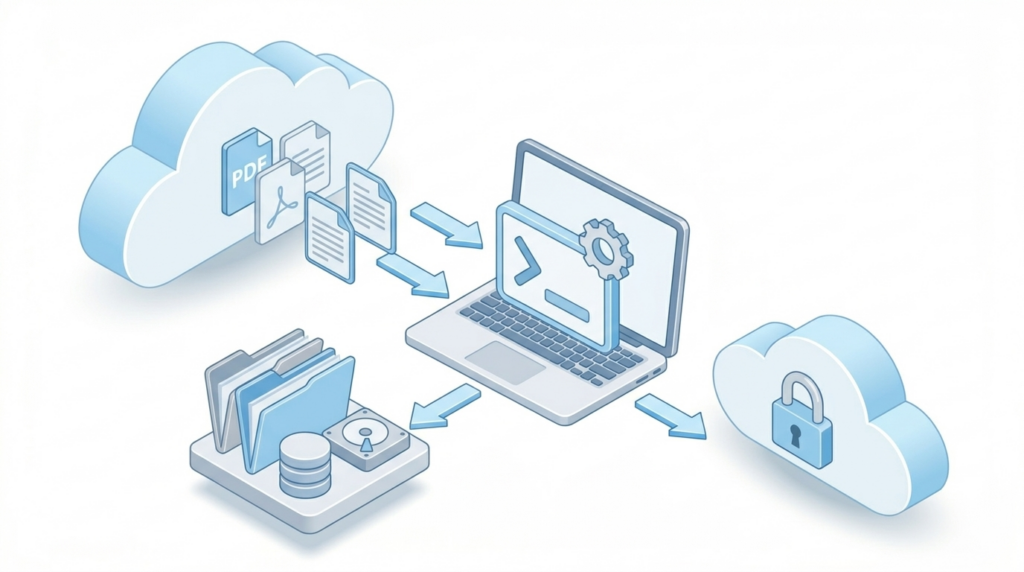
Manually downloading files from the cloud can be a tedious task, especially when dealing with periodic backups or large volumes of data. If you need to download files from services like OneDrive, Google Drive, or Mega to your computer on a recurring basis, automation is your best ally. In this article, we will show you how to use Air Explorer’s download command to make your downloads automatic and efficient.
Why Automate Downloads from the Cloud?
Using the command line interface (CLI) to download files offers advantages that the conventional interface cannot match:
- Time Saving: Avoid having to enter the application and search for files every time.
- Consistency: Ensure that the same directories are always downloaded to the correct local folders.
- Unattended Execution: You can let the computer work for you through scheduled scripts.
Step 1: Preliminary Configuration in Air Explorer
For the commands to work, we first need to prepare the environment in the Air Explorer graphical interface:
- Enable CLI Support: Go to the Options tab, select the General section, and ensure the “Enable Command Line Support” box is checked.
- Identify the Cloud Alias: Go to the Accounts window. The name that appears to the left of your account (e.g., “OneDrive_Personal” or “GoogleDrive_Work”) is the Alias you must use in the command.
Step 2: The “download” Command and How it Works
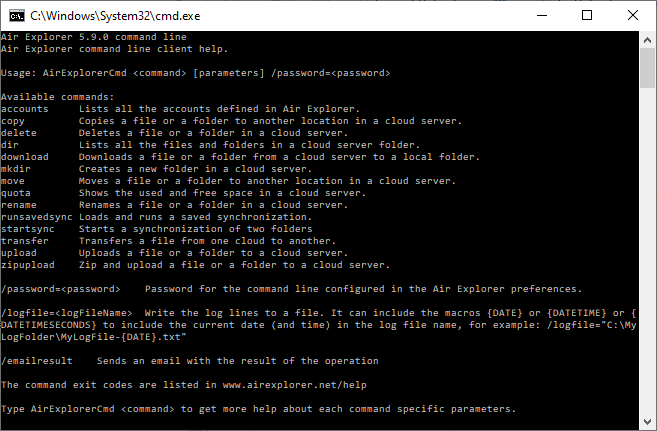
The download command uses the AirExplorerCmd.exe executable. Its basic structure is very simple:
AirExplorerCmd download "cloud_alias" "cloud_path" "local_path"
Parameters for Controlling Existing Files
When automating downloads, it is vital to decide what to do if the file already exists on your computer. You can add these modifiers at the end of the command:
/O: Overwrite the local file if it already exists (default option)./R: Rename the file being downloaded if one with the same name already exists at the destination./S: Skip the download if the file is already on your PC.
Step 3: Practical Examples of Automated Downloads
A. Downloading a Documents Folder from OneDrive
If you want to download your “Documents” folder from OneDrive to a specific folder on your hard drive: AirExplorerCmd download "OneDrive_Alias" "OneDrive [myaccount]/Documents" "C:\Backups\Cloud_OneDrive" /O
PRO Tip: You can get the exact cloud path by copying it directly from the address bar in Air Explorer while browsing your files.
B. Downloading a File from Mega
To download a database or a large file from Mega to your local desktop: AirExplorerCmd download "My_Mega" "Mega [myaccount]/Backups/Weekly_DB.zip" "C:\Users\User\Desktop" /O
Step 4: Automation with .bat Files in Windows
To avoid typing the command manually every time you want to update your local files, the most practical way is to create an executable file:
- Open Windows Notepad.
- Paste your command (you can add several, one per line, if you want to download from different clouds or many files).
- Save the file with a .bat extension (for example:
update_local_files.bat). - Whenever you need to download your files, simply double-click the .bat file.
FAQ: Frequently Asked Questions about the Download Command
You can download both. If the cloud path points to a specific file, only that file will be downloaded. If it points to a folder, Air Explorer will download its entire content.
Yes, access to command line features is an advanced feature designed for Pro version users.
Yes. The command line download command respects the download speed limits you have set in the Options of the Air Explorer graphical interface.
Conclusion
Automating file downloads with Air Explorer transforms a repetitive manual task into a robust and professional process. Whether for keeping local copies of your projects or managing large storage servers, the download command gives you full control over your data without complications.
You can check more information here:
How to Automate File Uploads to the Cloud Using Command Line
-Google Drive to OneDrive: How to automate syncs with Air Explorer’s command line
