
How to Automate Cloud File Renaming with Command Line

Maintaining an organized file structure in the cloud often requires changing folder or file names to adapt to new versions or dates. Doing this manually across multiple accounts can be inefficient. Thanks to Air Explorer’s command line, you can automate the renaming of your digital assets. In this article, you will learn how to use the rename command to manage your files professionally and unattended.
Why Use the Command Line to Rename Files?
Using the rename command via the CLI (Command Line Interface) is a powerful tool for system administrators and power users:
- Standardization: Ideal for scripts that rename “Logs” or “Backups” files following a specific pattern after a transfer.
- Remote Maintenance: Change the names of entire directories without needing to download a single byte of data.
- Integration: You can include this command as the final step of a backup process to mark a folder as “Completed.”

Step 1: Preliminary Configuration in Air Explorer
For your commands to run smoothly, you must first perform these checks in the graphical interface:
- Enable CLI Support: Go to the Options tab, select the General section, and check the “Enable Command Line Support” box.
- Identify the Cloud Alias: Open the Accounts window. The name that appears to the left of your cloud icon (e.g., “GoogleDrive_Personal” or “Dropbox_Enterprise”) is the Alias we will use.
Step 2: The “rename” Command and Its Syntax
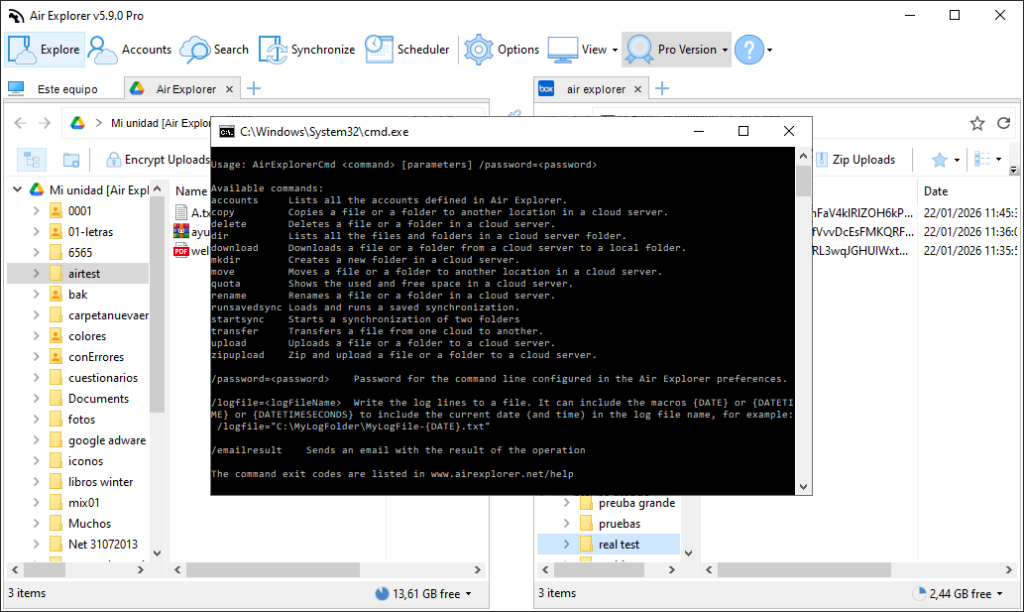
The instruction for changing names is straightforward and uses the AirExplorerCmd.exe executable. The basic structure is:
AirExplorerCmd rename "cloud_alias" "current_path" "new_name"
Technical Details:
- current_path: This is the full path to the file or folder you want to rename in the cloud.
- new_name: This is only the final name you wish to apply (not the full path).
- Compatibility: Works for both individual files and entire folders.
Step 3: Practical Automation Examples
A. Renaming a Project Folder in Google Drive
If you have finished a project and want to move it from “Current_Project” to “Completed_Project”: AirExplorerCmd rename "MyGoogleDrive" "Mi unidad [Air Explorer]/Projects/Current_Project" "Completed_Project"
PRO Tip: To avoid path errors, you can copy the path directly from the address bar in Air Explorer while browsing the cloud.
B. Changing the Name of a Database File in Mega
To rename a specific backup file: AirExplorerCmd rename "Mega_Backup" "Mega [contact@airexplorer.net]/Backups/db_old.zip" "db_backup_march.zip"
Step 4: Automation with .bat Files
To automate recurring name changes, the best approach is to create an executable script:
- Open Notepad and type your rename command.
- Save the file with the .bat extension (e.g.,
rename_logs.bat). - You can run it by double-clicking it to run.
FAQ: Frequently Asked Questions about the Rename Command
Can I move a file to another folder using the rename command?
No. The rename command only changes the name of the item in its current location. To move files between folders, you must use the move command.
What happens if a file with the new name already exists?
Most cloud servers will return an error if you attempt to rename a file to a name that is already taken in the same folder.
Is the Pro version of Air Explorer required?
Yes, access to advanced command line functions is an exclusive feature for Pro version users.
Can I rename folders containing thousands of files?
Yes. Since the operation is performed directly on the cloud server, the change is almost instantaneous regardless of the folder’s size or content.
Conclusion
Automating file renaming with Air Explorer is the ideal solution for organized workflows. By integrating this command into your daily scripts, you ensure that your cloud storage always follows your company’s or personal project’s naming rules.
