
Organizing your files in the cloud often involves moving large amounts of data from one folder to another. Doing this manually can be slow and prone to errors. Thanks to Air Explorer’s command line, you can automate the movement of files and folders within the same cloud server. In this article, you will learn how to use the move command to manage your storage professionally and efficiently.
Why Use the Command Line to Move Files?
The move command in the CLI (Command Line Interface) is one of the most useful functions for maintaining file structures for several reasons:
- Server-side Movement: The operation is requested directly from the cloud, so the files do not pass through your computer. This saves time and does not consume your internet connection’s bandwidth.
- Automatic Cleanup: Ideal for moving processed files to a “History” or “Finished” folder unattended.
- Conflict Management: Includes parameters to decide what to do if the file already exists at the destination (overwrite, rename, or skip).
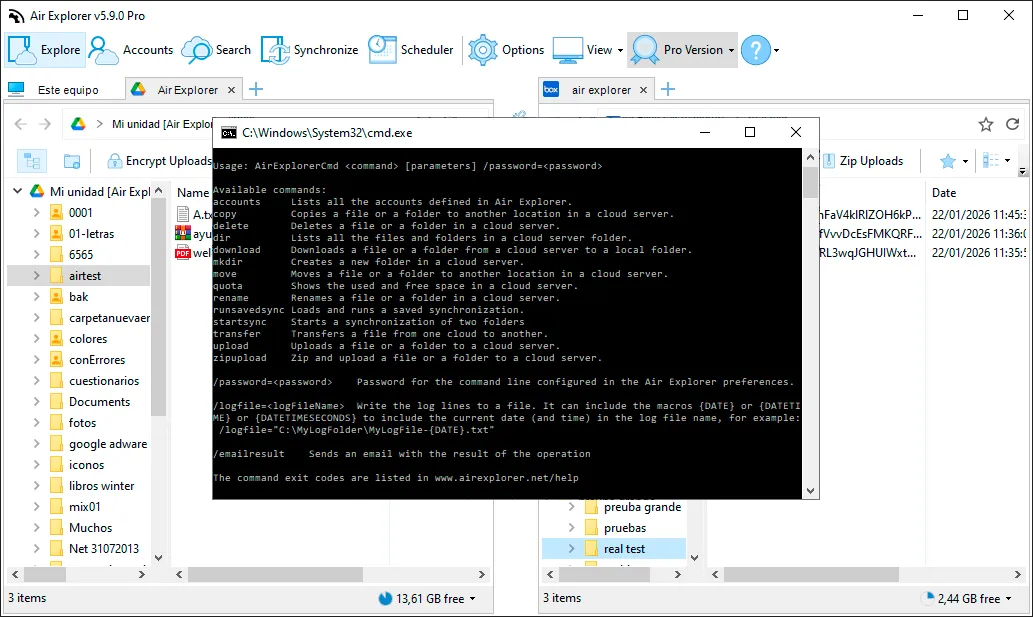
Step 1: Preliminary Configuration in Air Explorer
For the command line to work correctly, you must first perform these checks in the graphical interface:
- Enable CLI Support: Go to the Options tab, select the General section, and check the “Enable Command Line Support” box.
- Identify the Cloud Alias: Open the Accounts window. The name that appears to the left of your cloud icon (e.g., “MyGoogleDrive” or “Dropbox_Personal”) is the Alias we will use.
Step 2: The “move” Command and Its Syntax
The instruction for moving items uses the AirExplorerCmd.exe executable. The basic structure is as follows:
AirExplorerCmd move "cloud_alias" "source_path" "destination_path" [/O | /R | /S]
Parameters for Controlling Existing Files
When automating movements, you can add these modifiers to manage duplicate files:
/O: Overwrite the file if it already exists at the destination (default option)./R: Rename the file being moved if one with the same name already exists./S: Skip the movement if the file is already in the destination folder.
Step 3: Practical Automation Examples
A. Moving a Project Folder in OneDrive
If you want to move your “Completed_Projects” folder to an archive folder within OneDrive: AirExplorerCmd move "OneDrive_Work" "OneDrive [air explorer]/Projects/Completed_Projects" "/Archive/2024" /S
PRO Tip: You can get the exact cloud path by copying it directly from the address bar in Air Explorer while browsing your files.
B. Moving Specific Files in Mega
To move a report file to a monthly subfolder: AirExplorerCmd move "My_Mega" "Mega [contact@airexplorer.net]/Reports/april_report.pdf" "/Reports/Monthly" /O
Step 4: Automation with .bat Files
To automate recurring movements, the most effective way is to create an executable script:
- Open Notepad and type your move command.
- Save the file with the .bat extension (e.g.,
organize_cloud.bat). - You can run it by double-clicking the file to run.
FAQ: Frequently Asked Questions about the Move Command
What is the difference between “copy” and “move”? The copy command creates a replica of the file at the destination while keeping the original. The move command transfers the file to the destination and deletes it from the source location.
Can I move files between different clouds with this command? No, the move command is designed for movements within the same cloud account. To move files between different providers, you must use the transfer command.
What happens if the destination folder does not exist? Air Explorer is smart: if the destination path is not found in the cloud, the program will automatically create it before moving the file or folder.
Is the Pro version required? Yes, access to advanced command line functions is an exclusive feature for Air Explorer Pro version users.
Conclusion
Automating file movement with Air Explorer is the ideal solution for professional workflows. By running directly on the server, you save resources and ensure your cloud storage is always perfectly organized without manual effort.
You can check more information here:
-How to Automate Cloud Folder Creation with Command Line
-How to Automate Cloud File Renaming with Command Line
-How to Automate Cloud File Transfer with Command Line