
Automate Cloud Backups with AI: Scheduled Syncs via Natural Language
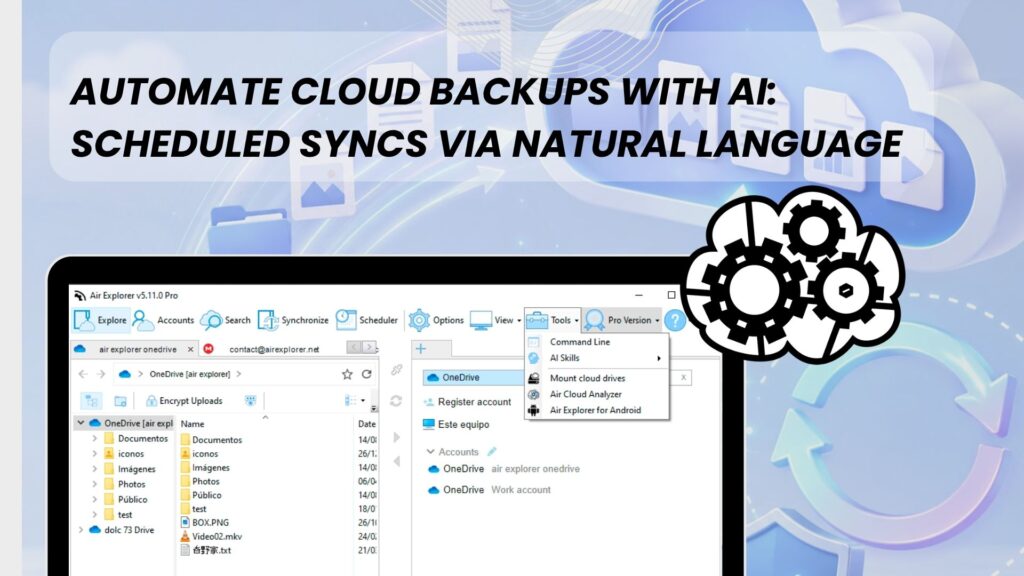
Backing up your files to the cloud is easy. Remembering to do it every day, at the right time, with the right folders, that’s the hard part. Air Explorer’s AI Skill changes the equation: you describe the backup you want in plain language, and your AI assistant (Claude Code, ChatGPT/Codex or Google Antigravity) not only builds the correct synchronization command, but can also register it in the Windows Task Scheduler so it runs automatically, forever, without you lifting a finger.
In this article we’ll show you how to go from a sentence like “back up my Documents folder to Google Drive every night at 2 AM” to a fully automated, scheduled cloud backup, no scripting knowledge required.
How it works: AI + Air Explorer command line + Task Scheduler
The Air Explorer AI Skill is built on the open Agent Skills standard (SKILL.md) and gives your local AI assistant full control of Air Explorer’s command line (AirExplorerCmd.exe). Among the commands it can build for you, two are the backbone of any backup strategy:
startsync— runs an ad-hoc synchronization between a local folder and a cloud folder (or between clouds), with modes like Mirror, MirrorUpdate or Update, hash comparison and HTML reports.runsavedsync— executes a synchronization you have already created and saved in Air Explorer’s scheduler module, with all its filters and options.
The magic happens when you add a third ingredient: the Windows Task Scheduler. Your AI assistant runs locally on your PC, which means it can not only execute Air Explorer commands but also create scheduled tasks (schtasks) that launch those commands on a daily, weekly or custom schedule. You just have to ask.
Step 1: Install the AI Skill
Before anything else, make sure you have:
- Air Explorer Pro installed and activated on your Windows PC.
- The command line enabled: Options → Command line → Enable command line support.
- A local AI assistant: Claude Code, the ChatGPT desktop app / Codex CLI, or Google Antigravity.
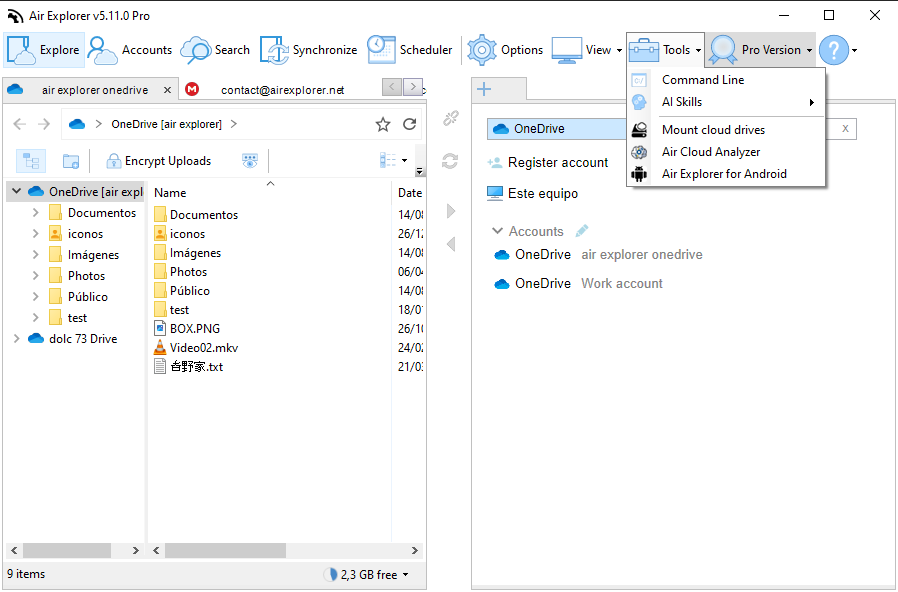
Then open Air Explorer and go to Tools → AI Skills and choose Install in Claude Code, Install in ChatGPT or Install in Antigravity. Restart your assistant and verify everything works by asking: “List my Air Explorer accounts.” The assistant will run AirExplorerCmd accounts and show your clouds with their aliases.
Step 2: Define your backup in plain language
Now describe the backup. For example:
“Mirror my local folder C:\Work\Project to the Project folder of mydrive.”
The assistant will propose a safe dry-run first:
textAirExplorerCmd startsync Local "C:\Work\Project" mydrive "root/Project" Mirror /compareonly
After showing you what would change (uploads, updates, deletions), it runs the real sync with hash verification and a report:
textAirExplorerCmd startsync Local "C:\Work\Project" mydrive "root/Project" Mirror /enablehash /reportfile="C:\Work\sync-report_{DATE}.html"
Prefer a backup that never deletes files on the destination? Just say so — the assistant will use MirrorUpdate or Update instead of Mirror.
If you already have a saved synchronization in Air Explorer (say, NightlyBackup), it’s even simpler:
“Run my saved sync called NightlyBackup.”
textAirExplorerCmd runsavedsync "NightlyBackup"

Step 3: Ask the AI to schedule it
Here’s where automation happens. Because the assistant can execute local commands, you can simply ask:
“Schedule this sync to run every day at 2:00 AM using the Windows Task Scheduler.”
The assistant will create a scheduled task equivalent to:
textschtasks /create /tn "AirExplorer-NightlyBackup" /tr "\"C:\Program Files\AirExplorer\AirExplorerCmd.exe\" runsavedsync \"NightlyBackup\"" /sc daily /st 02:00
Want something more sophisticated? Ask in natural language:
- “Back up my Photos folder to Dropbox every Sunday at 6 AM.”
- “Run the mirror of C:\Reports to OneDrive every weekday at 7 PM, and keep an HTML report of each run.”
- “Create a weekly task that zips C:\Invoices and uploads it to my MEGA account.” (the assistant will combine
zipuploadwith the scheduler)
The AI builds the command, registers the task, and confirms the result — you never touch schtasks syntax yourself.

Step 4: Monitor with exit codes and reports
Automated backups are only trustworthy if you can verify them. Air Explorer’s command line returns clear exit codes that a scheduled script or the assistant itself can check:
- 0 — success
- 1 — success (some files already up to date)
- 2 — nothing needed copying
- 4 — error
- 8 — partial error
Combine this with the /reportfile parameter and you’ll get a dated HTML report after every scheduled run. You can even ask the assistant: “Check the result of last night’s backup task and summarize the report.”
Safety first
The AI Skill is designed with guardrails: the assistant asks for confirmation before deleting or overwriting anything, warns you that cloud deletions may be permanent depending on the provider, and never sees your cloud passwords — it works with the accounts you already signed into inside Air Explorer. For destructive sync modes like Mirror, it will always propose a /compareonly dry-run first.
Conclusion
With Air Explorer’s AI Skill, automating cloud backups no longer requires batch files, cron-like syntax or Task Scheduler wizardry. A single natural-language conversation takes you from “back up this folder to that cloud” to a scheduled, monitored, report-generating backup that runs every night while you sleep. Install the skill from Tools → AI Skills, describe your backup, and let the AI handle startsync, runsavedsync and the Windows Task Scheduler for you.
You can check more information here:
-How to Automate Compressed Uploads (zipupload) to the Cloud
-How to Automate Cloud File Listing with Command Line
-How to Automate Cloud Storage Quota Checks with Command Line
