
How to Transfer Files Between Google Drive and Dropbox with ChatGPT
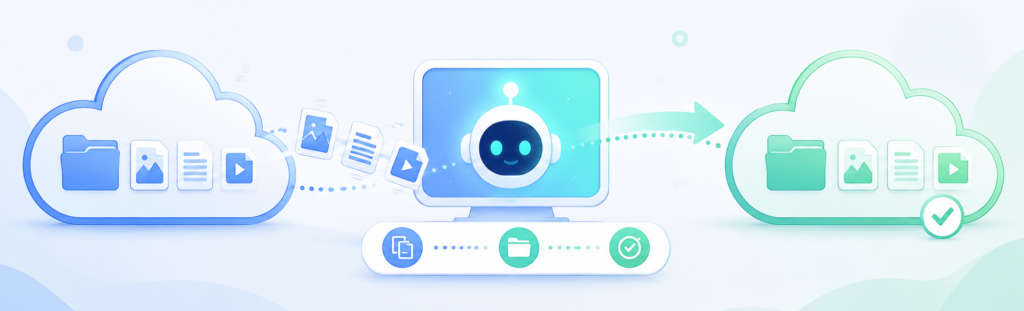
Google Drive and Dropbox are two of the most widely used cloud storage services, but working with both at the same time can become inconvenient. Downloading files from one service, uploading them to the other, and manually checking that everything arrived correctly takes time, especially with large folders. With Air Explorer and ChatGPT Desktop or Codex, you can describe the transfer in plain language and let the AI help you perform it in a clear, controlled way.
Air Explorer connects your Google Drive and Dropbox accounts in one application. ChatGPT understands your request, reviews the intended operation with you, and uses Air Explorer’s command-line capability to carry it out on your computer. The result is a more natural workflow: you do not need to remember commands or switch between several browser tabs.
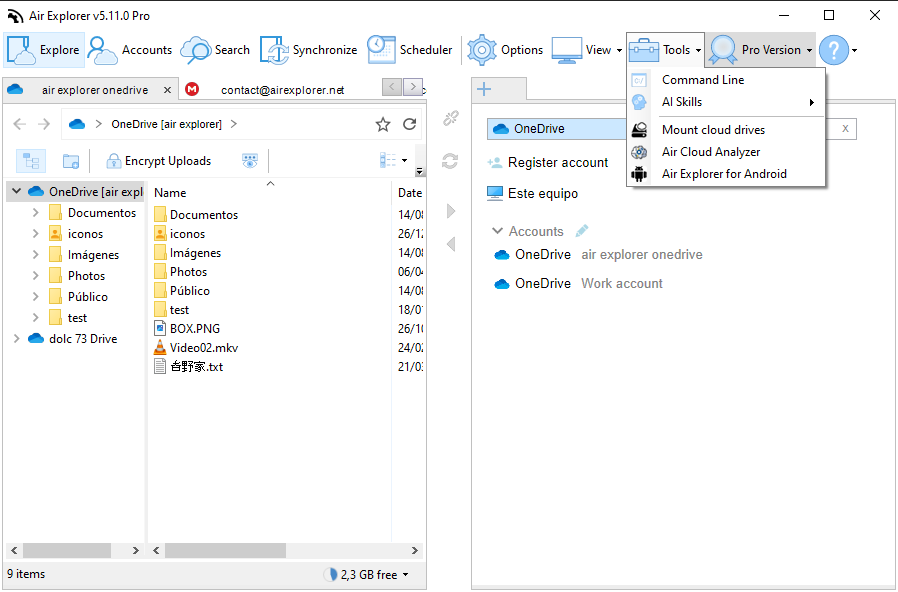
Before you begin, install Air Explorer Pro and connect the accounts you want to use in the application. Command-line support requires an active Pro license and must be enabled through Options > Command line > Enable command line support. Then choose Tools > AI Skills > Install in ChatGPT and restart ChatGPT Desktop or Codex. This feature requires an assistant with access to your local computer; a browser-only ChatGPT conversation cannot run Air Explorer on Windows. Air Explorer’s official AI guide covers these requirements and setup steps.
Once everything is ready, the process starts in ChatGPT. Imagine that you have a folder named Archive in Dropbox and want to keep a copy in a Google Drive folder named Migraciones/Dropbox-2026. You can write:
Copy every file from the Archive folder in my Dropbox
to the Migraciones/Dropbox-2026 folder in my Google Drive.
Do not delete the Dropbox files, and if files with the same name
already exist, create renamed copies instead of overwriting them.
This request includes the key information: the source, destination, scope, and conflict behaviour. ChatGPT checks the connected accounts and the necessary paths before preparing the transfer with Air Explorer.
It is useful to state whether you want to copy an entire folder or only specific files. For example, to copy PDF documents only, ask:
Copy all PDFs from the Invoices folder in my Dropbox
to the Invoices 2026 folder in my Google Drive.
Do not delete the originals, and skip files that already exist.
You can also narrow a transfer by date, file type, or name. A useful request could be: “Find files containing ‘contract’ in my Dropbox and copy the ones modified this year to Google Drive.” ChatGPT can help you refine the request if a folder name is unclear or if more than one possible location exists.
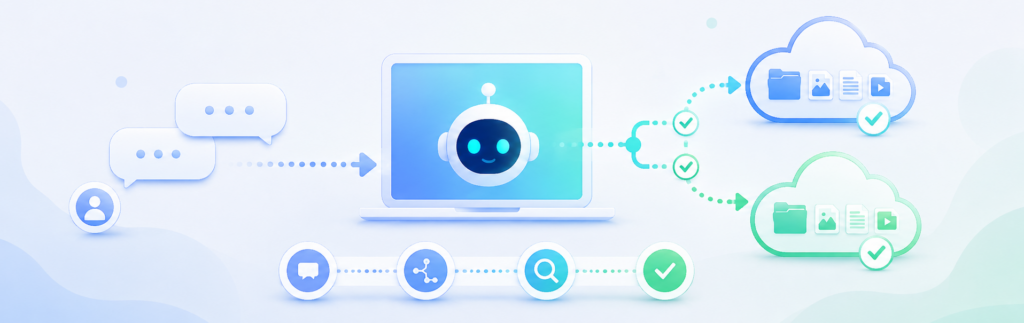
Before starting a large transfer, ask for a preview:
Before copying anything, check the contents of Archive in my Dropbox
and tell me what will be transferred to Google Drive.
This gives you the chance to confirm that the correct folder was selected. It is particularly valuable for backups, shared documents, or projects that contain old versions. Once you have reviewed the selection, give a direct instruction:
The selection is correct. Run the transfer and let me know when it finishes.During the operation, Air Explorer copies the files between Dropbox and Google Drive. The copy does not remove the original content from Dropbox. This is helpful during a first migration because you can open a few files in Google Drive and verify that folders, documents, and images are complete before taking any irreversible action.
When the transfer is done, request a simple verification:
Check the Migraciones/Dropbox-2026 folder in my Google Drive
and summarise the copied files and any errors found.
For important transfers, you can also ask for an operation log. For example: “Save a transfer report so I can review it later.” This is useful for confirming which files were copied, which ones already existed, and whether any files could not be transferred.
It is important to distinguish copying from deleting. A request to “transfer my files” should initially be treated as a safe copy. If you later want to remove the originals from Dropbox, make that a separate request and only after checking the result. For example:
I have checked the files in Google Drive. Show me what would remain
to delete from Dropbox, but do not delete anything until I confirm.
This approach prevents accidental data loss and keeps a backup available while you validate the migration.
ChatGPT and Air Explorer are especially useful for recurring transfers. You can repeat the same process every month to archive invoices, move photos, centralise work documents, or duplicate backups between services. Rather than remembering technical steps, simply describe your intention: what to copy, where it is, where it should go, and how duplicates should be handled.
ChatGPT makes the task easier to request, while Air Explorer securely connects to your cloud accounts and performs the work through its command line. Together, they provide a practical way to move files between Google Drive and Dropbox with fewer manual steps and more control over the final result.
You can check more information here:
-Automate Cloud Backups with AI: Scheduled Syncs via Natural Language
-Talk to Your Cloud: Managing Google Drive, Dropbox & OneDrive with Natural Language Using Air Explorer’s AI Skills
-How to Plan and Run Large Data Migrations
