
How to Plan and Run Large Data Migrations
July 25, 2026
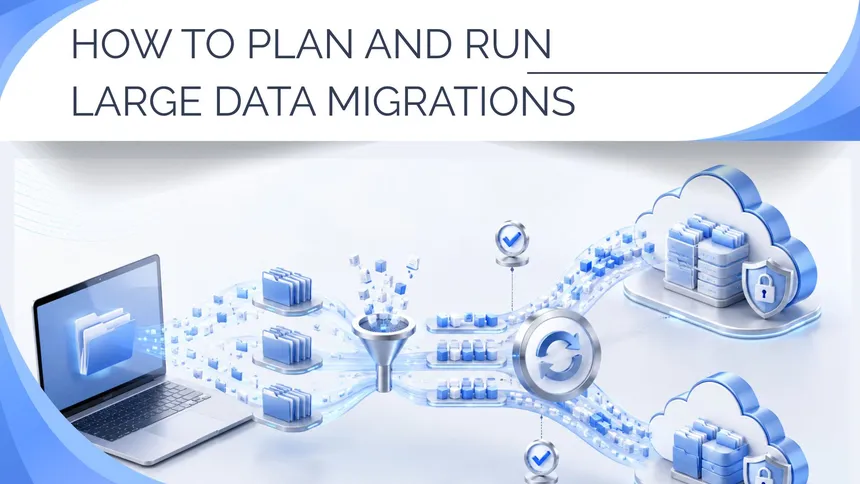
Moving hundreds of gigabytes, or even several terabytes, between a computer and the cloud, or from one cloud storage provider to another, takes more than dragging a few folders and hoping the transfer finishes without errors.
At this scale, a migration should be treated as a controlled process. The data needs to be assessed, split into manageable batches, filtered, monitored, and verified. Air Explorer brings these steps together through direct transfers, synchronization jobs, filters, activity logs, and scheduled tasks.
1. Assess the migration before moving any data
Start by reviewing what needs to be moved and how it is organized. Make a note of:
- The total amount of data.
- The approximate number of files and folders.
- Folders whose contents change frequently.
- Sensitive data that needs to be encrypted.
- Temporary or unnecessary files.
- The storage space available at the destination.
- Any limits imposed by the cloud provider.
Moving 500 GB stored in a small number of video files is very different from moving the same amount of data spread across millions of small files. File count can have just as much impact as total size on the speed and reliability of a migration.
Check that the destination account has enough capacity before you begin. It is also worth looking into maximum file sizes, daily transfer limits, API restrictions, or any other provider-specific policies that could interrupt the process.

2. Break the migration into manageable batches
Avoid moving everything in a single operation. Instead, split the migration into batches based on criteria such as:
- Top-level folder.
- Department or project.
- Content type, such as photos, documents, or videos.
- File age.
- Business priority.
- How frequently the data changes.
Begin with a pilot batch and use the results to size the remaining batches. Consider how long it takes, how many files it contains, whether any errors occur, and whether the provider applies transfer limits or throttling.
Working in batches makes errors easier to isolate, allows you to rerun only the affected data, and gives you a clearer view of overall progress.
3. Choose between a direct transfer and a synchronization job
Air Explorer supports two main ways of copying data: direct transfers and synchronization jobs. Neither is the right choice in every situation. The best option depends on what is already stored at the destination and whether the same operation will need to be run again.
When to use a direct transfer
We don’t recommend this way for doing large transfers.
To start a direct transfer, open the source location in one Air Explorer pane and the destination in the other. Select the files or folders you want to copy, then drag them to the destination pane. You can also use copy and paste or the arrows between the two panes. The operation is added to the transfer queue, where you can follow its progress and check for errors. For cloud-to-cloud copies, Air Explorer handles the transfer between the two locations, so there is no need to download the files manually and upload them again.
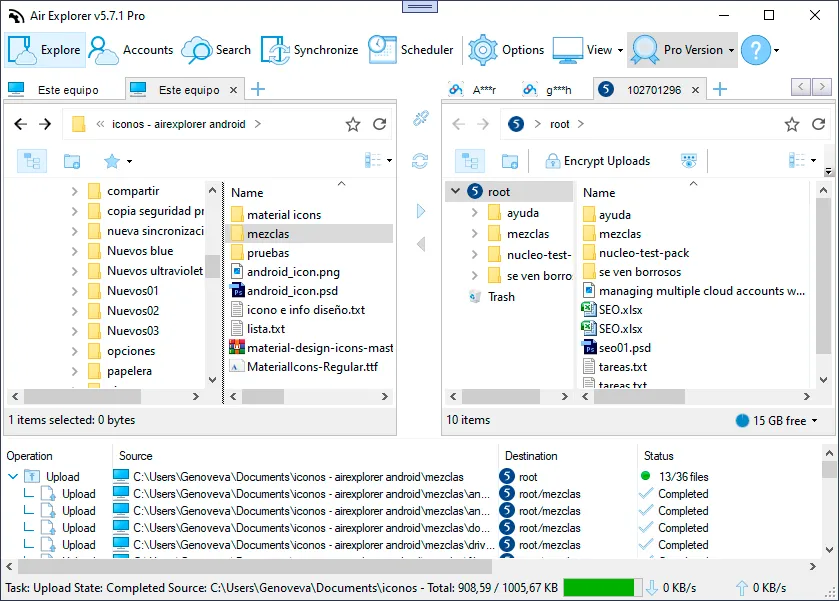
A direct transfer is often enough when:
- The destination is empty.
- The volume of the data is small.
- The number of files is not very high.
- You are copying a specific folder as a one-time operation.
- You do not need to compare the two locations beforehand.
- There is little risk of overwriting or mixing existing content.
- You don’t need error control.
- You don’t need a final report of the operation.
Air Explorer records these operations in its general logs, where you can review completed, failed, and pending transfers.
When to use synchronization
This is the best way of doing large file transfers. The realiability and performace are much better.
Open the Synchronizations tab in the main Air Explorer window and select Create a new synchronization. This opens a setup window where you can choose the source and destination folders. If both folders are already open in the explorer panes, you can also select Synchronize current folders.
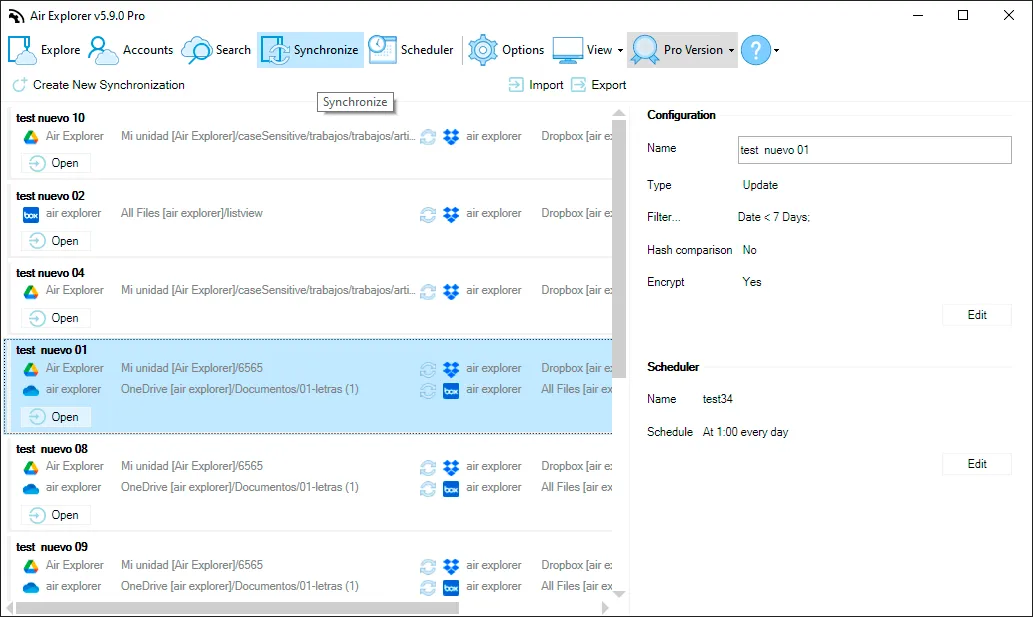
Synchronization is particularly useful when:
- The destination already contains files.
- You need to identify differences before copying anything.
- The migration will take place in several stages.
- Changes made at the source will need to be copied later.
- You want to save and reuse the same setup.
- You need to review the proposed actions before running them.
- You need to get a full final report of the process and the errors.
Synchronization jobs can be saved and run again without having to reconfigure the source, destination, mode, and filters. A saved job can also be added to the Air Explorer task scheduler and run at regular intervals. This is useful when an initial migration needs to be followed by periodic updates.
Choose the synchronization mode carefully
Selecting the right synchronization mode is one of the most important decisions in the migration. Air Explorer can compare both locations and show which files will be copied, updated, or deleted under the selected mode: updated, mirror, mirror updated, bidirectional, or customized.
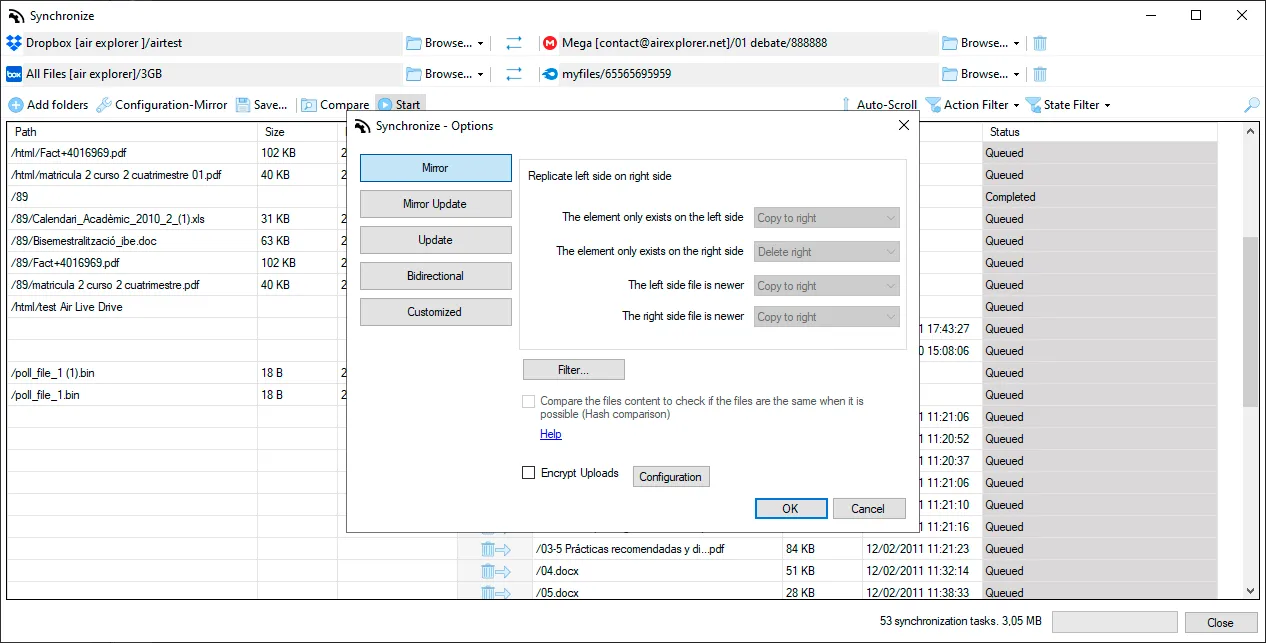
Review the proposed actions carefully before starting, particularly if the selected mode can delete files from the destination or carry changes in both directions. If you are unsure, test the configuration on a small, recoverable set of data first.
4. Filter out files that should not be migrated
Set up filters before running each batch so that unnecessary content is left behind. Depending on the source, you may want to exclude:
- Temporary files such as
.tmpor.temp. - Application caches.
- System files.
- Automatically generated thumbnails.
- Recycle Bin or Trash contents.
- Local copies that are no longer needed.
- Folders generated automatically by applications or development tools.
- Old log files.
- File extensions or content types that should not be stored at the destination.
Filters can reduce transfer time, bandwidth usage, cloud storage consumption, and the number of files that need to be verified. They also lower the risk of moving irrelevant data.
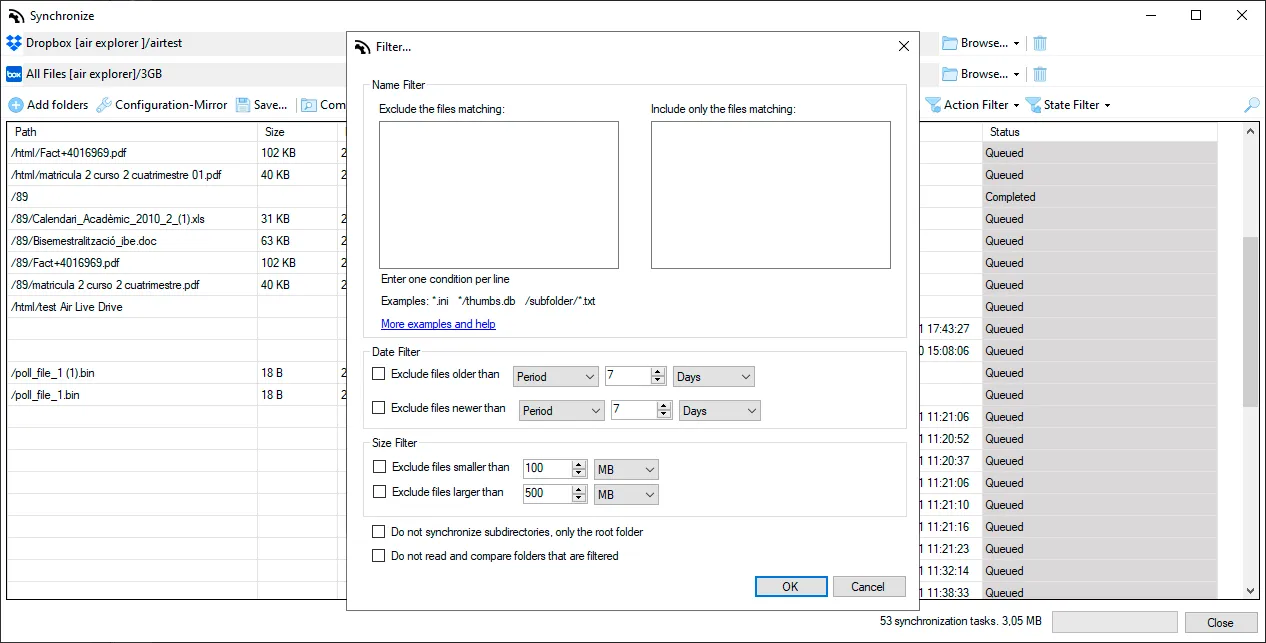
Test each filter on a small batch before applying it to the full migration. A rule that is too broad could exclude files you intended to keep.
5. Run and monitor each batch
For synchronization jobs, use Air Explorer’s comparison step to review the actions that will be performed. For direct transfers, double-check the selected files and the destination folder before starting. While a batch is running, avoid making unnecessary changes to the files it contains.
It is also a good idea to:
- Keep the computer connected to a power source.
- Use a stable network connection.
- Make sure enough temporary disk space is available if the workflow requires it.
- Check regularly for errors and skipped items.
- Keep the logs for each batch.
If an operation is interrupted, review the log before running it again. Do not assume that every file processed before the interruption was copied successfully.
A failure within one controlled batch is far easier to investigate and recover from than a problem buried inside a single multi-terabyte operation.
6. Verify the results
A migration is not complete simply because the last item has disappeared from the transfer queue. At the end of each batch, confirm that the expected folders are present at the destination and check for errors, skipped files, or pending operations.
Where possible, compare the number of files and the amount of storage used at the source and destination. For important data, carry out a few manual checks as well: open a sample of documents, images, videos, or archives to make sure they are usable.
If you used a saved synchronization job, run another comparison to identify any remaining differences before marking the batch as complete.
Reliable migrations are controlled migrations
Speed is not the only measure of a successful large-scale migration. A planned, batched, verifiable, and well-documented process is easier to recover if something goes wrong and provides much greater confidence that every file has reached its destination.
By combining direct transfers and synchronization jobs with filters, logs, and scheduled tasks, Air Explorer turns a large copy operation into a process that is structured, repeatable, and easier to manage.
You can check more information here:
-How to Move Files Between Cloud Accounts Faster and With Less Manual Work
-7 S3-Compatible Cloud Storage Services You Can Manage from One Window
-Top MultCloud alternative: Air Explorer