
Fast transfer files between Onedrive accounts
August 17, 2023
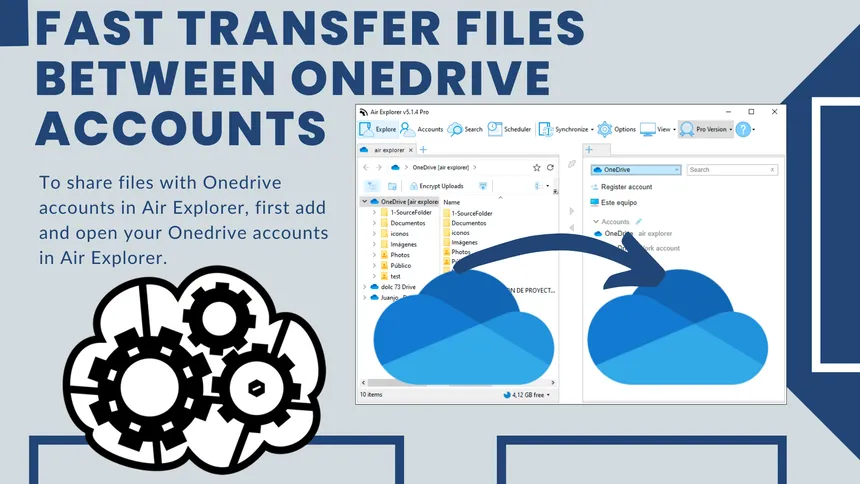
Using a OneDrive account allows you to store your files in the cloud and access them from any device and anywhere with Internet access. Plus, you can share your files with others and work on them collaboratively in real time. OneDrive also offers secure storage and constant updates.
When working in a team, you may need to exchange files between multiple Onedrive accounts. Copying and pasting files between Onedrive accounts has an important advantage. If you copy and paste files between shared Onedrive accounts, the files are transferred directly from one account to another without going through your PC. Air Explorer makes it easy to transfer files between Onedrive accounts.
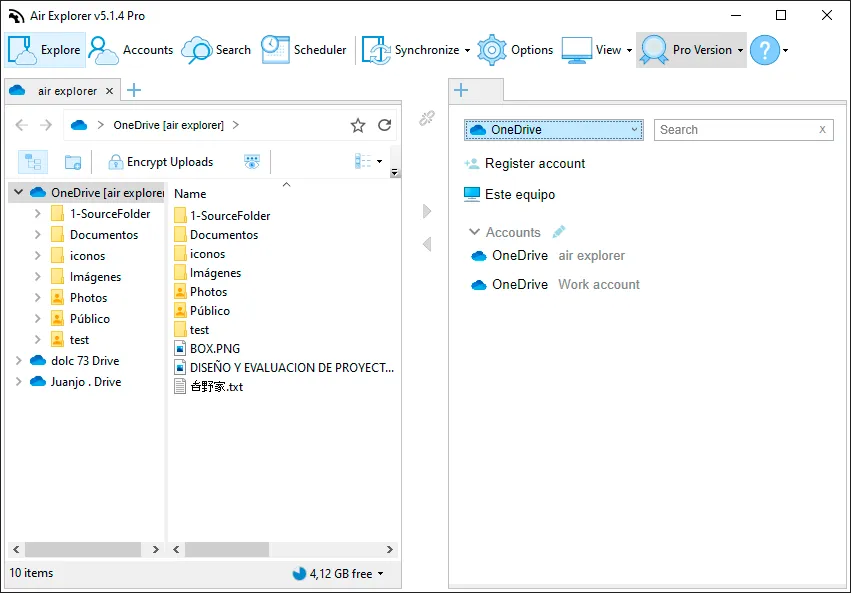
To share files with Onedrive accounts in Air Explorer, first add and open your Onedrive accounts in Air Explorer.
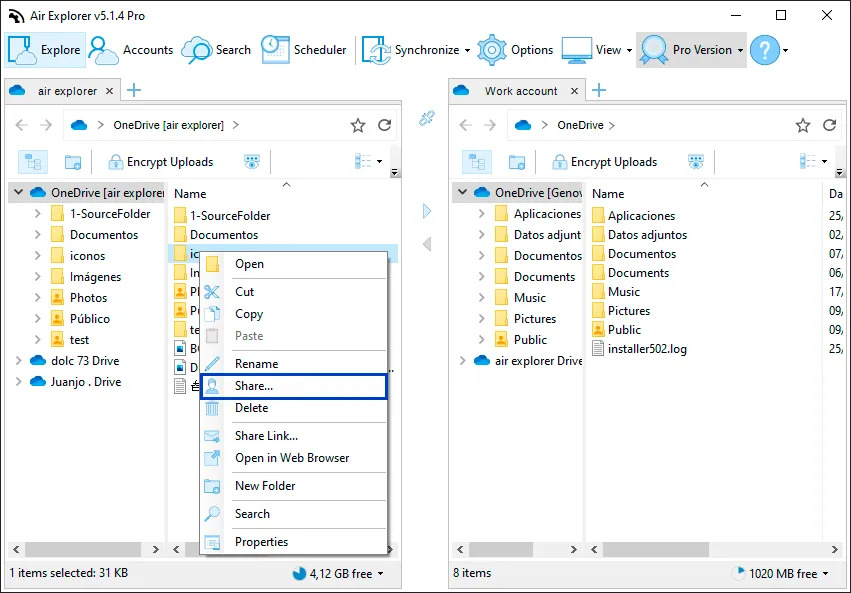
Choose the folder you want to share and right-click and in the menu that appears click Share.
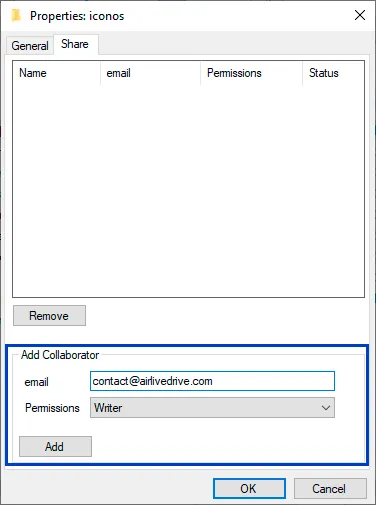
Enter the email address of the Onedrive account and give permissions to the target Onedrive account.
Once you have shared the account, you can update and the folder will change the icon. On the target account, when you restart the software, the source folder can be seen as an Onedrive folder.
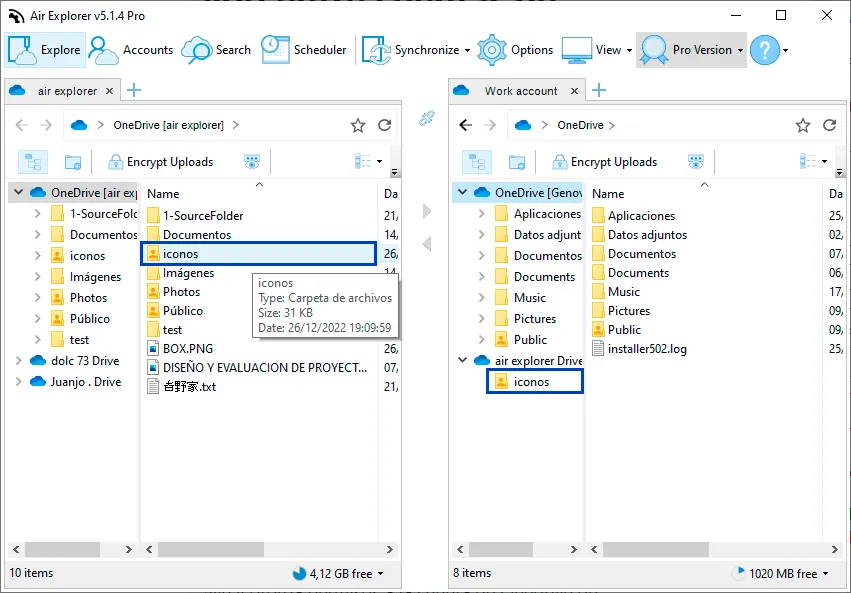
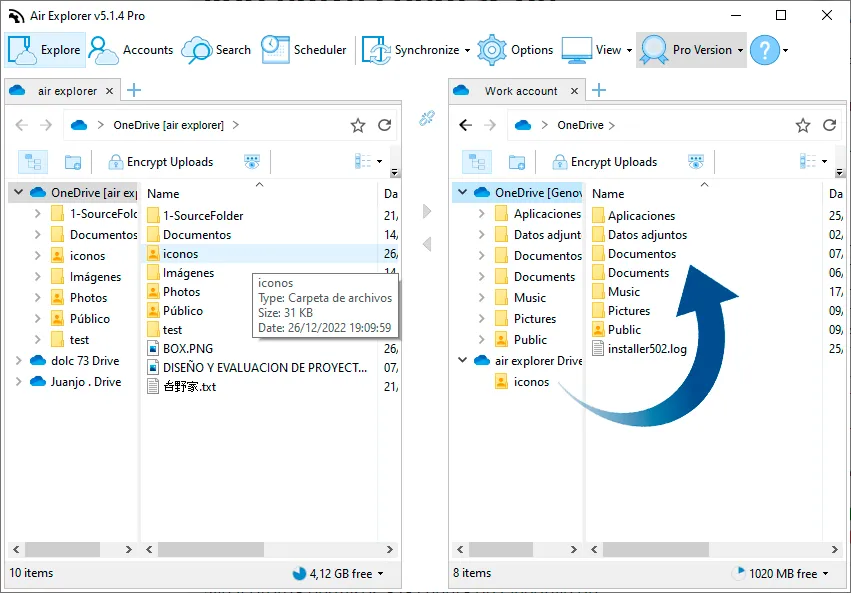
When the folder is shared, it is displayed inside a drive in the destination account. You can now quickly transfer files between it and other Onedrive folders without going through your computer.
You can check more information here:
-How to Transfer Files from Dropbox to Google Drive Without Downloading Them
-How to Transfer Files from OneDrive to Google Drive Without Downloading Them
-How to Transfer Files from Google Drive to OneDrive Without Downloading Them