
How to Use Air Explorer with Claude Code: Setup Guide for Windows and Mac
November 3, 2026
To use Claude Code with Google Drive, Dropbox, OneDrive or any other cloud, install Air Explorer’s AI skill: open Tools → AI Skills → Install in Claude Code, restart Claude Code and ask it to “list my Air Explorer accounts”. From then on you can search, upload, copy between clouds or sync folders by describing what you want, because Claude Code turns your request into an Air Explorer command and runs it on your own computer with the accounts you already have signed in. The whole setup takes a couple of minutes and works the same on Windows and Mac.
This guide walks you through each step, shows what to ask once it is running and explains how your files and passwords stay protected along the way.
What You Need Before You Start
Claude Code works with your clouds through Air Explorer’s command line, so there are three things to have ready. The first is Air Explorer Pro, installed and activated on the Windows PC or Mac where you will use Claude Code, since the command line is a Pro feature. The second is Claude Code itself, either the terminal version or the Claude Code tab in the Claude desktop app. The third is your cloud accounts added to Air Explorer: Claude Code never signs in to a cloud by itself, it uses the accounts Air Explorer already has, so add any Google Drive, Dropbox, OneDrive, MEGA or other account from Air Explorer first.
A browser chat such as claude.ai cannot do this, because it has no access to programs on your computer. You need Claude Code, which runs locally and can execute commands when you allow it.
Step 1: Install the AI Skill from Air Explorer
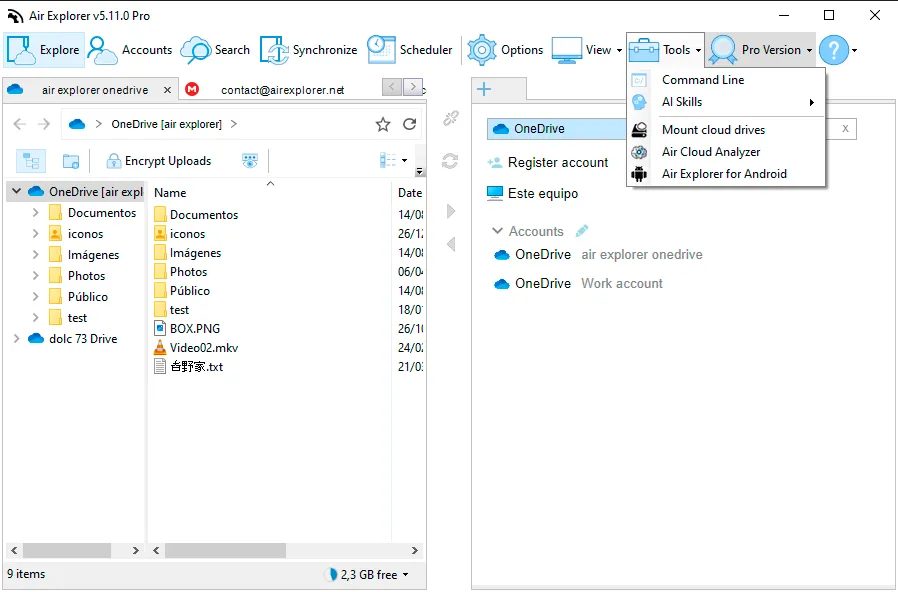
Open Air Explorer and go to Tools → AI Skills → Install in Claude Code. Air Explorer copies its skill, called air-explorer-cli, into Claude Code’s skills folder in your user profile. A skill is a small set of instructions that tells Claude Code which commands Air Explorer understands, how cloud paths are written and which actions need your confirmation.
If command line support is turned off, Air Explorer asks whether you want to enable it, and answering yes is all you need to do. If you prefer to do it by hand, it is in Options → Command Line on Windows and in Air Explorer ▸ Preferences… → General on Mac.
When the installation finishes, a message reminds you to restart Claude Code. You only install the skill once: Air Explorer keeps the installed copy up to date whenever the program updates, and the same menu shows Uninstall from Claude Code if you ever want to remove it.
Step 2: Restart Claude Code and Check the Connection
Close Claude Code and open it again, because it only looks for new skills when it starts. Then type:
List my Air Explorer accounts.
Claude Code runs the accounts command and replies with every cloud you have in Air Explorer, each with its alias, which is the short name it will use in later requests. Claude Code may ask your permission before running the command; that is its normal behavior, and you can allow it once or for the whole session.
If the list appears, everything is ready. If Claude Code cannot find Air Explorer, check that command line support is enabled and that, on Mac, Air Explorer is in the Applications folder, then restart Claude Code again.
Step 3: Ask for What You Need
Now you can talk to your clouds in plain language. Some requests that work well to begin with are “What’s in the root of my Dropbox?”, “Find every PDF larger than 2 MB in my OneDrive from this year” or “How much free space is left on each of my accounts?”. To move data you can ask “Copy the Archive folder from my Dropbox to my Google Drive”, and the transfer goes from one cloud to the other without you having to download anything first.
Claude Code can also create folders, rename files, generate share links, give someone access to a folder and run the synchronizations you saved in Air Explorer. If a task is repetitive, such as copying your work folder to the cloud every evening, you can ask for it to be scheduled, as we explain in Automate Cloud Backups with AI.
When you have several accounts of the same service, mention the alias Claude Code showed you (“upload this folder to work-onedrive”) so it does not have to guess which one you mean.

How Your Files and Passwords Stay Safe
Claude Code never sees your cloud passwords. Air Explorer keeps the sign-in of each account, and the assistant only works with the aliases. The transfers themselves are done by Air Explorer on your computer, as they are when you use the program yourself.
What Claude Code does see is the result of each command, such as file names, folder lists or free space, because it needs them to answer you. Keep that in mind if folder names contain private information.
The skill is designed to be careful with actions that cannot be undone. Before deleting or overwriting files, Claude Code explains what will be affected and waits for you to confirm. Before a mirror sync, which deletes files at the destination that are not in the source, it compares both sides first and shows you the changes. You can also set a command line password in Air Explorer’s preferences; Claude Code will then ask you for it when a command needs it.
Common Problems and How to Fix Them
If Claude Code says the skill is not available, restart it, since skills are only detected at startup. If the reply says the command line is only valid for Pro, activate your license in Air Explorer on that same computer. On Mac, the system may ask once for access to your Desktop, Documents or Downloads folders; allow it so Air Explorer can read and save local files for the assistant. And if Claude Code does not find a folder, ask it to list the account first so it can see the exact name of the root folder.
You will find the full list of commands, example conversations and more answers in the AI Skills help page.
Frequently Asked Questions
Does Claude Code Work with Google Drive?
Yes. With Air Explorer’s AI skill, Claude Code can browse, search, upload, download, sync and share files in Google Drive, and the same goes for Dropbox, OneDrive, MEGA, iCloud Drive, S3 and the other services Air Explorer supports.
Do I Need Air Explorer Pro?
Yes. The AI skill uses Air Explorer’s command line, which is part of Air Explorer Pro. The free version is still useful for adding your accounts and trying the program before you buy.
Does It Work with Other Assistants?
Yes. The same menu installs the skill for ChatGPT and Codex and for Google Antigravity, and the manual installation option lets you add it to other compatible assistants. You can see an example with ChatGPT in How to Transfer Files Between Google Drive and Dropbox with ChatGPT.
If you have not tried it yet, download Air Explorer, add your accounts and install the skill: the first request is the best way to see how much time it saves.