
30 AI Prompts to Manage Google Drive, Dropbox and OneDrive with Air Explorer
November 17, 2026
Once Air Explorer is connected to your AI assistant, you can manage your clouds by simply asking for what you want. The hard part is knowing what to ask, so we have collected 30 prompts you can copy and paste into Claude Code, ChatGPT or Antigravity: they find files, move them between clouds, tidy up folders, share links and keep your backups in sync. They work the same on Windows and Mac, and with any of the 40+ services you have added to Air Explorer, not only Google Drive, Dropbox and OneDrive.
How to Connect Your AI Assistant to Air Explorer
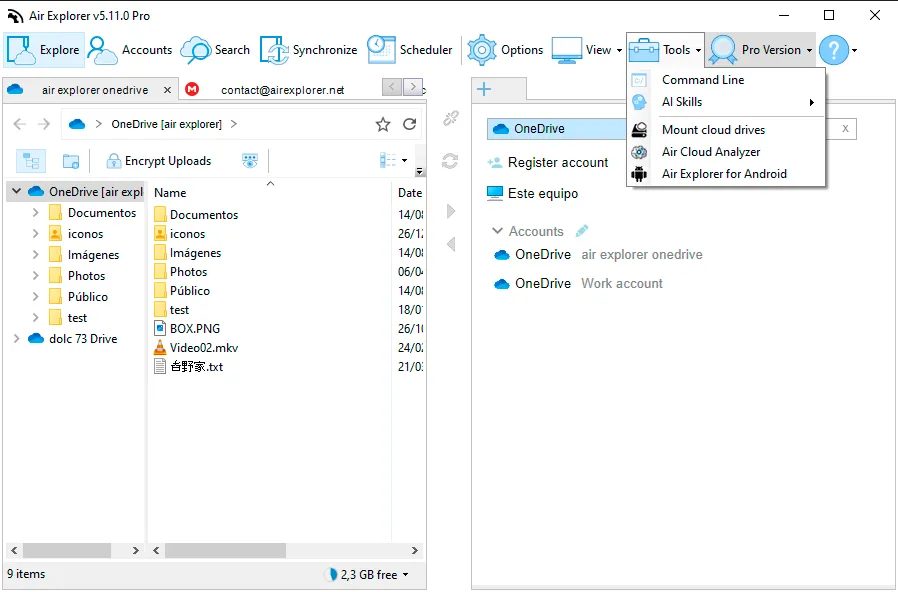
The AI works through Air Explorer’s command line, so you need Air Explorer Pro with command line support turned on: in Options → Command line on Windows, or in Air Explorer ▸ Preferences… → General on Mac. Then open Tools → AI Skills and choose your assistant (Install in Claude Code, Install in ChatGPT or Install in Antigravity). If the command line is still off, Air Explorer offers to turn it on for you. If you use Claude Code, our Claude Code setup guide walks you through every step on Windows and Mac.
Restart the assistant so it finds the new skill and type your first prompt: “List my Air Explorer accounts.” If your clouds appear, everything is ready. The assistant uses the accounts you have already signed in to in Air Explorer, so you never have to give it your cloud passwords. You will find every detail, including manual installation and troubleshooting, in the AI Skills guide, and a general introduction in Talk to Your Cloud.
The examples refer to accounts as “my Google Drive” or “my work OneDrive”. The assistant matches those words with the names your accounts have in Air Explorer, and if you have two accounts of the same service it will ask you which one you mean.
Get to Know Your Clouds
- “List my Air Explorer accounts.” The first prompt to try: the assistant shows every account with the name it will use from now on.
- “What’s in the root of my Dropbox?” A quick look at the top folders of an account.
- “Show me all the folders inside Projects on my Google Drive, including subfolders.” Useful to see how a folder is organized before moving anything.
- “How much free space is left on each of my accounts?” The assistant checks every cloud and gives you a summary, so you know where there is room for your next upload.
Find Files
- “Find the invoices in my OneDrive and tell me which folder each one is in.” The search returns full paths, so you can ask for a follow-up action on the exact file.
- “Which videos larger than 1 GB do I have on my Google Drive?” A good way to find what is taking up your space.
- “Show me the files I’ve changed in my Dropbox since October 1, 2026.” Searches by modification date.
- “Find photos older than 2020 in the Camera Uploads folder of my Dropbox.” Combines file type, date and folder in one request.
- “Look for ‘contract’ in all my accounts and tell me where each match is.” The assistant searches one cloud after another and puts the results together.
Upload and Download
- “Upload all the PDFs in my Downloads folder to the Invoices folder of my Google Drive.” If the destination folder does not exist, it is created.
- “Upload my Photos 2026 folder to Dropbox, but skip the files that are already there.” Nothing in the cloud is overwritten.
- “Download the Contracts folder from my OneDrive to my Desktop.”
- “Zip my Project folder with the best compression and upload it to the Backups folder of my Google Drive.” Air Explorer compresses the folder and uploads a single file.
- “Upload my Taxes folder to OneDrive encrypted, including the file names.” If you have set an encryption password for that account in Air Explorer, the assistant uses it and you don’t have to type it in the chat.
Move Files Between Clouds
- “Copy everything in Archive from my Dropbox to my Google Drive.” The files go from one cloud to the other through Air Explorer, without you downloading them first.
- “Copy the Work folder from my Dropbox to my OneDrive, but only the files that are newer.” Ideal for keeping a second copy up to date.
- “Move my Old Projects folder from Google Drive to MEGA, and delete the originals only after checking that everything arrived.” The assistant copies first and asks for your OK before deleting anything.
- “Copy the Clients folder from my personal Google Drive to my work Google Drive.” It also works between two accounts of the same service.
Organize Your Folders
- “Create a 2027 folder in my Google Drive with a subfolder for each month.” Twelve folders in a single request.
- “Move all the Excel files in Inbox to a Spreadsheets folder in my OneDrive.”
- “Rename draft.docx to final.docx in the Reports folder of my Dropbox.”
- “Copy the Templates folder into the Archive folder of my Google Drive.”
- “Delete the Temp folder in my Dropbox.” Before deleting, the assistant tells you what will be affected and waits for your confirmation, because on some services a deletion cannot be undone.
Share Files
- “Create a share link for report.pdf in my Dropbox.” You get the link right in the chat, ready to paste into an email.
- “Give alice@example.com edit access to the Shared folder of my Google Drive, without sending a notification email.”
- “Who has access to the Projects folder of my OneDrive?” A fast way to review who can see what before sharing more.
Sync and Back Up
- “Compare my local Work folder with the Work folder of my Google Drive and tell me what’s different, without changing anything.” Only compares, so it is completely safe.
- “Back up my Documents folder to OneDrive, without ever deleting anything there.” The assistant picks a sync type that adds and updates files but never deletes them in the cloud.
- “Mirror my Project folder to Dropbox. Show me what would change first and save an HTML report.” A mirror sync makes the cloud an exact copy of your folder, so the assistant shows you the comparison and waits for your answer before running it.
- “Run my saved sync called NightlyBackup and email me the result.” It runs a synchronization you saved in Air Explorer and sends the result to the email address set in its preferences.
If you want your backups to run on their own every night or every week, you can also ask your assistant to schedule them, as we explain in Automate Cloud Backups with AI.

Tips for Better Results
The more specific the prompt, the better the result. Name the account and the folder, and if you are not sure how a folder is called, ask the assistant to list it first. When a task deletes or overwrites files, ask for a comparison before running it: the assistant will ask for confirmation anyway, but seeing the list of changes helps you spot a mistake in time. If you have set a command line password in Air Explorer, the assistant will ask you for it when it needs it.
You don’t have to use the exact wording of these prompts, either. Write them the way you would ask a colleague, combine several in one message (“find the PDFs larger than 10 MB in my Dropbox and move them to an Archive folder”) or continue the conversation with “now do the same with my OneDrive”.
Frequently Asked Questions
Which AI assistants work with Air Explorer?
Claude Code (also in the Claude Code tab of Claude Desktop), the ChatGPT desktop app and Codex CLI, and Google Antigravity. Any other assistant compatible with Agent Skills can use it through the manual installation. It has to be an assistant that runs on your computer: a chat that only works in the browser cannot use Air Explorer.
Does the AI see my cloud passwords?
No. The assistant uses the accounts that are already signed in to Air Explorer on your computer and never needs your cloud passwords.
Do the prompts work on Mac?
Yes. The AI Skills work in Air Explorer for Windows and for Mac, and the prompts are the same. On Mac, the first time the assistant works with your Desktop, Documents or Downloads folders, macOS asks for permission once.
You can check more information here:
-AI Skills: Complete Guide
-How to Use Air Explorer with Claude Code: Setup Guide for Windows and Mac
-Talk to Your Cloud: Managing Google Drive, Dropbox & OneDrive with Natural Language
-How to Transfer Files Between Google Drive and Dropbox with ChatGPT
-Automate Cloud Backups with AI: Scheduled Syncs via Natural Language