
Does TeraBox Support WebDAV or FTP? How to Access TeraBox from Your PC
November 10, 2026
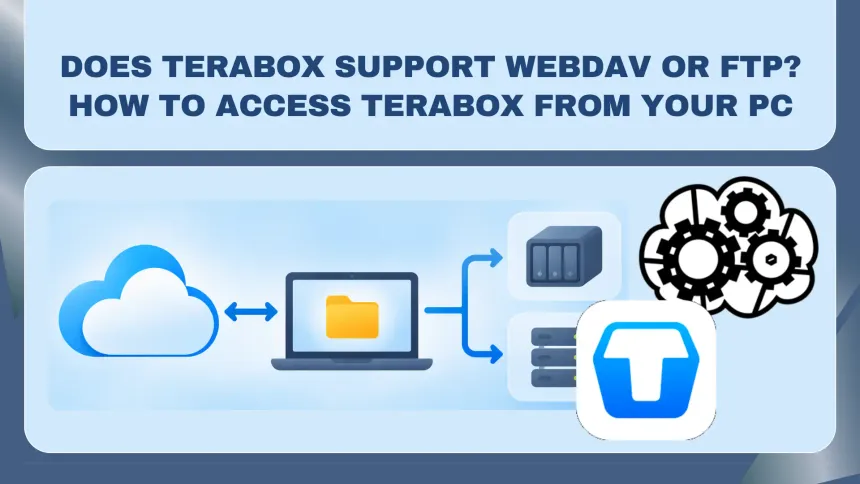
No. TeraBox doesn’t provide official WebDAV, FTP or SFTP access, or a publicly documented API for third-party integrations. However, with Air Explorer, a free app for Windows and Mac, you can transfer files between TeraBox and an FTP, SFTP or WebDAV server, back them up to a NAS, or sync them with other cloud storage services. The only official ways in are TeraBox’s website and its own apps, but WebDAV is rarely the goal in itself: what most people want is to get their files somewhere else, and for that Air Explorer connects to TeraBox directly.
Why People Look for TeraBox WebDAV or FTP
WebDAV and FTP are the common language of storage. NAS devices, backup programs and file managers understand them, so a cloud that offers one of them can be used from almost anywhere. TeraBox’s generous free plan makes it tempting as a place to archive photos, videos and old projects, and that is usually when people find out it’s a closed box: files go in and come out through TeraBox’s own apps, and there is no address you can give to your NAS or to another program.
The reasons behind the search tend to be the same. Some people want a copy of everything they keep in TeraBox on a Synology or QNAP NAS, or on their own server, in case they lose access to the account. Others want the opposite and use TeraBox as an off-site copy of their NAS. And many simply want to move files to Google Drive or OneDrive, or have all this happen on a schedule without thinking about it.
How Air Explorer Connects to TeraBox Without WebDAV
Air Explorer signs in to TeraBox on TeraBox’s own login page, which opens inside an Air Explorer window, and keeps the session instead of your password. From then on your TeraBox account appears like any other folder: you can upload, download, copy, move, rename and delete files, create folders, search and even play videos without downloading them.
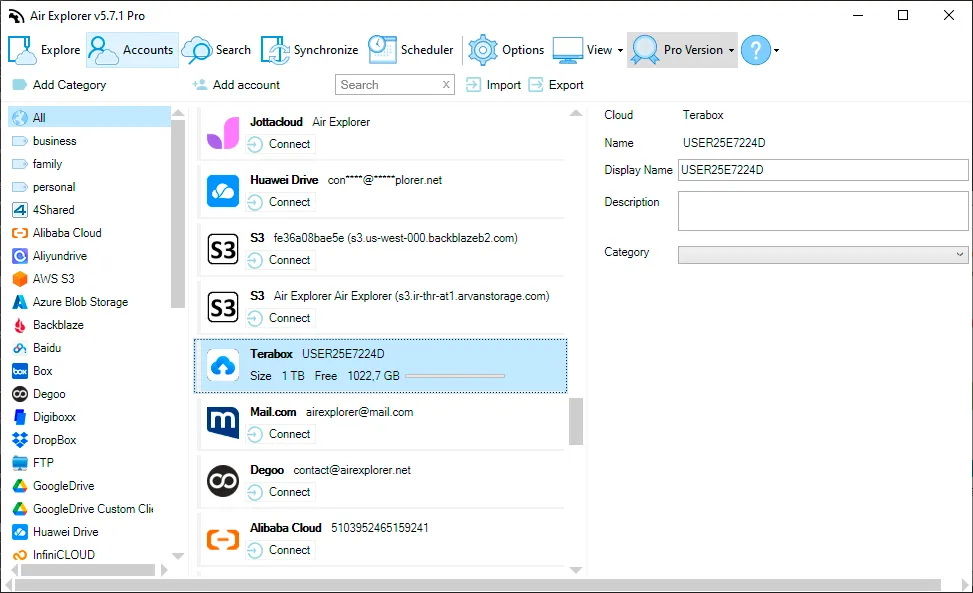
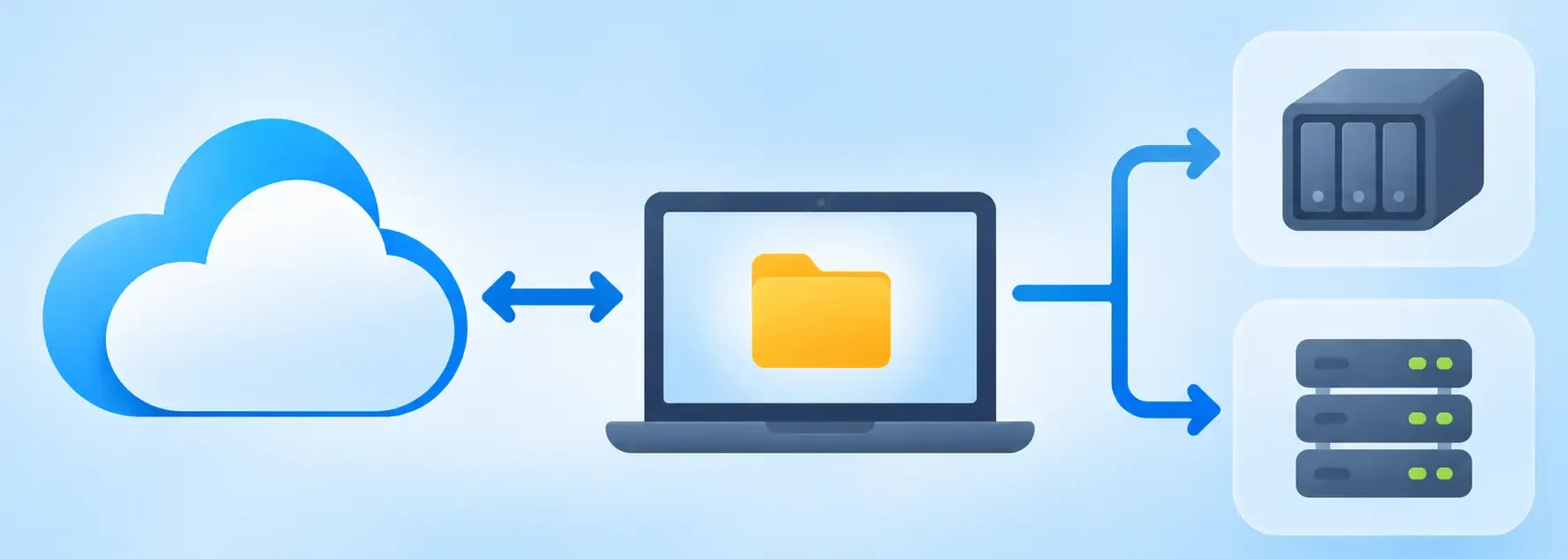
Air Explorer doesn’t add WebDAV or FTP support to TeraBox itself. Instead, it connects to TeraBox and to your FTP, SFTP or WebDAV server separately, so you can transfer and sync files between them.
How to Copy TeraBox Files to a NAS, FTP or WebDAV Server
- Download Air Explorer for Windows or Mac and open it.
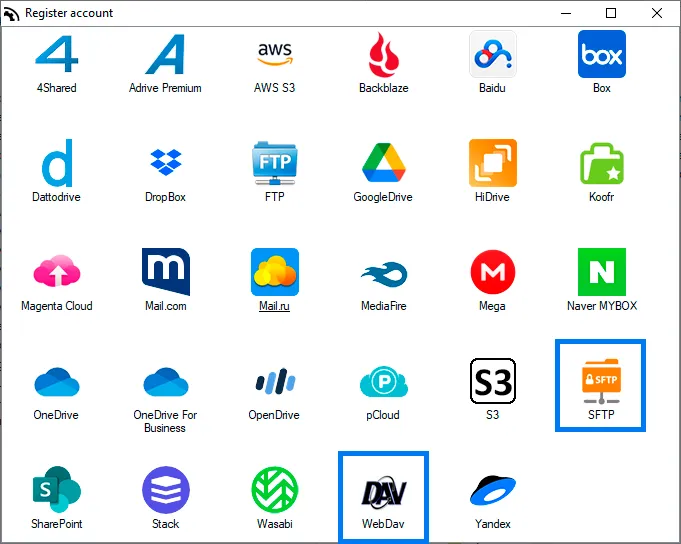
- Add your TeraBox account. In Accounts → Add account, choose TeraBox and sign in on the page that opens.
- Add your server the same way, choosing FTP, SFTP or WebDAV and entering its address, user name and password. Synology and QNAP offer these protocols; here is how to connect a Synology NAS. If the NAS already shows up as a network drive on your computer, you can also open it directly as a local folder.
- Open TeraBox in one pane and the server in the other.
- Drag the folders across, or use Copy and Paste. You can follow each file in the task list at the bottom of the window, and interrupted downloads from TeraBox resume where they left off.
The data travels through your computer’s internet connection while the copy runs, but you don’t have to download the files and upload them again yourself, or have free disk space for the whole folder.
Keep TeraBox and Your Server in Sync Automatically
Dragging files is enough for a one-off copy. To keep a backup up to date, use the sync tool instead: choose a TeraBox folder and a folder on your server, pick mirror, mirror update or bidirectional mode, and Air Explorer compares both sides before copying, so each run only transfers what has changed. It works in both directions, so you can just as easily back up your NAS to TeraBox.
Once the sync is saved, you can run it every day or every week with the task scheduler, without opening the program, and encrypt the files before they reach TeraBox, including their names. Both are Air Explorer Pro features, as is launching syncs from the command line or asking an AI assistant to run them for you.
Moving TeraBox Files to Another Cloud
The same two-pane approach works between TeraBox and Google Drive, OneDrive, Dropbox, MEGA and more than 40 other clouds. The TeraBox guide explains the steps and everything else you can do with your account, and if you’re moving files the other way, see how to migrate files from other clouds to TeraBox.
Frequently Asked Questions
Can I map TeraBox as a network drive in Windows? Not through WebDAV, because TeraBox doesn’t offer it. In Air Explorer you work with TeraBox in its own window, next to your local folders, your servers and your other clouds.
Does Air Explorer store my TeraBox password? No. You sign in on TeraBox’s own page and Air Explorer keeps the session, so you don’t have to sign in every time.
Is it free? Yes. The free version copies and syncs files between TeraBox and your NAS, servers or other clouds, with one account per cloud. Air Explorer Pro adds scheduled syncs, encryption, unlimited accounts and the command line. You don’t need to sign up to use it.
Does it work on Mac? Yes. TeraBox is supported in Air Explorer for Windows and Mac, and in the Android app.