
How to Automate Cloud File Deletion with Command Line
Keeping your clouds organized and free of unnecessary files is essential to avoid running out of storage space. However, manually deleting old or temporary files can be a tedious task. Thanks to Air Explorer’s command line, you can automate the deletion of files and folders on any cloud server. In this article, you will learn how to use the delete command to schedule automatic cleanups efficiently.
Why Use the Command Line to Delete Files?
Using the delete command via the CLI (Command Line Interface) offers key advantages for professional data management:
- Unattended Maintenance: Ideal for scripts that clean “Temporary” or “Logs” folders every week.
- Precision: Ensures that the exact specified paths are deleted without accidental click errors.
- Workflow Integration: You can schedule source files to be automatically deleted after a successful upload or copy.
Step 1: Preliminary Configuration in Air Explorer
For the command line to recognize your instructions, make sure to perform these steps in the graphical interface:
- Enable CLI Support: Go to the Options tab, enter the General section, and check the “Enable Command Line Support” box.
- Identify the Cloud Alias: Open the Accounts window. The name that appears on the left (e.g., “GoogleDrive_Personal” or “My_Dropbox”) is the Alias that we will use in the command.

Step 2: The “delete” Command and Its Syntax
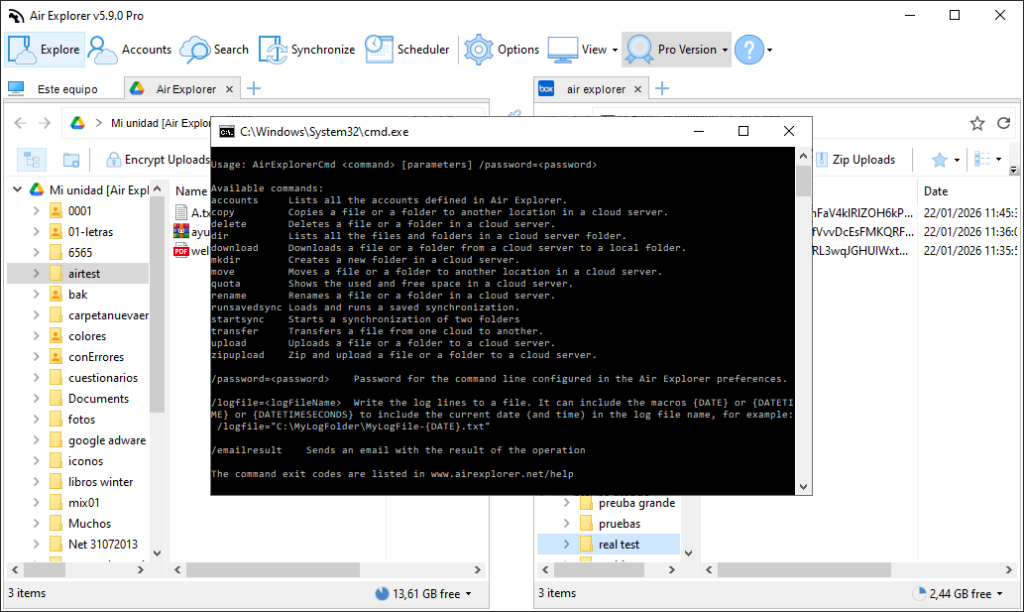
The instruction for deleting items is direct and uses the AirExplorerCmd.exe executable. The basic structure is:
AirExplorerCmd delete "cloud_alias" "cloud_path"
Important Considerations
- Path: If the path points to a file, only that file will be deleted. If it points to a folder, the entire folder with all its content will be deleted.
- Permanence: Depending on your cloud provider’s configuration, deleted files might go to the cloud’s recycle bin or be deleted permanently.
Step 3: Practical Automation Examples
A. Delete a Temporary Files Folder in OneDrive
If you have a folder where you store exchange files that you no longer need: AirExplorerCmd delete "OneDrive_Work" "OneDrive [myaccount]/Projects/Temporary"
PRO Tip: To avoid errors when typing long paths, you can copy the path directly from the address bar in Air Explorer while browsing the folder you want to delete.
B. Delete a Specific Log File in an FTP Server or Mega
To delete an old log file that has already been processed: AirExplorerCmd delete "My_Mega" "Mega [myaccount]/Logs/old_record.log"
Step 4: Automation with .bat Files
To perform periodic cleanups without having to type the command each time, the most effective way is to create an executable file:
- Open Notepad and write your deletion commands.
- Save the file with the .bat extension (for example:
weekly_cloud_cleanup.bat). - Double-click the
.batfile to start the deletion.
FAQ: Frequently Asked Questions about the Delete Command
Does the command ask for confirmation before deleting? No. As a command line tool designed for automation, the deletion is direct. Make sure to double-check the path before running the script.
Is the Pro version of Air Explorer required? Yes, command line functions are advanced tools integrated exclusively in the Air Explorer Pro version.
Conclusion
Automating file deletion with Air Explorer’s command line is the final step to having a fully autonomous and organized cloud. By delegating these cleanup tasks to scheduled scripts, you save time and ensure that your storage space is always optimized.
You can check more information here:
-How to Automate Cloud File Copying with Command Line
-How to Automate Cloud File Downloads with the Command Line
-How to Automate File Uploads to the Cloud Using Air Explorer’s Command Line
