
How to Automate Cloud Storage Quota Checks with Command Line

Managing multiple storage accounts requires constant monitoring of available space to prevent backup failures or workflow interruptions. Thanks to Air Explorer’s command line, you can automate storage quota checks. In this article, you will learn how to use the quota command to monitor your cloud space professionally and unattended.
Why Use the Command Line to Check Your Quota?
The quota command in Air Explorer’s CLI (Command Line Interface) is a vital tool for auditing and preventive maintenance:
- Space Auditing: Instantly get the total, used, and free space of any account without navigating through menus.
- Automatic Reports: You can dump your cloud status into text files to maintain a historical record of data consumption.
- Error Prevention: Ideal for integrating into scripts that verify if there is enough space before starting a massive transfer.
Step 1: Preliminary Configuration in Air Explorer
For the commands to execute correctly, you must first perform this configuration in the graphical interface:
- Enable CLI Support: Go to the Options tab, enter the General section, and check the “Enable Command Line Support” box.
- Identify the Cloud Alias: Open the Accounts window. The name that appears on the left (e.g., “MyGoogleDrive” or “Mega_Backup”) is the Alias that we will use in the command.
Step 2: The “quota” Command and Its Syntax
The instruction to check storage status uses the AirExplorerCmd.exe executable. The basic structure is:
AirExplorerCmd quota "cloud_alias"
Information Returned:
Upon executing this command, the system will return three key values:
- Total: The maximum storage capacity of your account.
- Used: The space you are currently occupying.
- Free: The available space for new files.
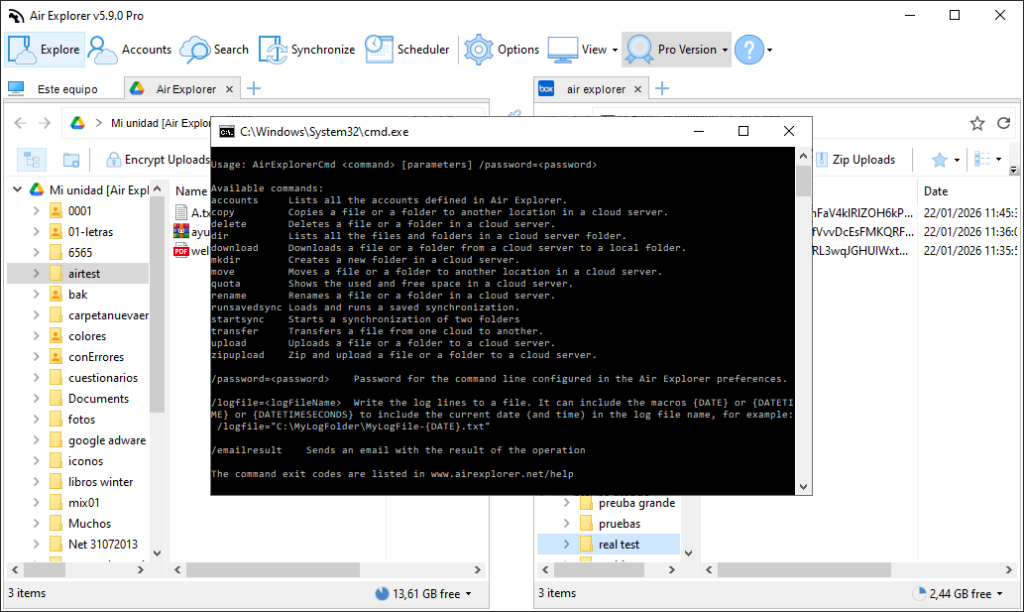
Step 3: Practical Query Examples
A. Check Space on Google Drive
If you want to quickly check how much space you have left in your primary Google account: AirExplorerCmd quota "MyGoogleDrive"
PRO Tip: If you have multiple accounts from the same provider, make sure to use the specific alias you configured to distinguish them easily in the console.
B. Verify Status of a Mega Account
To get the quota for your Mega account: AirExplorerCmd quota "Mega_Backup"
Step 4: Export Status to a Log File
The most useful part of this command is saving the information for automatic processing. In Windows, you can redirect the output to a text file:
- Open Notepad and type:
AirExplorerCmd quota "OneDrive_Work" > C:\Logs\cloud_status.txt - Save the file as a
.bat. - When executed, a file will be created with your quota data that you can review every morning or send by email.

FAQ: Frequently Asked Questions about the Quota Command
1. How accurate is the displayed data? The data is exact and obtained directly from the cloud provider’s servers at the time the command is executed.
2. Does it work with accounts that have unlimited storage? Yes, on business accounts with unlimited storage, the command usually shows the used space and very high or indicative values for the total space.
3. Can I check multiple clouds at once? Yes, you can write several lines in a .bat file (one for each cloud) and redirect all outputs to the same log file for a unified multi-cloud report.
4. Is the Pro version required? Yes, command-line functions are advanced tools exclusively integrated into the Air Explorer Pro version.
Conclusion
Automating quota checks with Air Explorer is the most professional way to ensure your storage strategies never stop due to lack of space. By integrating the quota command into your daily processes, you shift from reactive to proactive management, always maintaining total control over your digital assets.
You can check more information here:
-How to Automate Cloud move files with Command Line
-How to Automate Cloud Folder Creation with Command Line
-How to Automate Cloud File Renaming with Command Line
