
Manage, Sync and Back Up Drime
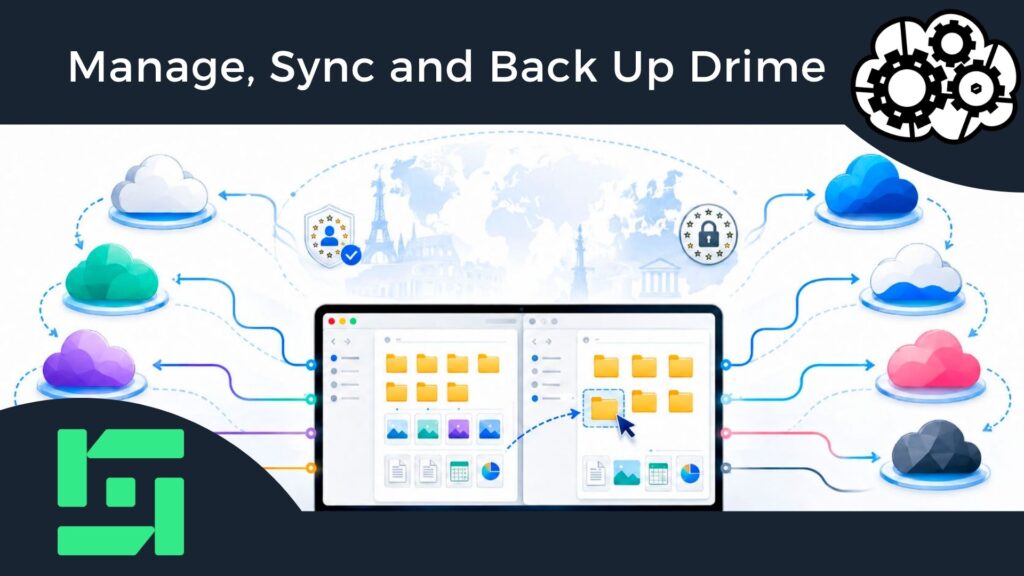
Air Explorer supports Drime, the privacy-focused European cloud, alongside Google Drive, OneDrive, Dropbox, S3 and more than 50 other storage services. You can connect your Drime account to Air Explorer for Windows or Mac and manage everything from a single Explorer-style interface. Whether Drime is your main cloud or just one piece of your multi-cloud setup, Air Explorer makes working with it faster and easier.
What Is Drime?
Drime is a cloud storage and collaboration platform headquartered in France. All files are hosted in certified European data centers under strict GDPR compliance, which makes it an attractive alternative to US-based providers for users and businesses that care about data sovereignty.
The service offers a generous 20 GB free plan, and its paid tiers scale from 500 GB up to 6 TB, so you can grow your space as your needs grow. Lifetime plans are also available for those who prefer a one-time payment over a subscription.
Beyond raw storage, Drime bundles productivity tools that most clouds charge extra for:
- End-to-end encrypted Vault: a zero-knowledge space where files are encrypted locally with AES-256, so not even Drime can read them.
- Built-in office suite: edit Word, Excel, PowerPoint and PDF documents directly in the browser.
- Drime Sign: request and collect legally binding e-signatures without leaving the platform.
- Advanced sharing: password-protected links, custom expiration dates and view/download tracking.
- Collaboration: shared workspaces, real-time sync across devices, comments and video review tools.
- No file size limits and version history of up to 120 days on the higher plans.
How to Add Drime to Air Explorer
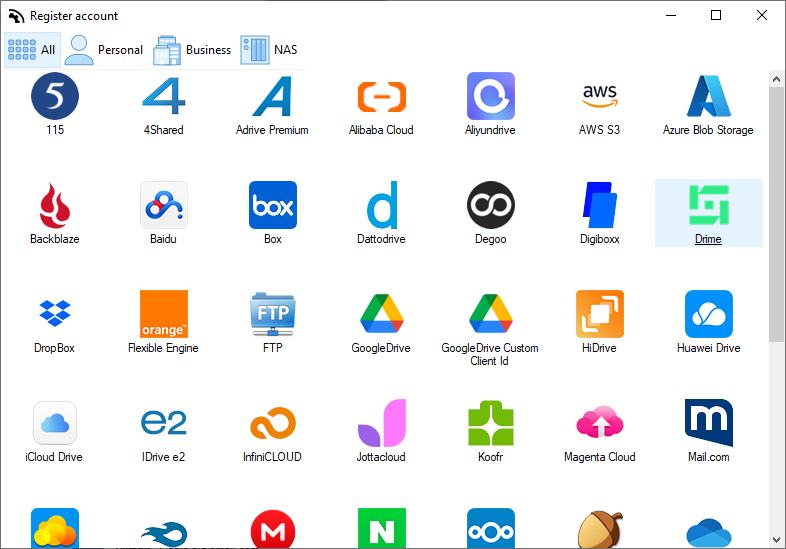
Connecting your Drime account takes less than a minute:
- Download Air Explorer from airexplorer.net and install it on your PC or Mac.
- Open the Accounts window from the toolbar.
- Scroll through the list of supported clouds and select Drime.
- Sign in with your Drime email and password.
- Your Drime drive now appears as a new disk. Open it in one panel and any other cloud or local folder in the other to start working.
From that moment you can upload, download, rename, delete, create folders and move files between Drime and any other service with drag and drop, exactly as you do in Windows Explorer.

Why Sync Drime with Your PC or Another Cloud?
Adding Drime to Air Explorer is only the first step. The real power comes from its synchronization engine:
- Local backups: synchronize your Drime folders with a folder on your PC or an external drive, so you always keep an offline copy of your cloud data.
- Cloud-to-cloud redundancy: mirror Drime to Google Drive, OneDrive, S3 or any other supported cloud. Air Explorer transfers files directly between servers, processing them in memory, so cloud-to-cloud copies do not fill up your local disk.
- Painless migrations: moving from Dropbox or Google Drive to Drime is a simple copy and paste between panels, even for terabytes of data.
- Extra privacy: enable Air Explorer’s optional encryption to upload files protected with your own password, adding a second layer of security on top of Drime’s European hosting.
- Everything in one place: search, copy and organize files across all your clouds without switching apps or browser tabs.
Schedule Automatic Drime Synchronizations
Manual syncs are useful, but automation is where Air Explorer really saves time. The built-in scheduler lets you create a synchronization task once, choosing the mode that fits your needs, and run it unattended daily, weekly or at any interval you define.
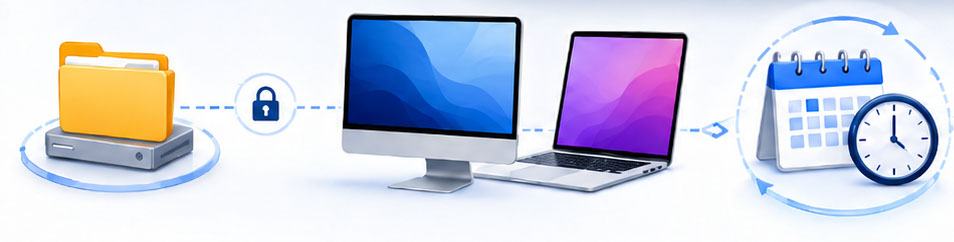
A typical setup looks like this:
- Open the Synchronization window and select your source, for example your local Documents folder, and the destination, a folder in Drime.
- Choose the sync mode: mirror for exact backups, or bidirectional to keep both sides updated.
- Save the task and add it to the scheduler with your preferred frequency.
- Air Explorer runs it silently in the background, on both Windows and Mac, and logs every operation so you can review what happened.
You can even run multiple synchronization tasks simultaneously and launch them from the command line, which is ideal for advanced users who want to script their backup routines. This way, your Drime account can act as an automated off-site backup of your computer, or as a replicated copy of another cloud, without you having to remember anything.
Conclusion
Drime brings European hosting, GDPR compliance and an impressive set of collaboration tools, and Air Explorer lets you integrate it into your multi-cloud workflow in seconds. Download Air Explorer, add your Drime account and set up your first scheduled synchronization: your files will be safer, replicated and always up to date.
You can check more information here:
-iCloud for Windows and Mac: How to Manage iCloud with a Multicloud Manager
-Google Drive vs Azure
-Digiboxx backup tool
