
How to Automate Cloud File Listing with Command Line

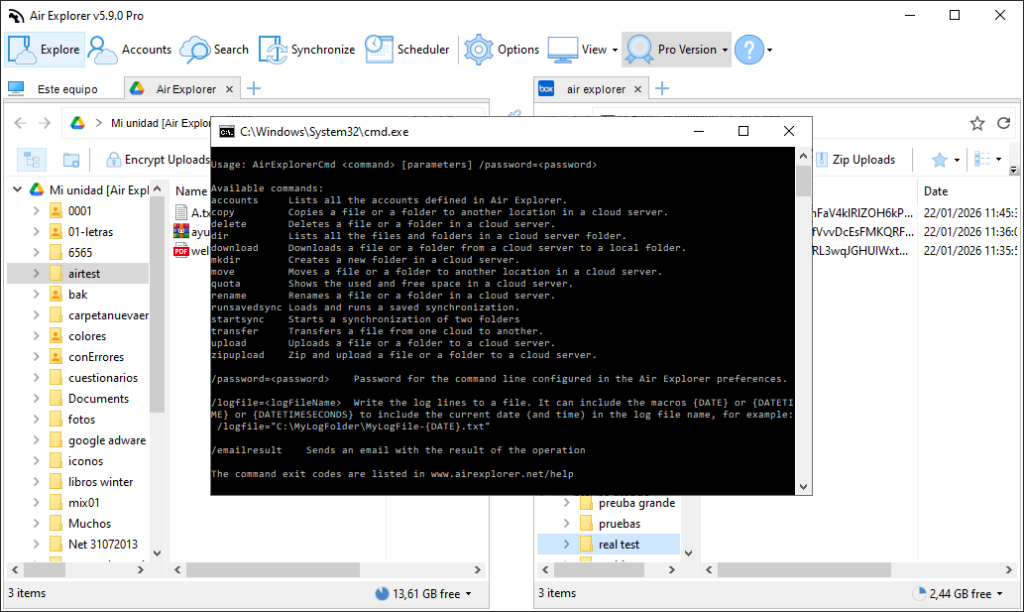
Keeping thorough control over files stored in the cloud is vital for data management and auditing. However, manually checking folders across multiple accounts can be a waste of time. Thanks to Air Explorer’s command line, you can automate the listing of files and folders. In this article, you will learn how to use the dir command to generate inventories of your digital assets professionally and efficiently.
Why Use the Command Line to List Files?
The dir command in Air Explorer’s CLI (Command Line Interface) is an essential tool for system administration:
- Quick Audit: Get a complete list of files in seconds without waiting for the visual interface to load.
- Report Generation: You can output the command results to a text file to maintain a historical record of your clouds.
- Technical Search: It allows you to view file IDs, which is fundamental for developers or advanced integrations.

Step 1: Preliminary Configuration in Air Explorer
Before running the command, make sure to perform these steps in the graphical interface:
- Enable CLI Support: Go to the Options tab, enter the General section, and check the “Enable Command Line Support” box.
- Identify the Cloud Alias: Open the Accounts window. The name that appears on the left (e.g., “GoogleDrive_Backup” or “Dropbox_Pro”) is the Alias that we will use.
Step 2: The “dir” Command and Its Syntax
The instruction for listing items uses the AirExplorerCmd.exe executable. The basic structure is:
AirExplorerCmd dir "cloud_alias" "cloud_path" [/s] [/id] [/d] [/t]
Optional Parameters (Modifiers)
You can customize the listing with these modifiers:
/s: Also shows the content of all subfolders recursively./id: Shows the unique ID of each file and folder (useful for ID-based clouds like Google Drive)./d: Shows directories only (folders), ignoring individual files./t: Uses the tab character as a field separator, ideal for importing the list into Excel.
Step 3: Practical Usage Examples
A. Listing the Content of a OneDrive Folder
If you want to see what files are in the “Projects” folder: AirExplorerCmd dir "OneDrive_Alias" "OneDrive [air explorer]/Documents/Projects"
PRO Tip: You can get the exact path of any folder by copying it directly from the address bar in Air Explorer while browsing.
B. Complete Inventory of a Mega Account with IDs
To get a recursive listing of your entire Mega account, including file identifiers: AirExplorerCmd dir "My_Mega" "Mega [contact@airexplorer.net]/" /s /id
Step 4: Save the Listing to a Text File
The most useful part of this command is saving the output to review later. In Windows, you can do this by adding > list.txt at the end:
- Open the console or create a .bat file.
- Type the command:
AirExplorerCmd dir "Dropbox" "/" /s > C:\Reports\my_cloud.txt - When run, a text file will be created with the entire inventory of your cloud.
FAQ: Frequently Asked Questions about the Dir Command
Can I see the size of the files in the list? Yes, the dir command shows the size and last modification date of each listed item by default.
Does it work with FTP or WebDAV servers? Absolutely. The dir command works with any of the more than 50 services compatible with Air Explorer.
How can I export the list to Excel? We recommend using the /t parameter. Once the text file is generated, you can open it in Excel, and it will automatically separate into columns thanks to the tab separator.
Is the Pro version required? Yes, command line functions are advanced tools integrated exclusively into the Air Explorer Pro version.
Conclusion
Automating file listing with Air Explorer is the fastest way to audit your cloud data. Whether for generating monthly reports or verifying your folder structure after a migration, the dir command offers total visibility of your storage with just one line of code.
You can check more information here:
-How to Automate Cloud Storage Quota Checks with Command Line
-How to Automate Cloud move files with Command Line
-How to Automate Cloud Folder Creation with Command Line
